Firmware update
You can load a firmware update to the device by remote maintenance via the DataPlatform or the CAN interface.
Note
The firmware update via the Service Interface is no longer supported on devices running firmware version 4.0.0 or later. The deactivation is required to meet cybersecurity requirements in compliance with the RED directive. Devices shipped with firmware version 4.0.0 and above no longer support this functionality.
Perform a node scan in the Proemion Configurator to identify the currently installed firmware version. For detailed instructions, refer to Node Scan.
The firmware can be downloaded from our Download Center under: 03_Proemion Tools Software > 01_Software.
In case of problems, the Connectivity Check utility can be used to check the connectivity of our software tools with our services from your local network.
DataPlatform
It is recommended to use the Firmware Management in the DataPortal for the firmware update via the DataPlatform.
The DataPortal firmware management feature provides access to the latest released firmware as well as previous versions.
When updating devices, ensure that all required intermediate versions are installed in the correct order to avoid errors. Some firmware versions are required meaning they must be installed before newer versions can be applied.
In the DataPortal, navigate to Settings → Firmware and Configuration Updates and click on Detailsat the end of the row to check if a firmware version is required.
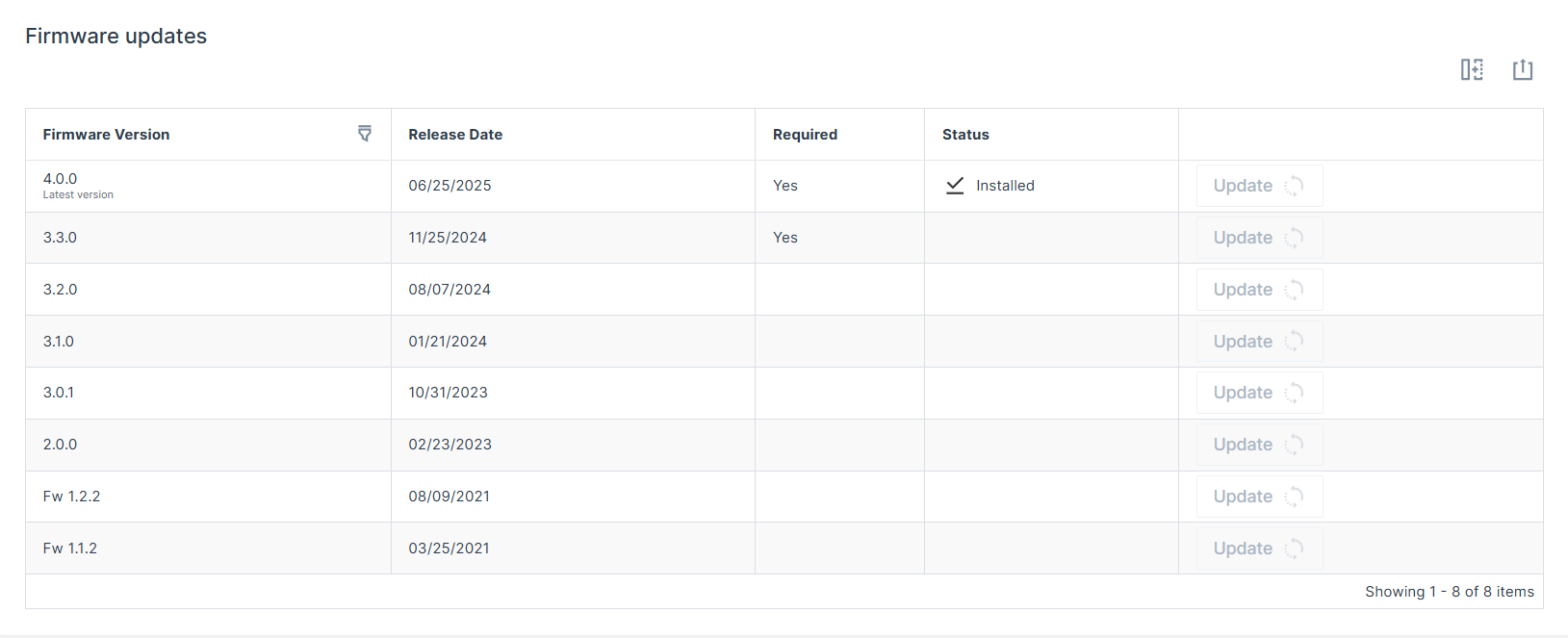
For example, a device running firmware version 3.2.0 cannot be updated directly to version 4.0.0. Version 3.3.0 is required and must be installed first.
Note
As of firmware release version 4.0.0, downgrading to a version lower than 4.0.0 via the DataPlatform (FOTA) is generally no longer possible. This limitation is implemented to meet the cybersecurity requirements under the Radio Equipment Directive (RED).
CAN
In order to load the firmware update (*.bin) on the device via the CAN interface, the device must be connected to a PC via a CAN-USB connection. The Proemion Firmware Programmer software must be installed on the PC and the firmware update stored.
-
Connect the device to a PC. See Connecting the Device to the PC.
-
Start the Proemion Firmware Programmer software.
-
Click on FILE > OPEN in the menu and navigate to the memory path for the firmware update (*.BIN).
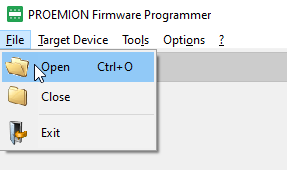
Figure 2: Firmware Update - Open Firmware File -
In the Open FwBin window, select the firmware update (
*.bin) and click on the OPEN button. -
In the main window, click on OPTIONS > COMMUNICATION SETTINGS in the menu.
✓ The COMMUNICATION SETTINGS window opens:
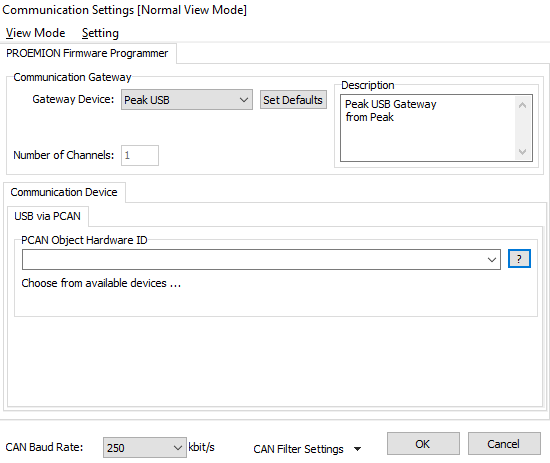
Figure 3: Firmware Update - Communication Settings -
In the COMMUNICATION GATEWAY section, select the device PEAK USB in the GATEWAY DEVICE field.
-
In the Communication Device section, select the PCAN Object Hardware ID.
-
At the bottom of the Communication Settings window, check for the correct CAN baud rate. The default CAN baud rate is 250 kbit/s.
-
Click OK to save the settings. You return to the main window:
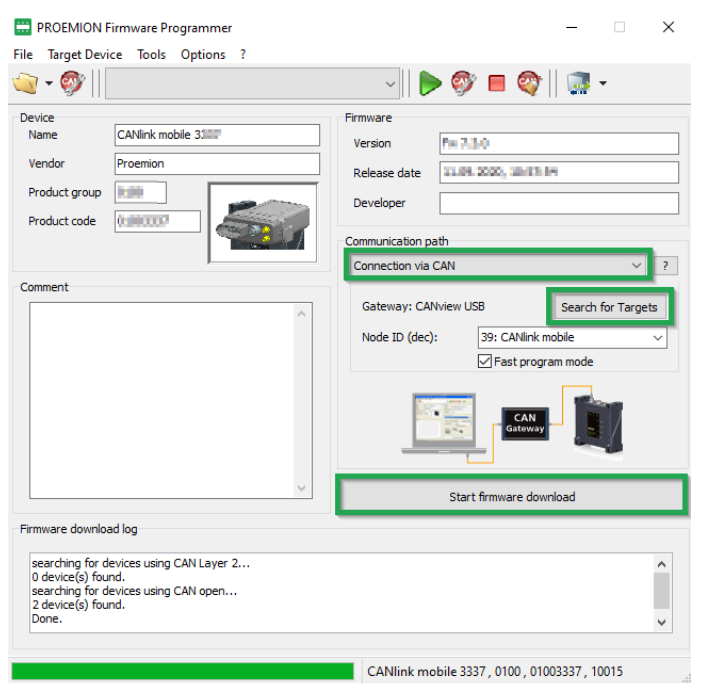
Figure 4: Firmware Update - Progress -
In the list in the COMMUNICATION PATH field, select the interface CONNECTION VIA CAN.
-
Click on the SEARCH FOR TARGETS button.
✓ The device's node ID is adopted.
-
The device's node ID is adopted.
-
Start firmware download.
-
Wait until the update is finished.
✓ During the firmware update, the LEDs light up green in the same sequence.
✓ In the field FIRMWARE DOWNLOAD LOG, the message FIRMWARE DOWNLOADED SUCCESSFULLY appears when the firmware update is complete.
✓ The device restarts automatically.
✓ After the restart, the device uses the updated firmware version.
You can find a tutorial on how to install the firmware to the device in the download section of our website. See Service and Support.