Diagnosis via Micro-USB Port
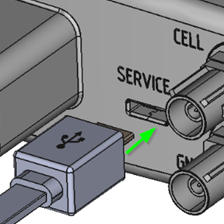
For diagnosis purposes, you can connect the device to a PC directly via the micro-USB (type_B) cable and record a debug log by using the CANlink mobile 3000 DeviceAnalyzer software.
Note
The required USB – Micro USB type B cable is a standard cable which is available in every electronics store.
![[MicroUSB Type B cable]](../images/MicroUSB_TypeB_cable.png)
Risk of property damage
Pay attention that the USB plug is connected according to the correct assignment and without the need for any excessive force.
Improper connection or excessive force can damage the USB port and render the device seal ineffective.
Note
The connection via the micro-USB port is not suitable for carrying out a configuration update.
For detailed information on how to carry out a configuration update, see Chapters Safe Remote Updates Guideline and Configuration Update.
Recording the Debug Log
-
Install the following software from the Download Center:
CANlink® mobile 3000 DeviceAnalyzer Setup.exeunder:03_Proemion Tools Software > 01_Software > 08_CANlink mobile 3000 DeviceAnalyzer- and the USB driver under:
05_Utilities > 06_USB Drivers
-
Connect the device to a PC using the USB cable (USB-A to micro-USB-B, 1.6 m).
- Connect the device to the power supply.
- Read the instructions given in chapter 3.2 Debug Log in the CANlink® mobile 3000 DeviceAnalyzer software manual, available in the Download Center under
03_Proemion Tools Software > 01_Software > 00_Documentation. - If required, send the generated
*.glogfile to the support team for further analysis.