File Transfer
You can use the device to transfer files between the DataPlatform and the machine's CAN open network.
Transfer User File via the DataPlatform
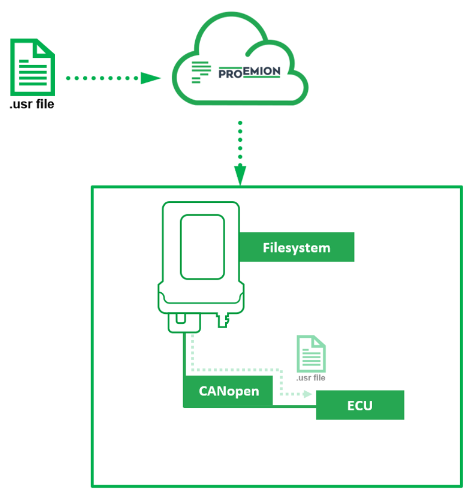
Performing controller updates without being physically on-site is an increasingly important application for many OEMs. This chapter describes how a user file can be transferred from the Proemion DataPlatform via internet and cellular network to a CANlink® mobile and from there to an ECU via CAN Bus.
A common use case for this function could be a parameter update of the ECU.
The update file is loaded remotely into the CANlink® mobile and stored within the internal filesystem.
An external device can then download the file by using SDO commands on the CAN bus. The CANlink® mobile only acts as a gateway with an integrated CANopen file server.
Please be aware that the transferred files are not checked or controlled in any way by the CANlink® mobile itself.
So, the files must be checked and processed by the target device (ECU).
Required file properties
As the files are neither handled or checked by the Proemion DataPlatform nor by the CANlink® mobile, any file format and file content can be transferred. But independent of the user file format and content, the files must adhere to the following rules:
- The file name must consist of eight letters or digits.
- The file extension must be
*.usr. - The file size must be a maximum of 50 MB.
Example of a valid file name: Update01.usr
Upload the File from the DataPlatform to the CANlink® mobile
- Please make sure that your DataPortal user has the permission set
machine–adminassigned. - Login to your Proemion DataPortal Account.
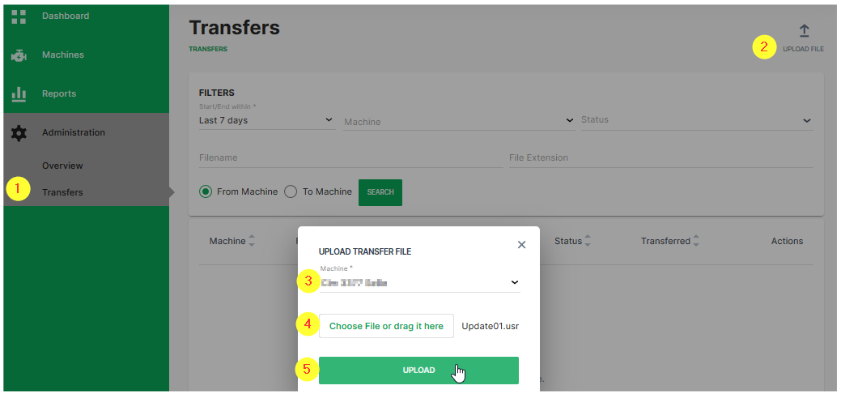
- Go to > Administration > Transfers (1).
- Click on UPLOAD FILE (2).
- Select the desired machine (3).
- Select the desired
*.usrfile for upload (4). - Click on UPLOAD (5).
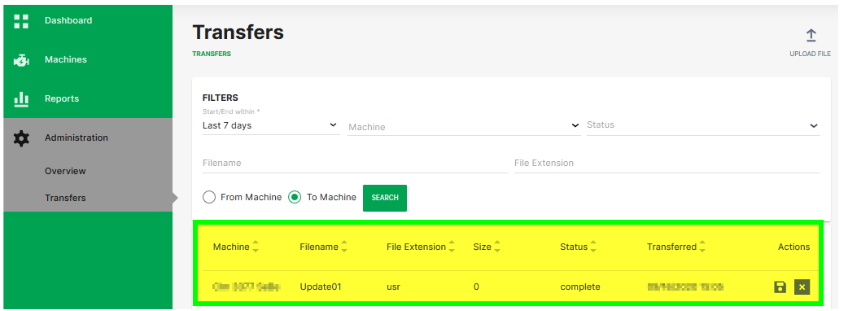
✓ The uploaded file will appear in the file transfer list after successful upload.
✓ The DataPlatform manages the file transfer to the selected machine (CANlink® mobile) automatically as soon as the device is ready to receive the file.
Note
In case that a file transfer directly via the REST API is required, please refer to the instructions at the DataPlatform API docs REST API.
Transfer the file from the CANlink® mobile to the ECU via CAN
The CANlink® mobile has an internal file system that can be accessed by CANopen SDO commands. The protocol for the file handling communication on CAN Bus is CANopen. SDO requests and the SDO block transfer protocol are used to exchange commands and payload.
Note
Further information on file transfer can be found in CANopen File Server.
- As indication that a new file had been received by the CANlink® mobile, the device variable with object index
0x5402subindex0x01is automatically set to0x01. Herewith any ECU on the CAN network can poll the status of this device variable to monitor the reception of new files. - In the next step the ECU must check the name of the available files which were uploaded to the CANlink® mobile. This is done by writing the command string
lsinto device variable with object index0x4444subindex0x01. - Check the status of this command. Read out the device variable with object index
0x4444subindex0x03. The status should be3(=LIST). - Read out the content of device variable with object index
0x4444subindex0x02. This will give you the exact file name. - The download of the specific file to the ECU can be triggered by writing the command string
rd “[file_name]”into device variable with object index0x4444subindex0x01. - Check the status of this command. Read out the device variable with object index
0x4444subindex0x03. The status should be2(=READ). - To download the file content, read out the domain of device variable with object index
0x4444subindex0x02. - Once the downloaded file has been processed successfully at the ECU, it should be deleted in the CANlink® mobile by writing the command string
del “[file_name]”into the device variable with object index0x4444subindex0x01. - To enable the download of a new file, the device variable with object index
0x5402, Sub Index0x01must be set to0x00.
Note
The maximum file size is limited by the built-in flash memory of the CANlink® mobile.
It must be ensured that there is minimum of 8 Mbyte of free memory available for logging and other internal device processes.
The free memory is to be checked by reading out the device variable with object index 0x4444 subindex 0x04.
Generic File Transfer
Transferring a File to the DataPlatform
A simple transfer of files up to 128k Byte via the CAN bus to the DataPlatform is implemented in the device. The files are saved in the device in an internal nonvolatile memory and automatically transferred to the DataPlatform when a server link is established.
The following steps are required for the transfer:
-
An external device transfers a file using the CANopen SDO protocol to the object index
0x5421subindex0x03of the CANlink® mobile: DEVICE VARIABLES > FILE TRANSFER TRANSMIT - FILE DATA - CACHED MODE -
An external device transfers the file name using the CANopen SDO protocol to the object index
0x5420subindex0x03of the CANlink® mobile as a string in the format 8.3 (see File Transfer Restrictions: DEVICE VARIABLES > FILE TRANSFER TRANSMIT - FILENAME - CACHED MODE -
An external device writes the value 1 to the object index
0x5422subindex0x03of the CANlink® mobile which triggers automatic file transfer to the DataPlatform: DEVICE VARIABLES > FILE TRANSFER TRANSMIT - COMMAND - CACHED MODE
You can find out the current free memory space available using the object index 0x5423 subindex 0x04 (DEVICE VARIABLES > FILE TRANSFER TRANSMIT - GET FREE SPACE - CACHED MODE). If memory space is available, several files can be logged in the device. The files are then automatically transmitted to the DataPlatform in the order in which they were written to the device.
For detailed information on creating objects, see Creating Object Dictionary Groups and Objects.
Reading a File Transferred by the DataPlatform
The DataPlatform can transfer files in segments of 1024 bytes each via the device. Files larger than 1024 bytes are transferred in segments the receiving ECU needs to concatenate again.
Note
This applies to all files except files with the ending .usr.
.usr files are received completely and only provided to the ECU after complete reception.
For more information, read Transfer User File via the DataPlatform.
The files transferred by the DataPlatform are saved to the device in an internal volatile memory and can be read out of the device via the CANopen protocol.
Proceed as follows to be able to read out files transferred from the DataPlatform.
1) Check object for file (segment).
- For all files except
.usr, check that the object index0x5402:0x00has a value <>0.
This value indicates that a file segment has been received by the device from DataPlatform and is available. Other values are:
0x00: no file segment available0x01: file segment available0x81: last file segment available
Object name: FILE TRANSFER RECEIVE - INDICATION
Note
The object index 0x5403 subindex 0x00 contains the total number of segments for the current file.
Object name: FILE TRANSFER RECEIVE - NUMBER OF FILE ELEMENTS
The object index 0x5404 subindex 0x00 contains the number of the currently received file segment.
Object name: FILE TRANSFER RECEIVE - ACTUAL FILE ELEMENT
2) Read file name.
If the object index 0x5402 subindex 0x00 indicates a file segment is available, you can read the file name from the object index 0x5400 subindex 0x00.
Object name: FILE TRANSFER RECEIVE - FILENAME
3) Read off file.
Read off the file from the object index 0x5401 subindex 0x00.
Object name: FILE TRANSFER RECEIVE - FILE
4) Write object.
When the file has been read out, write the value 0x00 to the object index 0x5402 subindex 0x00.
Object name: FILE TRANSFER RECEIVE - INDICATION
5) Receive next files.
- In order to receive the next file segment after a file segment was received, in the object index
0x54020subindex0x00the value0x01must be set to0. - In order to receive the next file after a file was received completely, in the object index
0x54020subindex0x00the value0x81must be set to0.
✓ The device is then ready to receive a new file segment from the DataPlatform.
For detailed information on creating objects, see Creating Object Dictionary Groups and Objects.
File Transfer Restrictions
Restrictions apply to file transfer. The following conditions must be met:
-
The file names must have 8 characters and the file extension must have 3 characters (8.3 format).
-
Characters permitted for the file name and file extension are :
"A", ... "Z","a", ... "z"and"0", ... "9" -
The following file extensions are reserved for internal use only and may not be used for customer application:
.obr,.obw,.obc,.dbs,.prg,.bin,.clf,.msg
If these conditions are not met, the file will be rejected by the device and/or DataPlatform. This blocks transmission in both directions. To clear the blockage, you must delete the faulty file from the DataPlatform or from the file transfer.
Further information on how to delete faulty files from the DataPlatform can be found here: File Transfer