The following sections contain information on operating the device and the Proemion Configurator software
Proemion Configurator
Configure the device using the Proemion Configurator. See also Customizing the demo configuration File. To alter the configuration of your device, first connect it to the PC. See Connecting the Device to the PC.
Note
Before you connect the device to a USB port on your PC, install the USB driver packet from the {{ tools }}. See Installing Software.
Note
You can find additional information on the individual objects (device_variables) in Proemion Configurator under the Additional Information field for each object. Always use the latest version of Proemion Configurator with the updated information texts.
Tip
Download the current software version from our website.
The Proemion Configurator software can be downloaded at our website: Document Library or {{ tools }}.
Note
In case of problems, the Connectivity Check utility can be used to check the connectivity of our software tools with our services from your site's network.
Creating Object Dictionary Groups and Objects
You can use the Proemion Configurator tree structure to create, rename, or delete object dictionary groups or objects.
This chapter explains how to create object dictionary groups and objects.
The following example shows creation of the object RECEIVE MESSAGE PDO. This object is used to receive and log CAN messages.
Note
Since the firmware release 2.0.0 in February 2023, virtual CAN messages have been extended to log up to 32 variables for virtual CAN message in the CAN Receive Message handling (CRO) and for virtual messages in the OPERATION MANAGER. This allows users to pack more information into a single message.
To create the object, you need the CUSTOM CAN COMMUNICATION object dictionary group and then the RECEIVE CAN MESSAGES (PDOs) object dictionary group.
-
Start the Proemion Configurator software.
-
Choose FILE > OPEN from the menu and select the configuration file you want.
-
In the tree structure, open CUSTOM CAN COMMUNICATION > RECEIVE CAN MESSAGES (PDOs).
-
Right-click to open the context menu and select NEW OBJECT DICTIONARY GROUP > RECEIVE MESSAGE (PDOs)
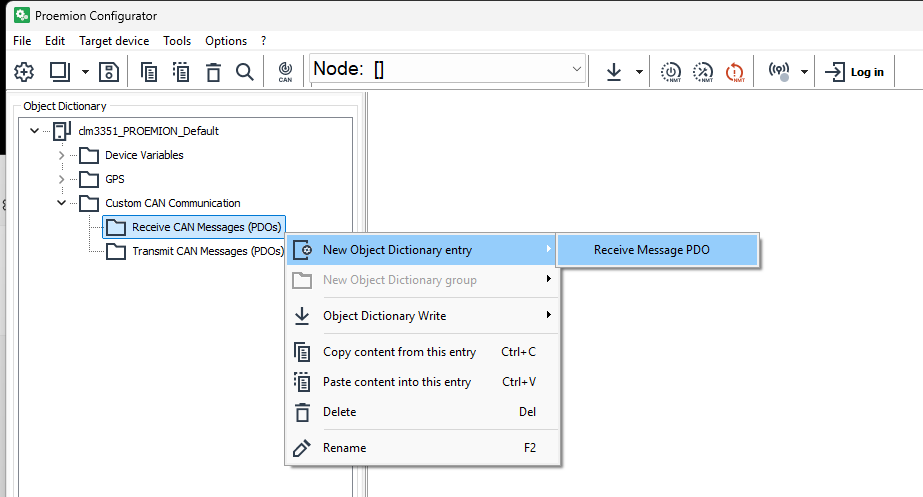
Figure 1: Object Dictionary Group - RECEIVE CAN MESSAGES (PDOS) -
In the NUMBER OF NEW OBJECTS field, enter how many objects (received_messages) you want to create.
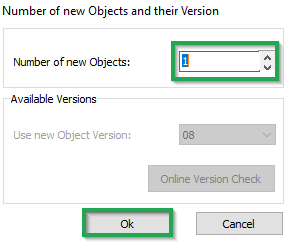
Figure 2: NUMBER OF NEW OBJECTS -
Click OK.
✓ The object RECEIVE MESSAGE PDO is created.
-
To rename an entry in the tree structure, click on the corresponding entry to select it. Click on the entry again to rename it.