Configuration Update
You can use the Proemion Configurator to load a configuration update on the device. The configuration update can be loaded to the device via the CAN interface or the DataPlatform. The device identifies and automatically loads the new configuration. For more detailed information on how to create a device configuration, see Customizing the demo configuration File.
Note
Changes with an write-access to any object that changes the device configuration, will put the device automatically into pre-operational mode.
This happens to prevent incorrect behavior due to incomplete configuration.
Each write-access to all sub-objects of 0x1011 (Restore_Default_Parameters) - which also covers the deletion of logged files - also switches the CANopen status to pre-operational. Most of the device's modules do not work in this state.
It is recommended to perform a reboot after changing configuration so that all modules are reinitialized.
DataPlatform
Authorization to perform a configuration update must be enabled on the DataPlatform. Generally, users with administrator rights have this authorization.
-
Start the Proemion Configurator software.
-
Open the corresponding configuration file (
*.DOD). -
Click on TARGET DEVICE > OBJECT DICTIONARY > DOWNLOAD > REMOTE DOWNLOAD - ALL ENTRIES or click on the arrow in the toolbar next to the DOWNLOAD ALL ENTRIES symbol.
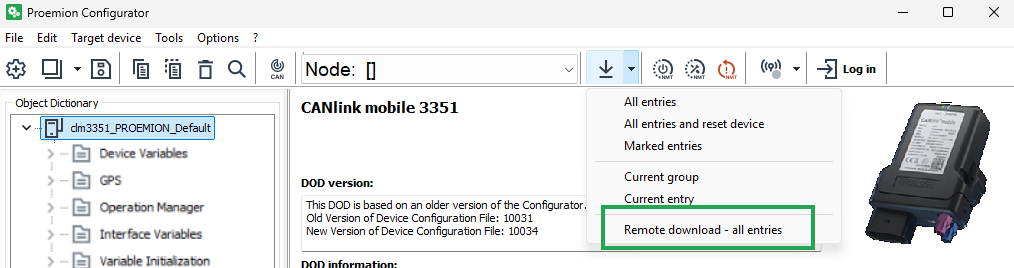
Figure 1: Configuration Update ✓ The REMOTE CONFIGURATION DOWNLOAD TO TARGET(S) window opens.
-
Click on the SELECT DEVICES button in the window REMOTE CONFIGURATION DOWNLOAD TO TARGET(S) window.
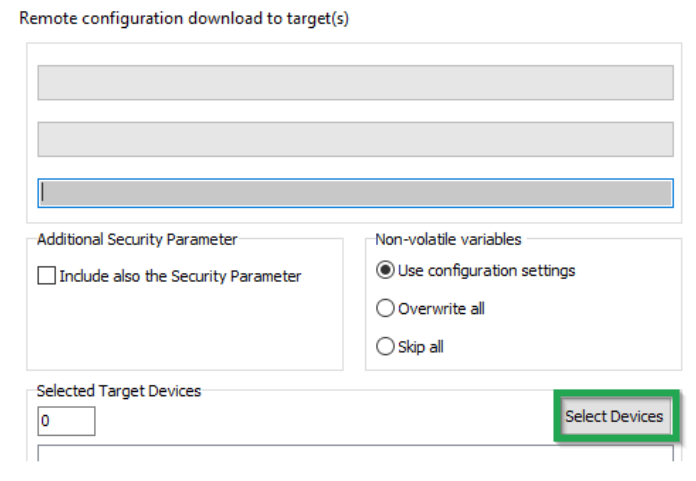
Figure 2: Configuration Update - Targets ✓ The SELECT DEVICES window opens.
-
Enter your DataPlatform user credentials in the SELECT DEVICES window.
-
Click on the LOGIN button.
-
Select the device.
-
Click on the OK button.
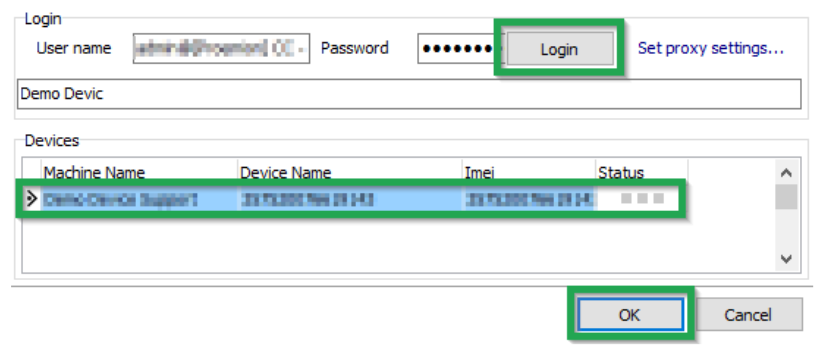
Figure 3: Configuration Update - Select Devices Loss of connection due to incorrect parameters.
The online connection may be lost due to incorrect provider parameters. In most cases, it is not necessary to update the security variables, so this should be avoided.
- Before every update of the security variables, check the provider parameters.
- Refer to Safe Remote Updates Guideline and follow the recommended update process.
-
Click on the START button in the REMOTE CONFIGURATION DOWNLOAD TO TARGET(S) window.
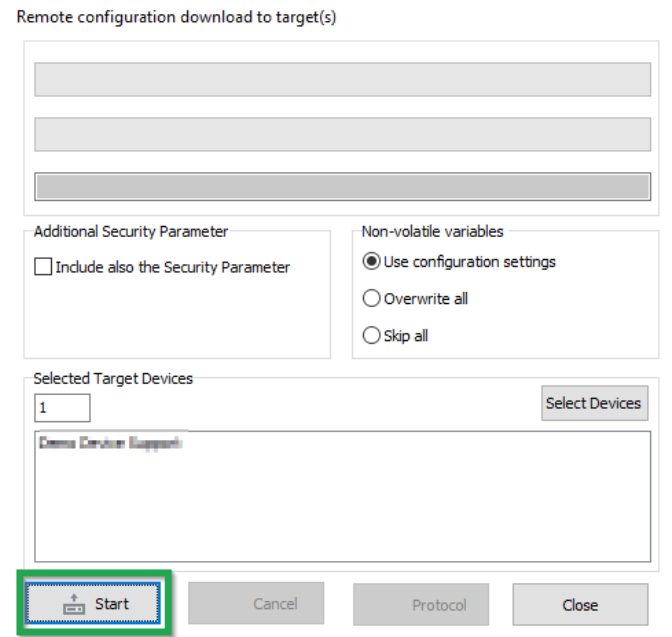
Figure 4: Configuration Update - Download to Target The following warning appears. The user is warned against downloading untested configuration files.
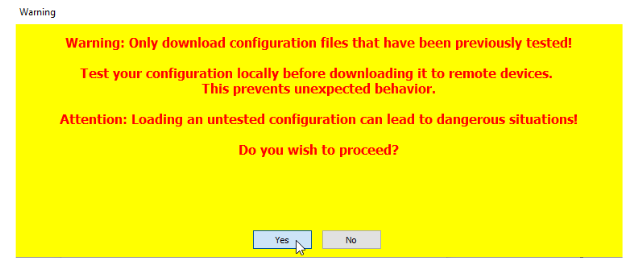
Figure 5: Configuration Update - Download Warning -
Click on the YES button.
The configuration update download starts automatically as soon as the device is online. The download can take several minutes. The device recognizes the configuration file and saves it to its internal memory. The device LEDs light up in a certain sequence.Note
For more information on the LED status indications, see Indicator Elements.
-
Check the DOD version and the DOD activation time in the Communication unit details display of the DataPortal.
The new Config Version with Timestamp will be displayed in the Communication unit details after the next connection of the device. An update log will appear in the file download section of the DataPlatform.
Example of an UpdteLog.txt after a successful configuration update
<LogFileVersion>: 1.0
<BEGIN>: 1607604003
<actSW>: Fw 7.3.0
<actBL>: Bl 9.2
<actDOD>: Proemion
File Size: 20763
Received configuration file
CONFIGURATION DOWNLOAD COMPLETE AFTER 1 ATTEMPT(s).
<newSW>: Fw 7.3.0
<newBL>: Bl 9.2
<newDOD>: CLM Demo Device V2.2.8
<END>: 1607604082
Example of an UpdteLog.txt after a failed configuration update (e.g._due_to_an_incompatible_type)
<LogFileVersion>: 1.0
<BEGIN>: 1607604996
<actSW>: Fw 7.3.0
<actBL>: Bl 9.2
<actDOD>: CLM Demo Device V2.2.8
File Size: 2497
Received configuration file
ERROR: Job 0 (0x1018:0x2) -0x3337 is not equal to 0x5301
ERROR: Job 0 (0x1018:0x2) -0x3337 is not equal to 0x5301
ERROR: Job 0 (0x1018:0x2) -0x3337 is not equal to 0x5301
ERROR: ABORT CONFIGURATION DOWNLOAD AFTER 3 ATTEMPTS!
<newSW>: Fw 7.3.0
<newBL>: Bl 9.2
<newDOD>: CLM Demo Device V2.2.8
<END>: 1607605139
CAN
You can perform a configuration update using the CAN interface. To be able to load the configuration file to the device, the device must be connected via a CAN-USB port to a PC on which the configuration file is saved.
-
Connect the device to a PC. See Connecting the Device to the PC.
-
Load the configuration to the device. See Loading the Configuration to the Device via CAN Interface.
✓ You have completed the configuration update.