Signal List
The Signal List widget allows you to display all signals used by the machine and export them.
Consider the Signal List shows only signals with data.
Note that there is also the Signal State widget.
Configuration
The Signal List is always auto-refreshed.
The widget is available for the Model Dashboard.
It is highly recommended to adapt a Machine Page (Model Dashboard) centrally via the Machine Page Layout. If you need to configure the Machine Page for the selected machine only, proceed as follows:
-
In the selected Machine Page, select Manage Layout > Add widgets.
-
Select the desired widget. A preview will be shown.
-
Click Apply. This forwards you to the widget configuration dialog with the options described below.
If you need to adapt the Organization Dashboard, select the desired dashboard configuration and click Edit > Add  to open the widgets catalog, see also Add Widgets to the Organization Dashboard.
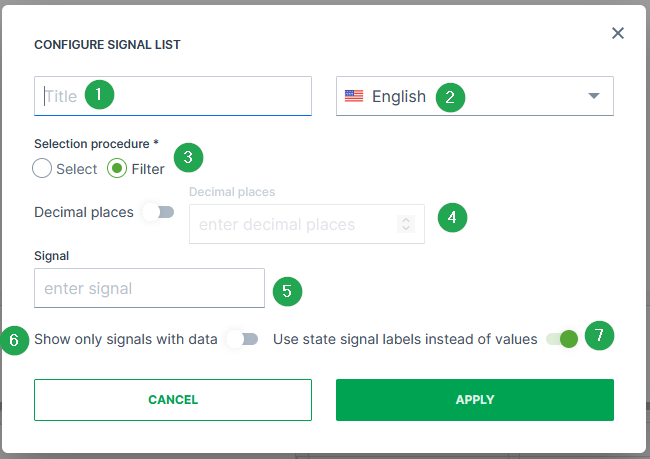
| # | Item | Description |
|---|---|---|
| 1 | Title | The label for the widget (English is the default, additional languages must be configured. See Language below). |
| 2 | Language1 | Select the language for the title of the widget. |
| 3 | Selection procedure | Choose how the selection of the signals should take place that will be done in the field Signal (see item "5"). - Either via Select to separately selecting the specific signals. 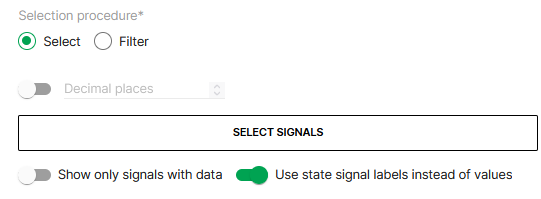 - Or via Filter to type in specific signal keys for application. |
| 4 | Decimal places | Select how many decimal places should be displayed for the signal values, if applicable. |
| 5 | Signal selection field | Depending on the selection procedure, a list to select specific signals will be displayed, see following image, or a field to enter the signals, see image above. 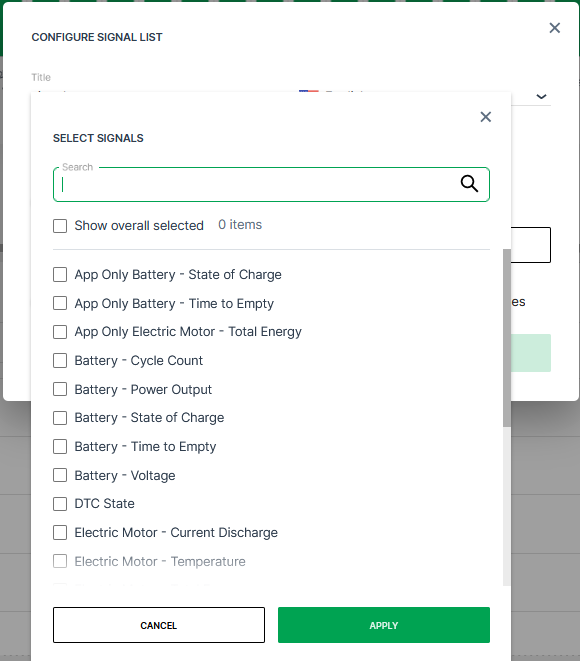 |
| 6 | Show only signals with data | Select whether signals without data/values should also be displayed in the Signal List. |
| 7 | Show state-signal labels instead of values2 | Refer to Signal Labels. |
Sample
After configuring the Signal List widget, the signals will be displayed in a table with the following columns, see also image below:
-
Signal
-
Last updated
-
Value
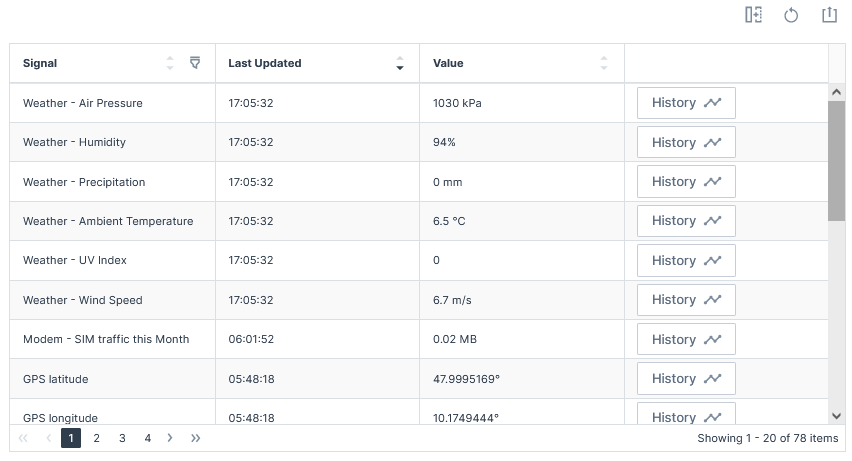
For information on how to adapt the table view, see Table Options. For information on how to export this table with the included columns, see Export Table.