Card View
The Card View is the old view for Maintenance Tasks, see Maintenance Tasks Overview.
Note
The behavior and configuration of maintenance tasks can vary depending on the manufacturer's requirements and implementation.
Task List
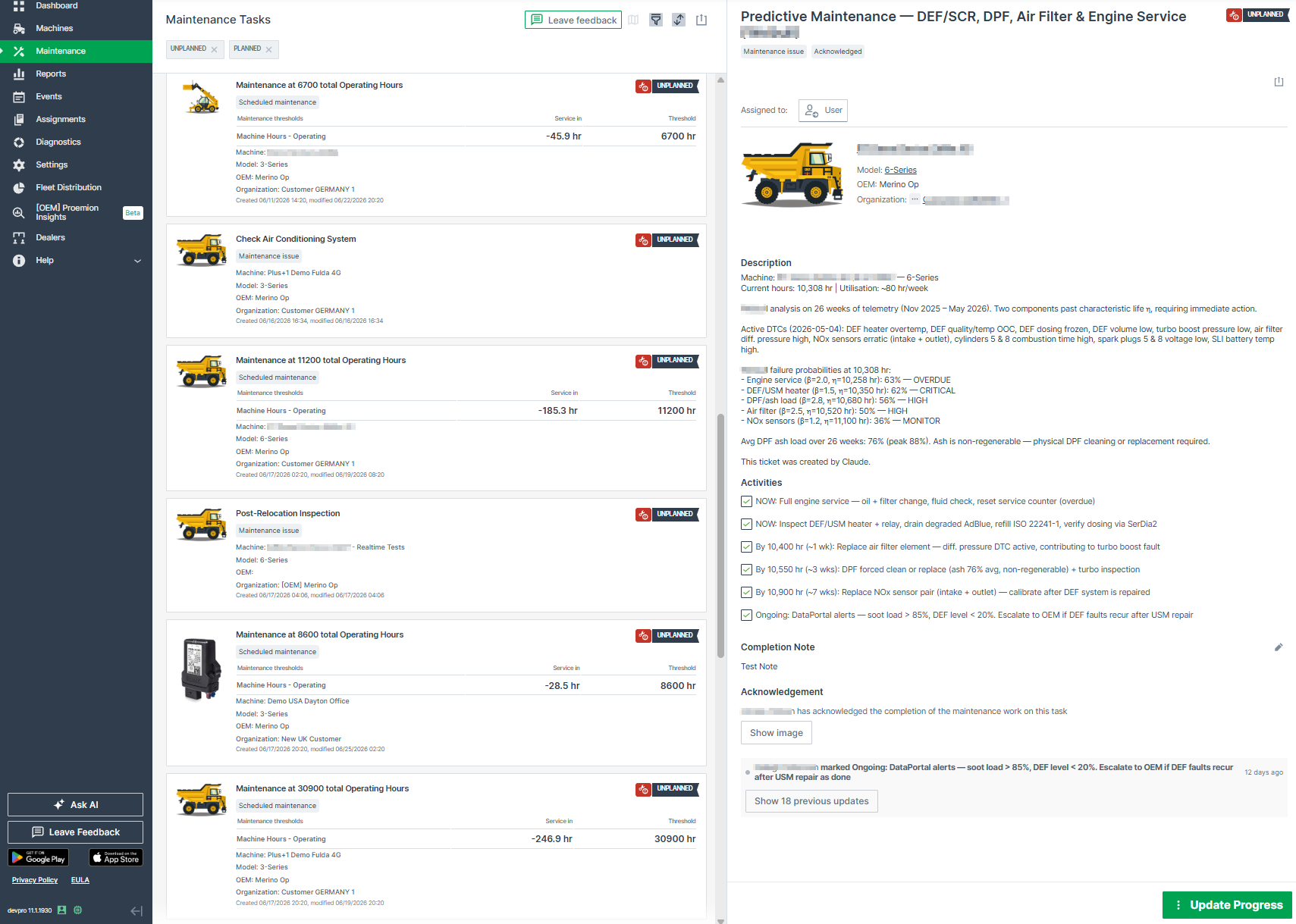
Maintenance tasks are displayed as a list of cards. Each card shows:
- Maintenance type indicator, see Maintenance Task Types: Scheduled maintenance or Maintenance Issue
- Deadline and Progress state, shown as a colored icon combined with a text label (e.g. Upcoming/Overdue, Unplanned/Planned/Skipped/Completed)
- Threshold and Service in for each configured signal or date threshold
- Machine, model, OEM, and organization
- Created and updated dates
Depending on the defined maintenance workflow, Deadline and Progress states might be set by the Maintenance Planner, see Maintenance YAML configuration explanation.
Above the list:
- The map icon
 forwards you to the Machine Map where you can view machines with upcoming and overdue Maintenance Tasks.
 - Filter tasks by Type, Progress, Deadline, Organization/Machine/Model, Assigned to, Total service cycle, or Time, see Filters
- Active filters are shown as removable tags above the task list
- Sort by Newest, Oldest, or Last Modified
- Export/Print list of tasks as CSV, XLSX, or PDF
Task Detail
Clicking a card opens the task detail panel, showing:
- Maintenance Thresholds, same as in Task List, but also including the Latest value for the signal threshold
- Assign Task to User - the user's initials are added to the Maintenance Task
- Description, or Activities shown instead as a checklist
- Completion Note
- Acknowledge Maintenance Tasks
- Document links, added via the Maintenance Planner
- History of all actions performed on the task
For details on assigning tasks, acknowledging tasks, and updating the progress, see Table View - the process is identical in both views.
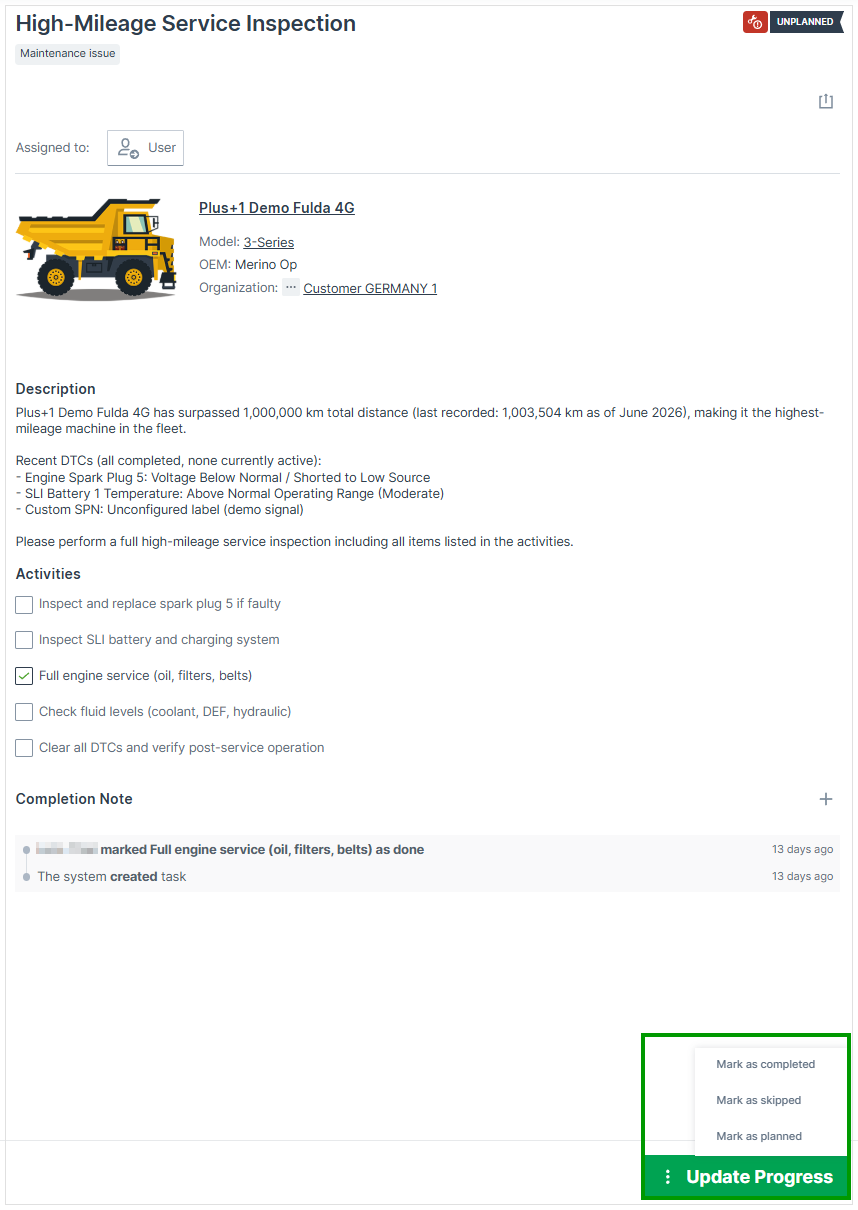
When a maintenance task is completed, click the Update Progress button and mark the task as completed, skipped or planned.
Leave Feedback
Use this feature to explain why you switched back from the Table View and what prevented you from continuing to use it.
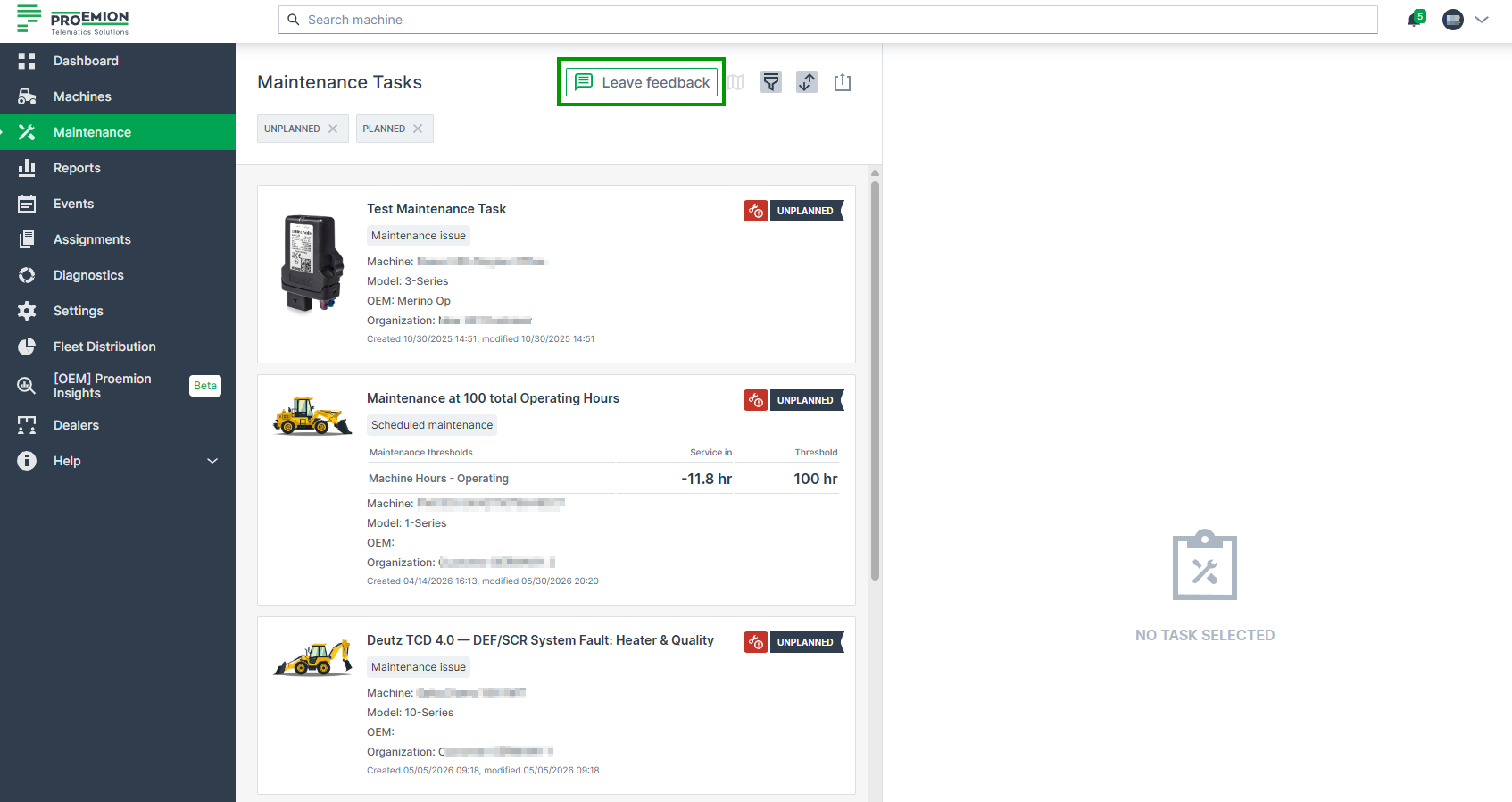
A Leave feedback button is shown after switching back from the Table View.
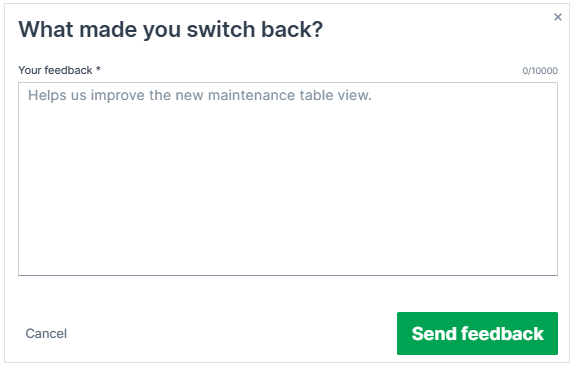
Clicking Leave feedback opens the following form: