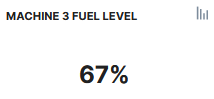
Latest Value
The Latest Value widget displays the most recent value returned from the machine for a specific signal.
Configuration
Configure the widget and put it on the Organization Dashboard and/or the Model Dashboard by following the steps below:
It is highly recommended to adapt a Machine Page (Model Dashboard) centrally via the Machine Page Layout. If you need to configure the Machine Page for the selected machine only, proceed as follows:
-
In the selected Machine Page, select Manage Layout > Add widgets.
-
Select the desired widget. A preview will be shown.
-
Click Apply. This forwards you to the widget configuration dialog with the options described below.
If you need to adapt the Organization Dashboard, select the desired dashboard configuration and click Edit > Add  to open the widgets catalog, see also Add Widgets to the Organization Dashboard.
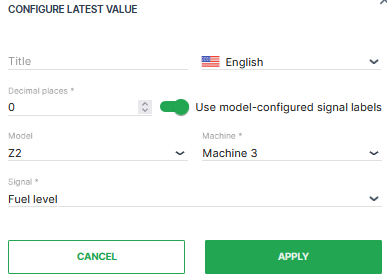
| Item | Description |
|---|---|
| Title | The label for the widget (English is the default, additional languages must be configured. See Language below). |
| Language | Select the language for the title of the widget. |
| Decimal Places | Select the number of decimal places for the value. |
| Use model-configured signal labels | Present custom error codes or machine states in textual form. See Signal Labels. |
| Model | Model name |
| Machine | Machine name |
| Signal | Select the signal to be displayed. |
Sample
Clicking on the  icon in the top-right of the widget opens the CONFIGURE PLOT window to create a Report.