Counter
The Counter widget allows you to display the current count of objects in the organization. Additionally, you can display a subset of machines by filtering signal values.
Note
This widget can only be selected from Organization Dashboard.
Configuration
Configure the widget and put it on the Organization Dashboard by following the steps below:
It is highly recommended to adapt a Machine Page (Model Dashboard) centrally via the Machine Page Layout. If you need to configure the Machine Page for the selected machine only, proceed as follows:
-
In the selected Machine Page, select Manage Layout > Add widgets.
-
Select the desired widget. A preview will be shown.
-
Click Apply. This forwards you to the widget configuration dialog with the options described below.
If you need to adapt the Organization Dashboard, select the desired dashboard configuration and click Edit > Add  to open the widgets catalog, see also Add Widgets to the Organization Dashboard.
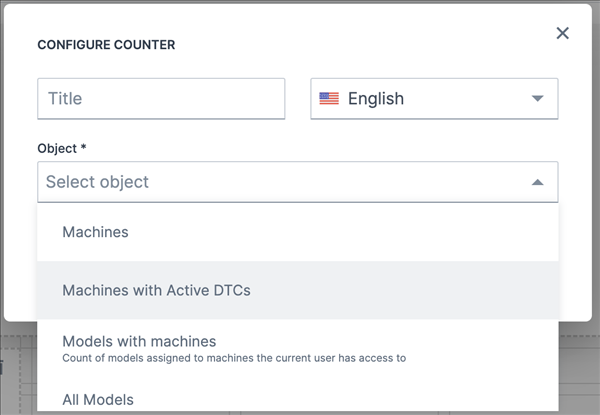
| Item | Description |
|---|---|
| Title | The label for the widget (English is the default, additional languages must be configured. See Language below). |
| Language | Select the language for the title of the widget. |
| Object | Select from: |
| - Machines - Shows the number of all machines visible to the user. | |
| - Machines with Active DTCs - Shows the number of machines with active DTCs.. For information on the DTCs, see DTC Notification. | |
| - Models with machines - Shows the number of models with machines in the user's fleet. Example: If there are 2 models but only one has machines, then the count of models will be 1 instead of 2. | |
| - All Models - Shows the number of all models visible to the user, no matter any other criteria. | |
| - Distributed Models - Shows the number of active models distributed to machine owners. That means, counting only the models that are publicly available and doesn't count models with machines in the OEM space that are for internal use only. | |
| - Communication Units - Shows the number of all CUs visible to the user. | |
| - Organization Units - Shows the number of all OUs visible to the user. | |
| - Users - Shows the number of all users visible to the user. |

Filter by Signal Value
You can filter a subset of machines by signal value comparison. For example, configuring a counter for machines + 'Fuel level < 25%' would show the number of machines in your organization with less than 25% fuel level on the organization dashboard.
Configure a machine counter filtered by machines with the following procedure:
-
Follow the steps above to add the counter widget.
-
Select Machines from the Object drop-down list.
-
Select Add Signal Filter.
-
Select the Signal you want use to filter the number of machines shown on the widget.
-
Select the icon you want to use to represent the signal.
-
Select the Comparator you want to use to filter the machines.
-
Select the signal Value you want to use to make a comparison.
-
Select Apply to save your configuration.
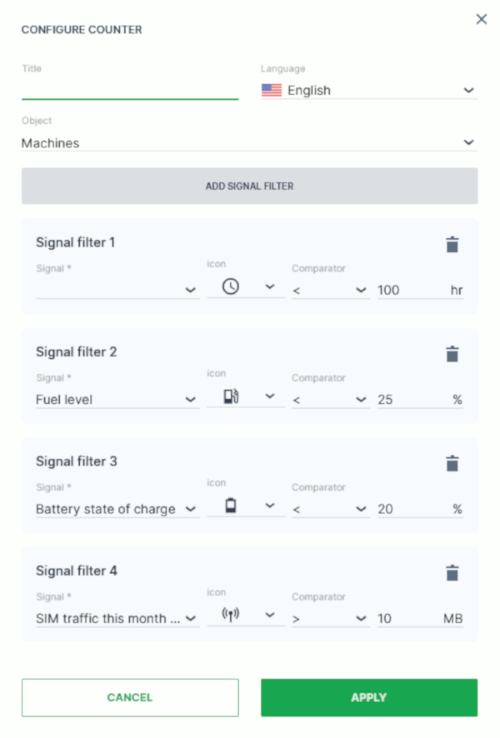
After saving, the Counter widget will show the signals as follows:
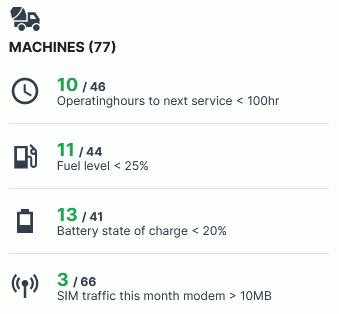
Once configured, select the count in the widget to see exactly which machines match the criteria: it opens the Machines Overview list, filtered accordingly. The applied filter is displayed as a tag above the list, using the same text as configured for the widget's signal filter.
Note that this click-through is only available for counters with a configured signal filter; the plain object counters (e.g. Machines, Models, Users) are not linked.