Organization dashboard filters
Filter by Organizations
As the Organization Dashboard shows data in the widgets of the entire organization tree, you can filter the dashboard by the organization units for your individual view in the DataPortal. This can be done for every dashboard configuration.
To filter the dashboards, proceed as follows:
-
In the Dashboard menu, open to the Organizations drop-down.
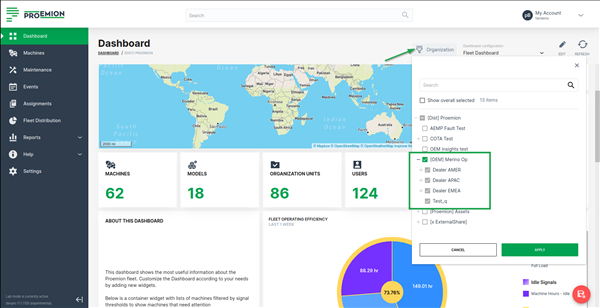
Figure 1: Organization associated Dashboard - Organizations Filter -
Select the organizations that you want to view their data in the dashboard (widgets). When selecting an organization (parent), all its children organizations are selected, too, and will be greyed out. This means that all widgets will fetch information for the selected organization together with its children.
-
As a result, the dashboard shows data only from the selected organizations. An icon will be displayed in the widgets that show the filtered data.

Note
The filter criteria are preserved when switching between dashboards during a session in the DataPortal.
View as
Use the View as drop-down to switch your view of the organization dashboard to the one of either an OEM, Dealer, or Machine Owner, based on the organization type.
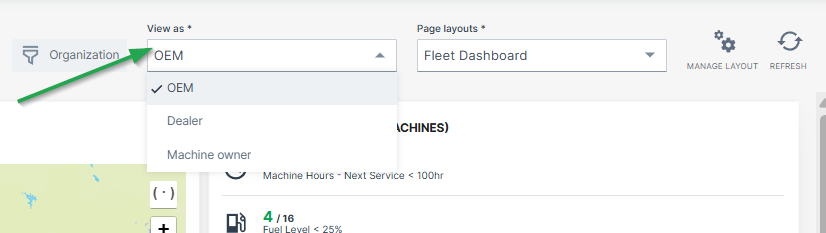
To define organization types for each organization dashboard, go to Visibility level/Binding in the Dashboard Page Layout
Page Layouts
It is also possible to create and save multiple organization dashboards/layouts that display different widgets and/or time range.
In this case, select the desired organization dashboard from the Page layouts drop-down:
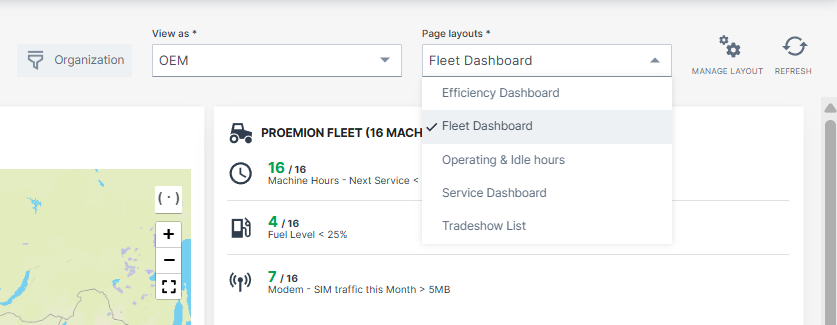
To define different layouts of organization dashboards, go to Duplicate/Create Layout in the Dashboard Page Layout