Introduction
The Machines page is a representation of the data of a particular machine.
You can open the Machines Page via the Machines Overview, the Signal Overview Panel or searching the machine.
The navigation buttons in the top-right corner allow you to switch between the Machine Pages of your organization's machines (not shown when more than 12 machines are available)
Hovering over the navigation buttons shows the name of the next/previous machine.
Requirements
In order to view or edit the Machines Page within the DataPortal, the following requirements must be fulfilled:
| Permission Set Name | Level | Action |
|---|---|---|
| Machine | View | for viewing the Machine Page |
| Dashboard | Admin | for editing the Model Dashboard/Machine Page |
Configuration
A Machines Page inherits the layout of widgets from the Model Dashboard.
As an admin, you must use the Machine Page Layout to change the layout for the model dashboard.
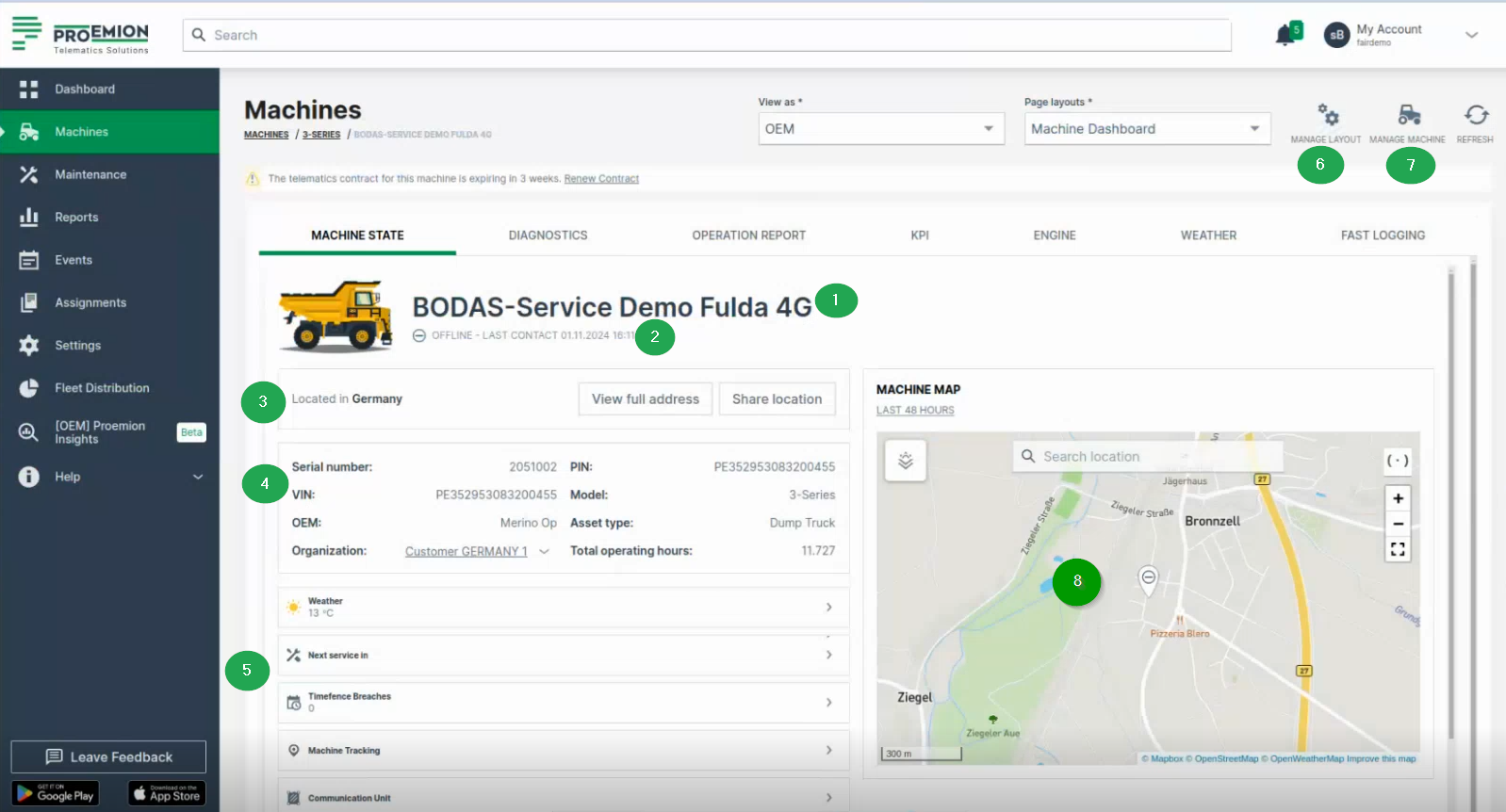
It is recommended to add at least the Machine Master Data widget in order to display general information as well as the location of the machine as for example in the following image:
The Master Data widget will display the information in form of a panel on the dashboard within the following two tabs Machine Details and Location - provided that options are activated in the Master Data Configuration.
Machine Details
Shows the machine info and other details via icons for Maintenance Tasks, Machine Tracking and Weather Forecasts and Overlay when enabled in the Feature Switch. In the Details tab, the following information is displayed additionally to the configured ones:
| # | Item | Description |
|---|---|---|
| 1 | Machine Name | Name of the machine. |
| 2 | Connection Status | Current state (online/offline) since a particular date. |
| 3 | Location | Share the location of the machine, see Location. |
| 4 | Machine Info | Serial number - Serial number of the machine. Organization - The organization that created the machine and shares details. Machine Model - See Machine Model. OEM - The Organization the machine belongs to. Asset Type - See Asset Types. |
| 5 | Tabs | 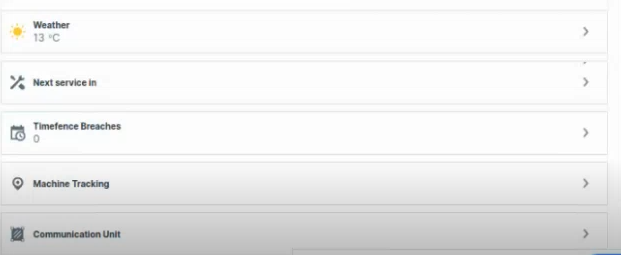 |
 Weather - Check the weather and configure the weather overlay on the map, see Weather Forecasts and Overlay. Weather - Check the weather and configure the weather overlay on the map, see Weather Forecasts and Overlay. |
||
 Maintenance - Leads you to the maintenance page of the machine. Maintenance - Leads you to the maintenance page of the machine. |
||
 Timefence breaches - Leads you to the Timefence breaches of the machine. Timefence breaches - Leads you to the Timefence breaches of the machine. |
||
 Machine Tracking - Track route of your machine, see Machine Tracking. Machine Tracking - Track route of your machine, see Machine Tracking. |
||
 Contact Dealership - Contact the service location of your Dealer, see Dealers. Contact Dealership - Contact the service location of your Dealer, see Dealers. |
||
 Communication Unit - Configure the functions of the machine, e.g. Device Mode (Realtime/Logging), see Communication Unit and History. For more information on configuration, see Machine Actions and Realtime/Logging Switch. Communication Unit - Configure the functions of the machine, e.g. Device Mode (Realtime/Logging), see Communication Unit and History. For more information on configuration, see Machine Actions and Realtime/Logging Switch. |
||
| 6 | Manage Layout | Configure the layout of the Machine Details Page, see Manage Layout |
| 7 | Manage Machine | Configure the machine's properties, see Manage Machine. |
| 8 | Map | Displays the machine's location on a map. If the machine is offline, a drop icon with a minus sign indicates its last known position. 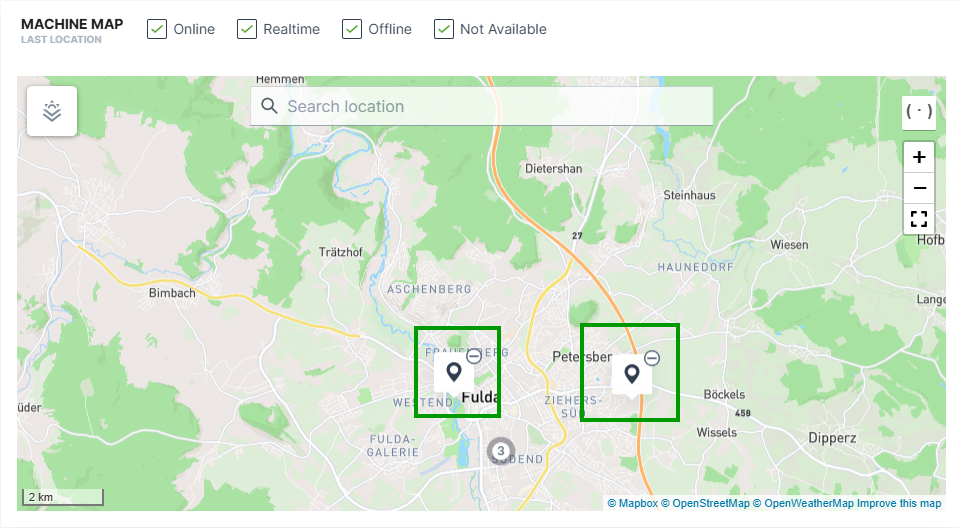 If the machine is online, the endpoint of the current track (circle with the number 3) is displayed . When zooming in, both the starting point (circle with letter A) and the current location (circle with number 2) of the machine are displayed. 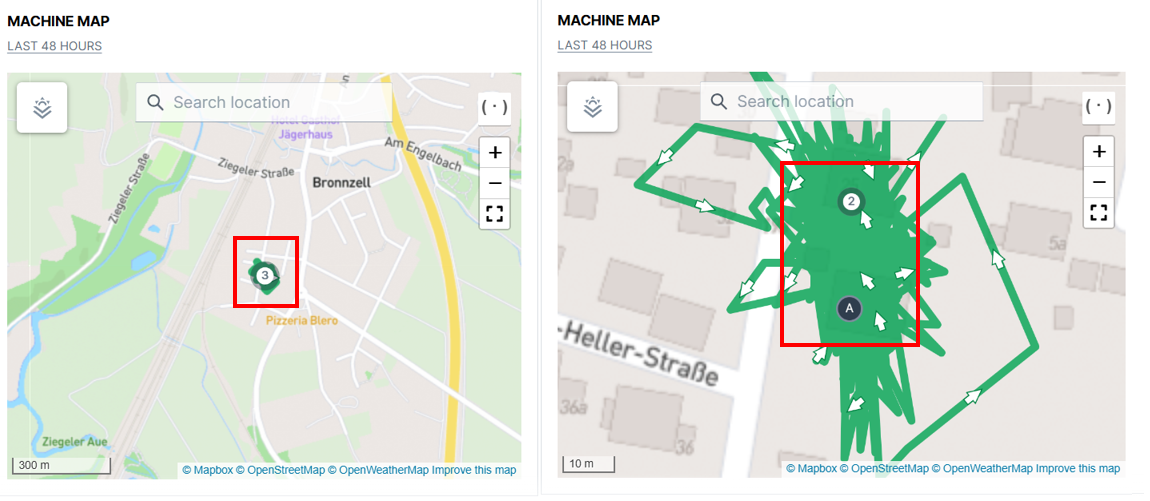 |
Location
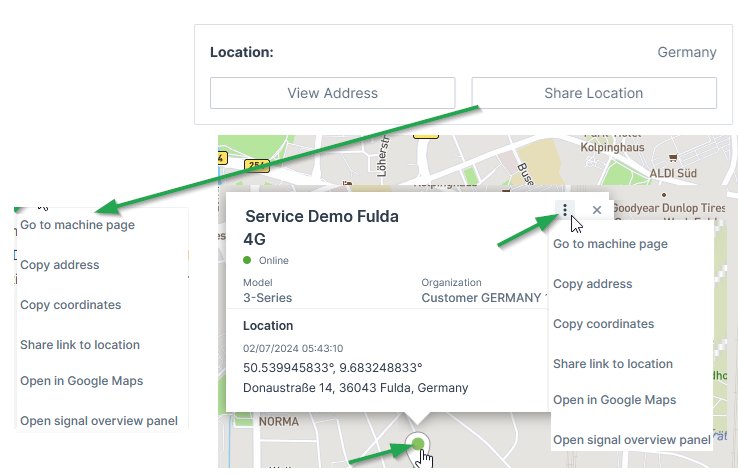
The Location tab gives information about the machine's address and its Status and Update. Via the 3-dots you have options to copy and share the machine's location, see also Machines Overview.
Only if tracking is activated in Machine Master Data, location tracking is visible for the time range displayed above the map.
Note
Location data access must be set by an organization admin and is necessary to use this feature.
Contract Renewal
Contracts that are expiring soon are highlighted in the Machine Page within a banner on the top.
Depending on the user, the information in the banner changes:
-
As a user without at least Contract:Maintain permissions e.g. as a Machine Owner, you may only Request Renewal:
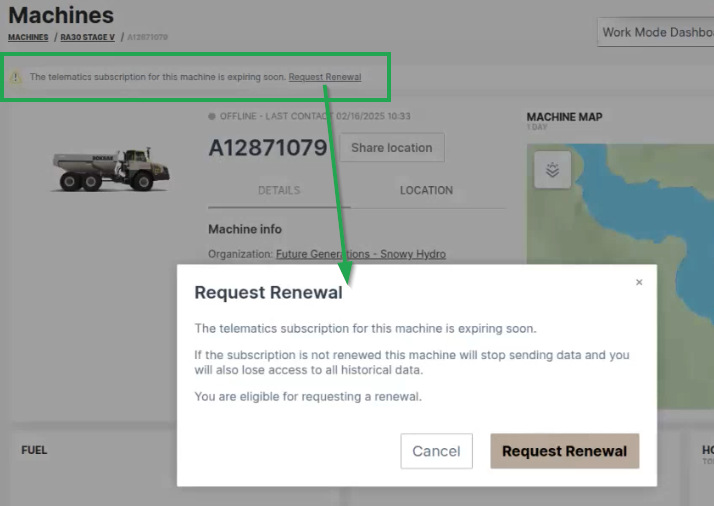
Figure 4: Contract Renewal banner Note
This request will be displayed both on the OEM portal and in the digest email listing the soon expiring contracts.
The eligible user may then renew the contract with Proemion. see below. -
As an eligible user e.g. as the OEM, you are displayed the message that a renewal was requested:
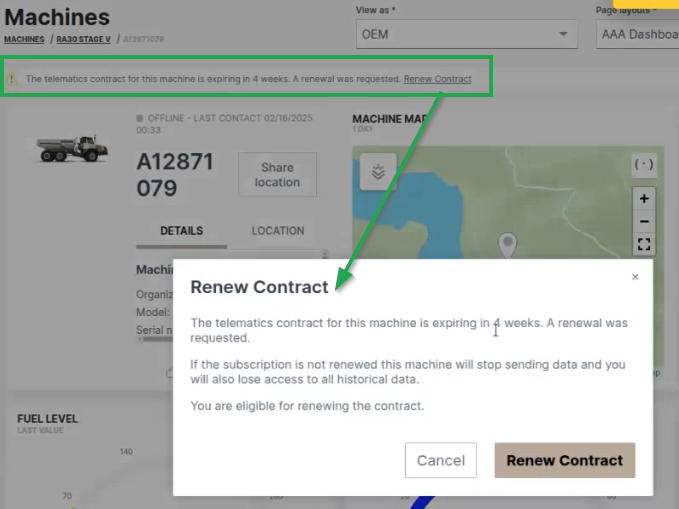
Figure 5: Contract Renewal requested -
Clicking Renew Contract, you will be forwarded to the Machine Contracts menu, where you can configure and confirm the Renew process for the selected machine:
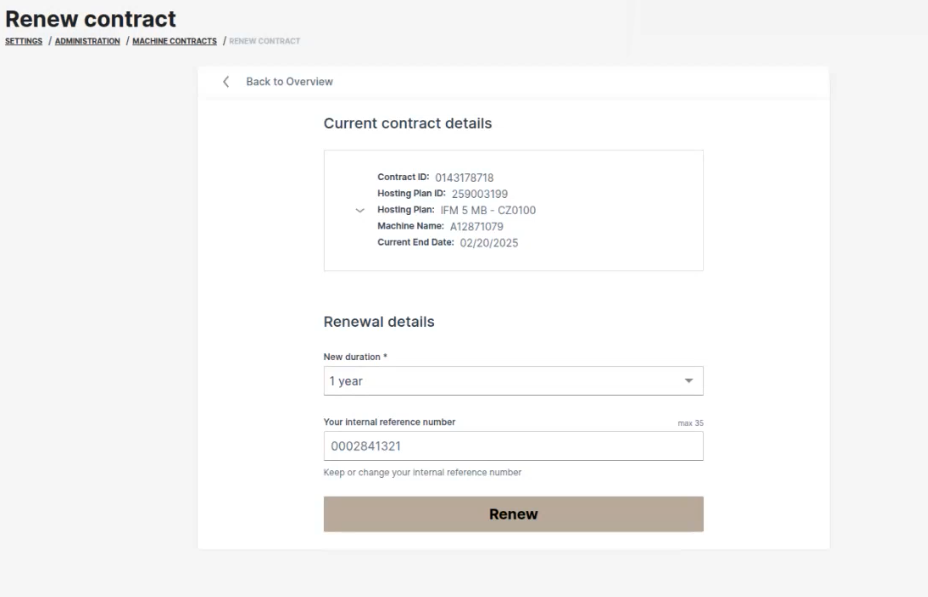
Figure 6: Renew Contracts Note
To renew an "active (canceled)" or terminated contract, you need Contract:Maintain permissions.
-
After successful renewal, a confirmation will be displayed in the Machine Contracts menu:
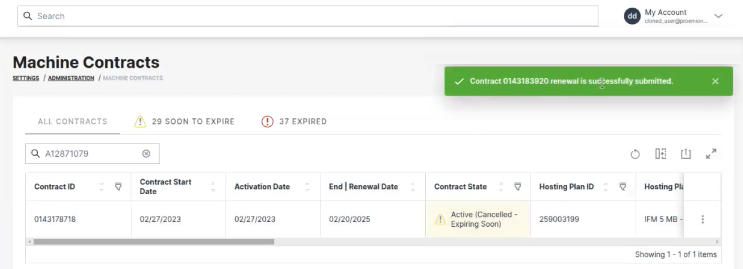
Figure 7: Renew Contracts confirmed
-
After clicking the link in the banner, it will disappear from the machine.