Dealers
Dealers reflects the geographical network of OEM and Dealer service/office locations.
This network enables an OEMs to view their entire dealership network and where their machines are located.
Dealers and OEMs can manage their own locations, update contact details, and ensure visibility to machine owners.
Machine Owners can see all dealerships in a given country or country and state.
They can start a contact with their dealer from the machine details to their dealer’s closest location or other locations of the dealer.
Each physical location is shown on a map and includes the address and contact details.
This allows Machine Owners and other OEM customers to view their nearest Dealer service locations (My Dealer) for their machines.
For each machine, a Machine Owner may also contact directly their Dealer at the nearest location via the button Contact Dealership, see Contact Dealer as Machine Owner.
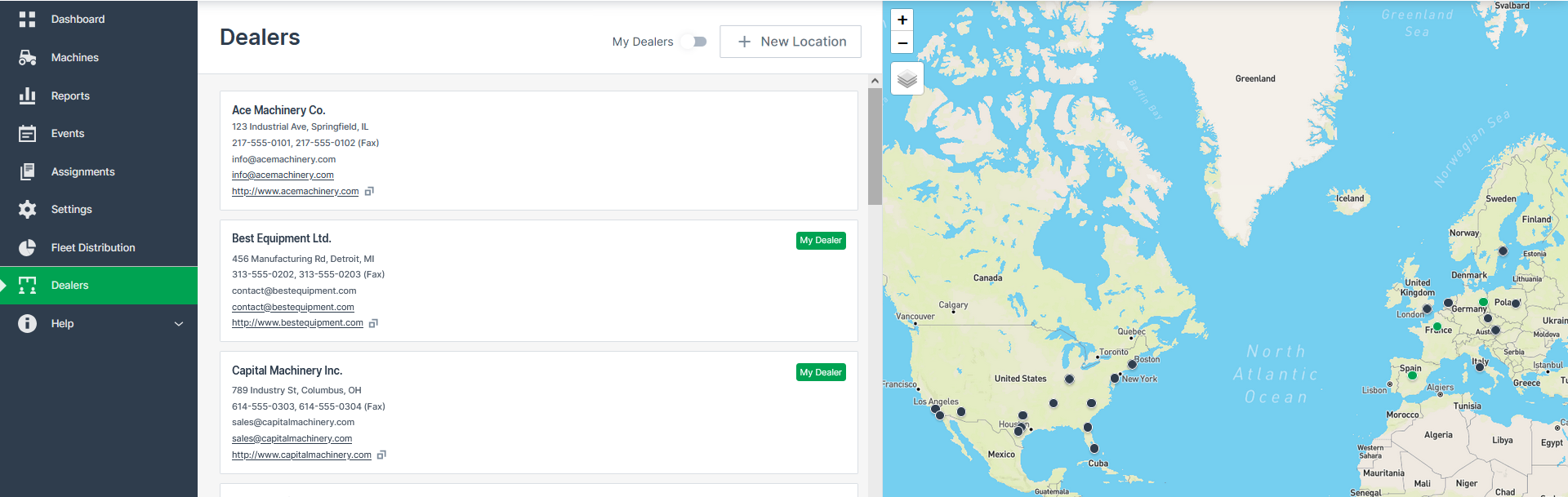
The Dealers menu is to be found in the Left-side Menu.
Glossary
Dealership
: Or "Dealer" is a business selling or distributing a company's goods or services in a particular area. In the DataPortal, a dealership might be represented by a subtree of one or more organization units.
Dealership Location
: A brick and mortar office owned by a dealership that machine owners can go to receive service. A dealership will have one or more locations.
(OEM) Service Location
: There are OEMs that provide service directly to machine owners through their own locations. It is the same concept as a dealership location but owned by the OEM.
Dealer Network
: The collection of dealer locations of all authorized dealerships of a given OEM.
Access levels
Users of each organization type have the following access and edit permissions in the Dealers network:
| Organization Type | Permission for Dealers network |
|---|---|
| OEMs | - Add dealership locations for the Dealers or your own OEM location in case of directly offering services to Machine Owners without the intervention of a separate dealership. |
| Dealers | - View all belonging Machine Owners to each Dealer. |
| - Add dealership locations | |
| Machine Owners | - View the Dealer Network with their dealer's locations highlighted. |
| - View all Dealers in a given country or country and state. | |
| - Contact Dealers from the machine details to their dealer's closest location or other locations of the Dealer. |
Ownership Management of Dealership Location
OEMs can create dealership locations within their service network and transfer ownership of those locations to a designated dealer.
During creation or editing, they can assign ownership to a specific Dealer business unit (Dealer BU), see Add new Dealership. This functionality enables OEMs to actively manage the dealer network structure and ensure that Machine Owners can immediately contact the correct service location (without relying on each dealer to set up their own locations).
OEMs can also take ownership of a location that is currently owned by a Dealer BU, offering flexibility and control over the structure of the dealer network.
Requirements
The Dealers concept requires the correct setup of a business unit, i.e. the organization tree must reflect the "real world" of a company, which means:
- Each Dealer must be added as a business unit on its own, with suborganization units if needed.
- Users of the Dealer organization unit must be assigned correctly to the organization, see Add User to Dealer Organization.
This allows users of a Dealer organization to manage location information, see also Add new dealership location, and share their data only within this business unit. Thereby, other users not included in this business unit cannot access their data. - (Sub-)organization units must be correctly assigned an Organization Type, i.e. "OEM", "Dealer" and "Machine Owner".
The feature must be activated at the tenant by toggling Dealers in the Feature Switch. OEM and Dealer users with Organization:Maintain permission set or higher can see the feature and manage locations.
Permissions
| Action | OEM | Dealer | Machine Owner (MO) |
|---|---|---|---|
| View entire dealer network | Yes | Yes | Yes |
| View own dealership locations | Yes | Yes | Yes (created by dealer root above the MO in the tree) |
| Manage own dealership locations | Yes | Yes | No |
| Add a new dealership location | Yes | Yes | No |
| Edit dealership contact information | Yes | Yes | No |
| Delete dealership locations | Yes | Yes | No |
| Start a contact with nearest (to a machine) dealer | No | No | Yes |
| Start a contact with a dealer | No | No | Yes |
| Transfer ownership of dealership location | Yes | No | No |
| Take ownership of dealership location Only available for Dealer and OEM that are business unit roots. |
Yes | Yes | No |
Add new Dealership location
To add, edit, or delete dealership locations, you must be a user of a Dealer or OEM organization unit. OEM users can create locations either for their own service network or on behalf of a Dealer, and assign ownership to the appropriate Dealer business unit.
When creating or editing a location, ownership can be assigned to a Dealer business unit using the Dealership Owner dropdown menu in the form below. In the dropdown menu, only the OEM and its Dealer business units are available if the dealership location belongs to a different BU. A Dealer business unit is only available if the requester has permission to manage the location.
The feature must be activated by the OEM at tenant level before locations can be managed.
Note
The OEM can decide whether to activate the feature to the whole tenant and also if users of Dealers can manage locations with the user permission Organization:Maintain.
- As a Dealer, log into the DataPortal.
- Navigate to Dealers menu.
- At the top of the menu, select +New Location.
-
Enter the first details and Continue:
- Add Location Name
- Pick a Location in the map
- Enter the Address
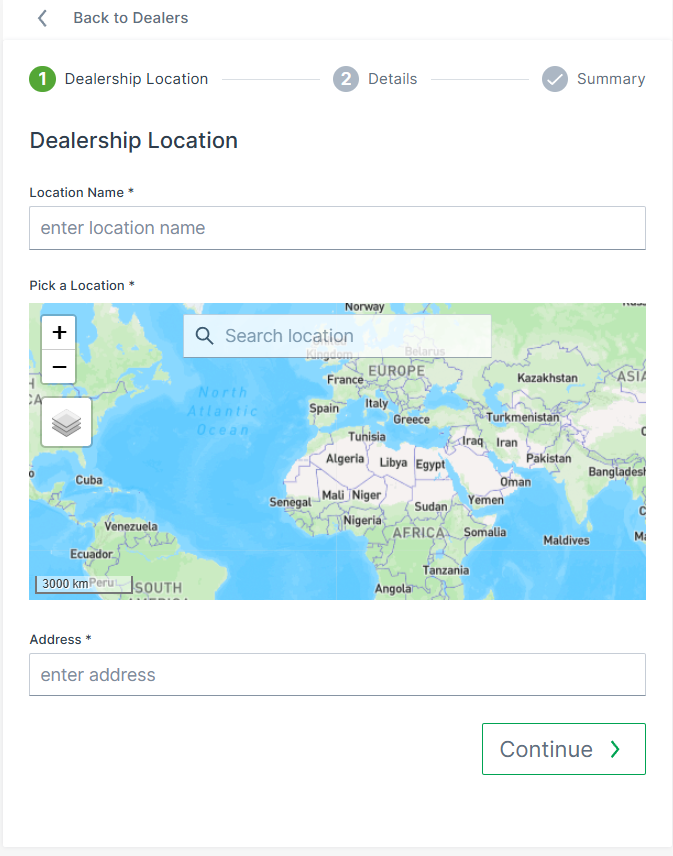
Figure 2: New Dealer Location -
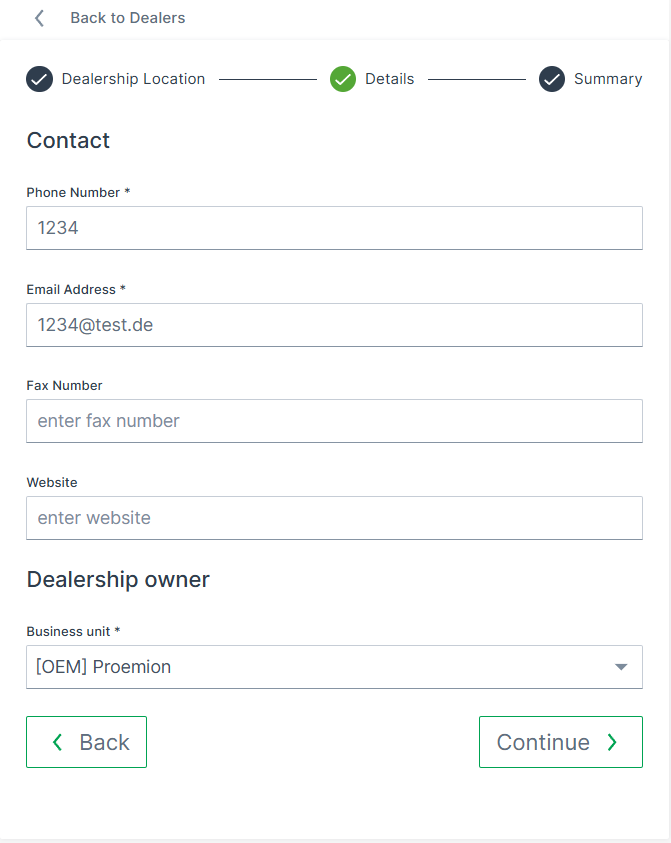
Add the other required fields:
- Phone Number
- Email Address
- Optionally: Fax Number, Website
- Assign dealership owner to the appropriate business unit
Add User to Dealer Organization
The OEM may add users to a Dealer organization within the User Management.
Contact Dealer as Machine Owner
As a Machine Owner, you can contact any dealership directly via the DataPortal - either via the Machine Details Page or via the Maintenance Task Page.
Contact via Machine Details Page
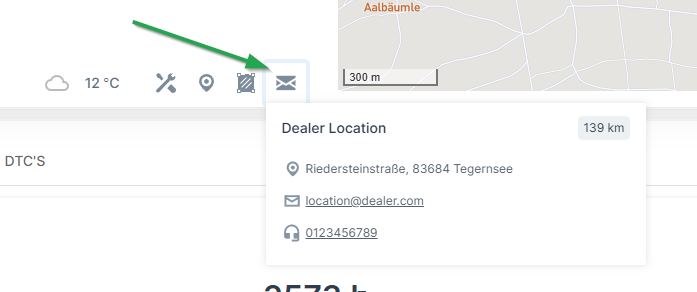
- As a Machine Owner, navigate to the Machine Details Page.
- Click Contact Dealerships.
- Select the desired Dealer; they are sorted by distance.
- Select the contact method (email, phone, fax). Click the email/phone number which opens your email program/copies the phone number.
You have initiated a contact with the Dealer.
Contact via Maintenance Task Page
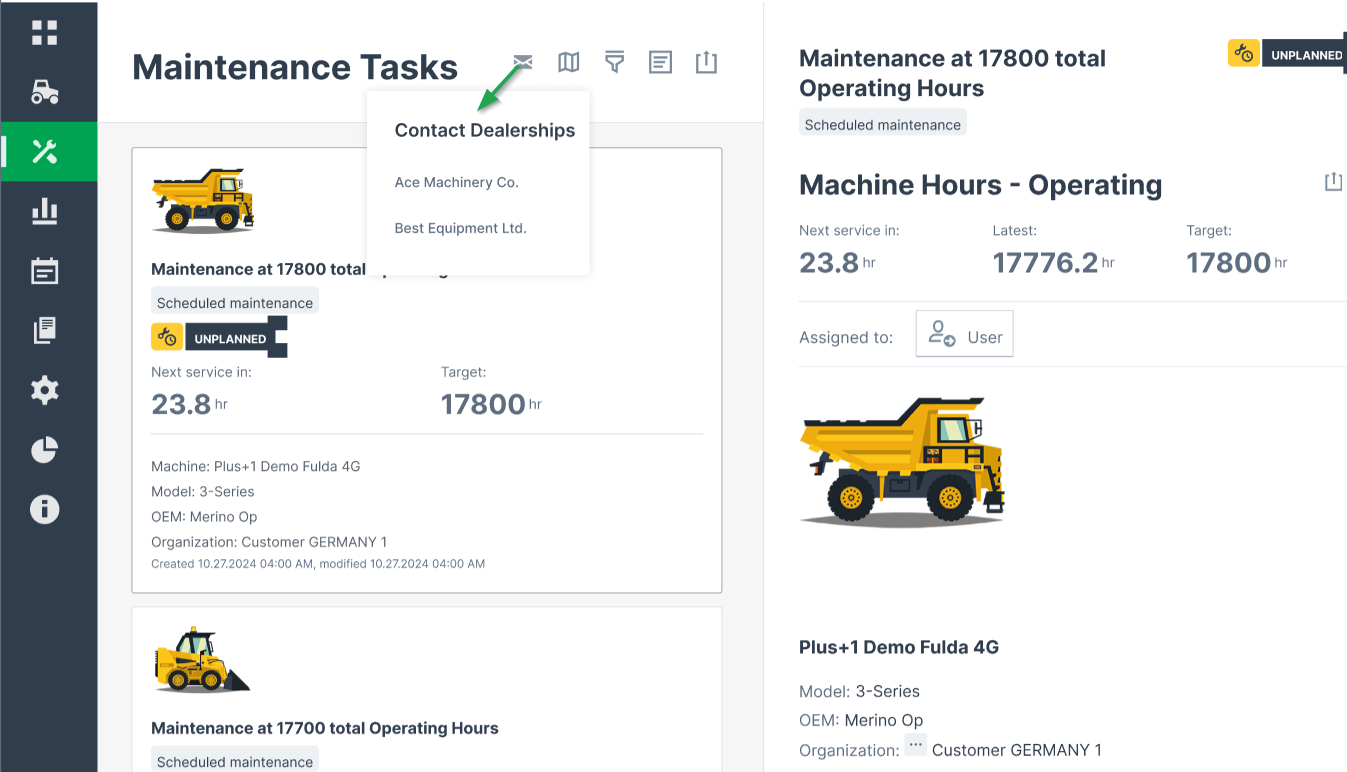
- As a Machine Owner, navigate to the Maintenance Task Page.
- Click Contact Dealerships.
- Select the desired Dealer; they are sorted by distance.
- Select the contact method (email, phone, fax). Click the email/phone number which opens your email program/copies the phone number.
You have initiated a contact with the Dealer.