Organization Structure Overview
An Organization Structure organizes every Proemion customer, dealer, and machine owner into a single, company-wide organization tree. It mirrors your real-world business relationships and controls which machines, users, and configurations are visible to whom. For example, a Dealer can manage their own Machine Owners without seeing other Dealers' customers. See Core Organizational Concepts for how the organization tree, organization type, tenant, and business unit concepts relate to each other.
To open the Organization Structure page, go to Settings > Administration > Organization Structure.
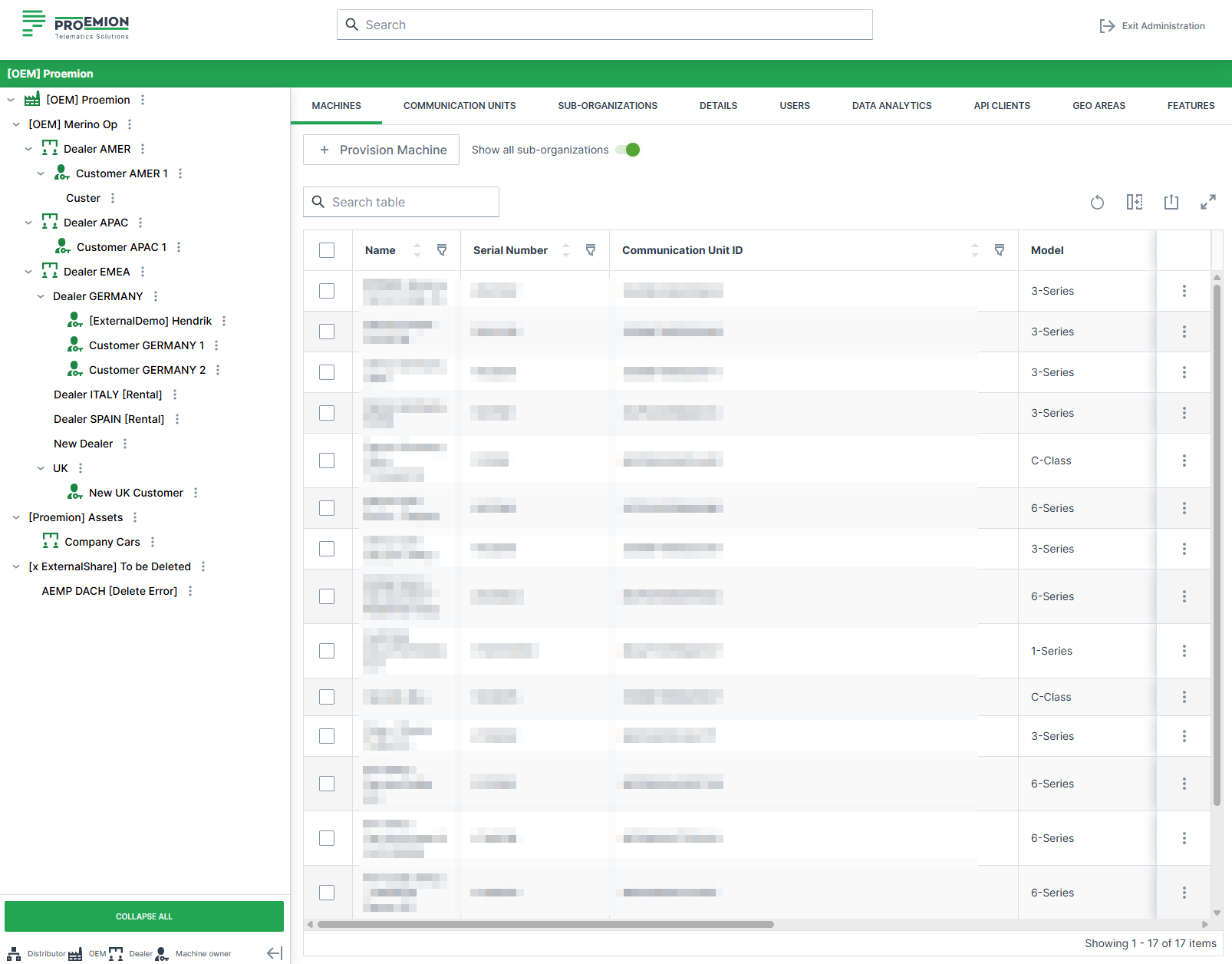
This page consists of:
- Organization tree on the left (selection drives the content)
- Top menu bar with different tabs (Machines, Models, Details, Users, etc.)
- Optional controls like Show all sub-organizations and Export
For creating, editing, removing, or moving organization units and for required Permission Sets, refer to Organization Unit Management.
Overview page elements
| UI element | Description |
|---|---|
| Organization tree | Hierarchical navigation (org tree). Selecting an organization updates all tabs. |
| Three-dots icon | Context actions for the selected org unit (create/edit/remove etc.). |
| COLLAPSE / SHOW ALL LEVELS button | Collapses or expands the tree. |
| Show all sub-organizations | Includes sub-org content in tables where supported. |
| Search | Search by IDs and entries (users, machines, OUs). See Search. |
| Export | Exports the current table (where available). See Export. |
Top Menu Bar
The Top Menu Bar works in conjunction with the organization tree and updates its content based on the selected organization unit. The table below lists all available tabs. Each tab links to the documentation describing its purpose and functionality.
| Tab | What it shows |
|---|---|
| Machines | Machines in the selected org (ID, VIN, PIN, Serial, Model). |
| Models | Models available for the selected organization. |
| Users | Users assigned to the selected organization. |
| Sub-Organizations | Organization units controlled by the selected organization. |
| Details | Organization metadata, tenant and domain configuration, statistics, contacts. |
| Firmware | Firmware management and assignments. |
| MFA Configurations | MFA requirement overview (only if MFA is enabled for the org). |
| Data Analytics | Data analytics instances. |
| Features | Feature/language switch management (if implemented for the org). |
| API Clients | Create/manage API clients for REST API and AEMP API. |
| PDCs | PDC management. See PDC Management. |
| Communication Units | CU details and status. |
Details tab
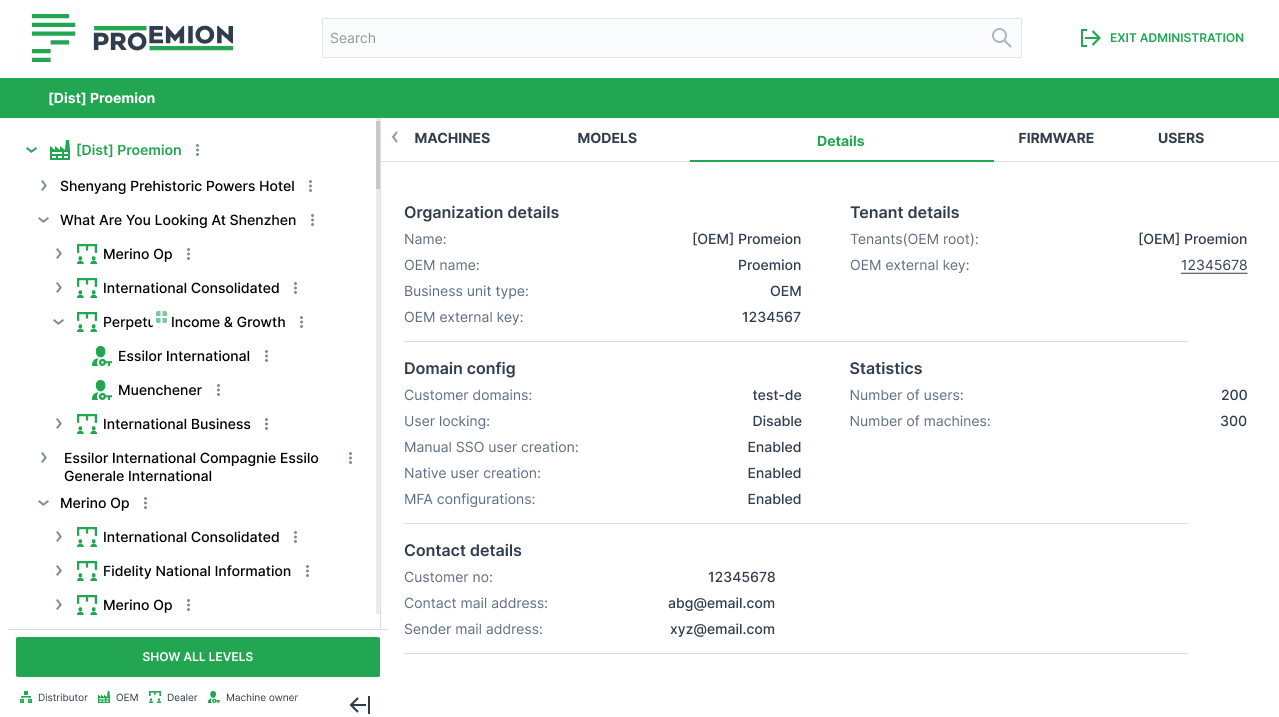
The Details tab displays further information about the selected organization: organization and tenant metadata, domain configuration, statistics, and contact information.
| Section | Field | Description |
|---|---|---|
| Organization details | Name | Display name of the organization |
| OEM name* | Associated OEM identifier | |
| Business unit type | Organization type (e.g. OEM) | |
| OEM external key | External system reference ID | |
| Tenant details | Tenants (OEM root) | Root tenant owning the organization |
| OEM external key | Tenant-specific external identifier | |
| Domain config | Customer domains | Allowed email domains for users |
| User locking | Enables or disables user lock enforcement | |
| Manual SSO user creation | Allows manual creation of SSO users | |
| Native user creation | Allows non-SSO (local) users | |
| MFA configurations | Multi-factor authentication status | |
| Statistics | Number of users | Total users assigned |
| Number of machines | Total machines assigned | |
| Contact details | Customer no | Internal or external customer reference |
| Contact mail address | Primary contact email | |
| Sender mail address | Email used for outgoing system notifications |
Note
^^ The OEM name* is defined for tenant organizations and is used as the default name for machines when provisioning or activating machines, if no model-specific name is defined.
Requirements
- OEM name is supported only for tenant organizations, not for child organization units.
- Changes to the OEM name are performed via the REST API by Proemion.
- Users with Organization:Maintain Permission Set can view the OEM name.
Export CSV/XLSX
Administrators can export tables to .xlsx or .csv (export icon on the right side of the page).
Requirements
- Export icon is available on tables that support export.
- Export reflects:
- applied table filters
- Show all sub-organizations selection
- Required Permission Sets:
- Machines:Admin, Models:Admin and Organization:Admin
Export Tables
- Open Settings > Administration > Organization Structure
- Open the desired tab/table (e.g. Machines, Models, Users, Sub-Organizations, etc.)
- Click the export icon and select format
Supported exports (depending on configuration): - Machines - Models - Communication Units - Users - Sub-Organizations - PDCs - API Clients - Transfers - Machine Share Definitions