PDC Management
The Parsing Definition Configuration (PDC) is an XML file defining the signals to be displayed for specific machine types and their assigned models and/or machines.
Using the PDC file, the DataPlatform converts raw data from *.clf files into human-readable metrics.
Key Concepts
Assignment:
PDCs can be assigned to a model (applying to all machines within that model) or directly to a machine.
Direct machine assignments override model assignments - any changes to the model PDC will not apply to that machine.
Assigning a PDC to a model simplifies version control and ensures standardized metric selection for all machines of the same type.
Permissions:
User must have both the Machine:Admin and the Model:Admin permission set to assign a PDC to a Machine Model.
To edit, delete, or download PDCs, only the Model:Admin permission set is required.
Model Requirement:
Every model must have a PDC assigned; otherwise, it is unavailable in the Provisioning dialog.
Standardized Metrics:
To use Assignments and Maintenance Tasks, PDCs must include standardized and harmonized metrics.
Refer to the Signal Catalog, Proemion Standard Metrics, and PDC Manual for details.
Visibility:
The PDCs page is visible only to tenant organizations (typically OEMs). See Tenant for details.
Note
The Settings > Administration > Organization Structure > PDC tab is deprecated. Use the new PDC page under Settings > Machine Data Management > PDCs.
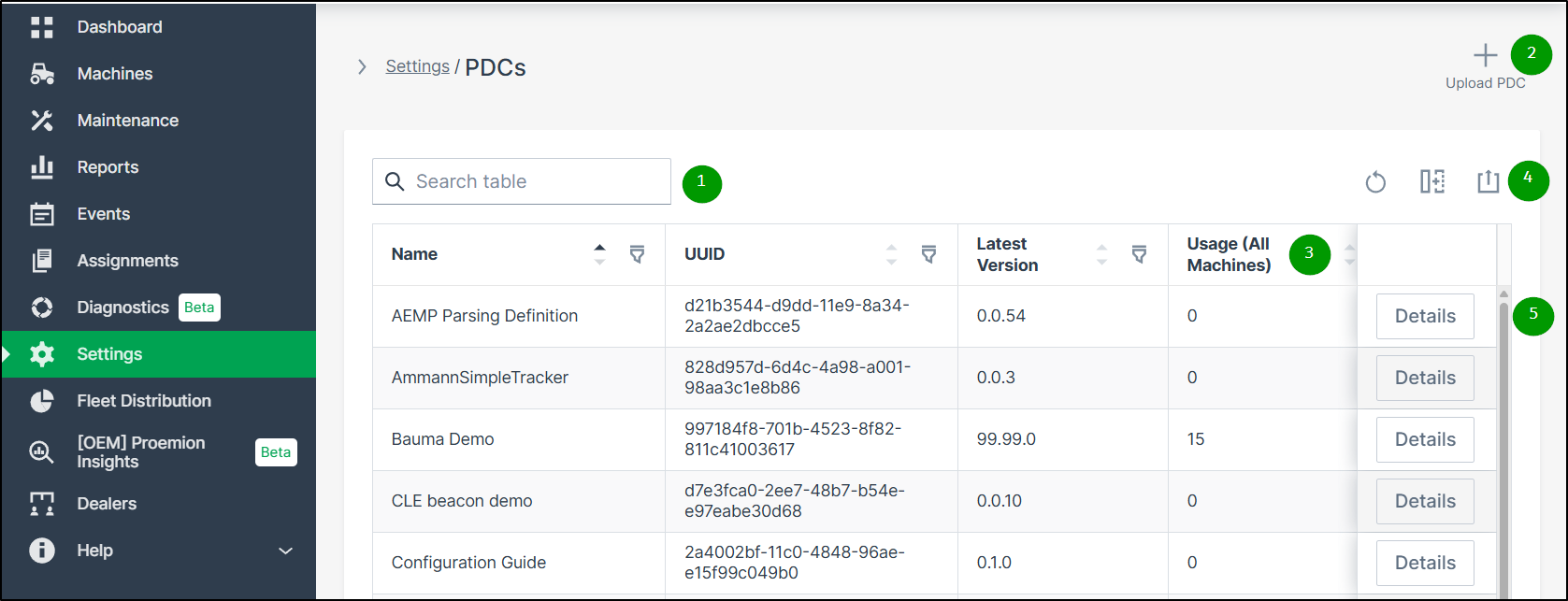
| # | Item | Description |
|---|---|---|
| 1 | File Search / Sort / Filters | Search for a PDC file in your organization by: - Name - UUID - Latest Version You can also sort the list of PDCs by clicking the column arrows to toggle between ascending and descending order. |
| 2 | PDC Upload | Upload a PDC file to your organization to make it available for your models and machines. |
| 3 | Usage (all machines) | Displays the number of machines which have this PDC assigned (directly or via model) PDCs with no usage are listed with the value 0. |
| 4 | Export table | Export the complete table via the  . . |
| 5 | Details | Click the Details button to open the overview page of the selected PDC.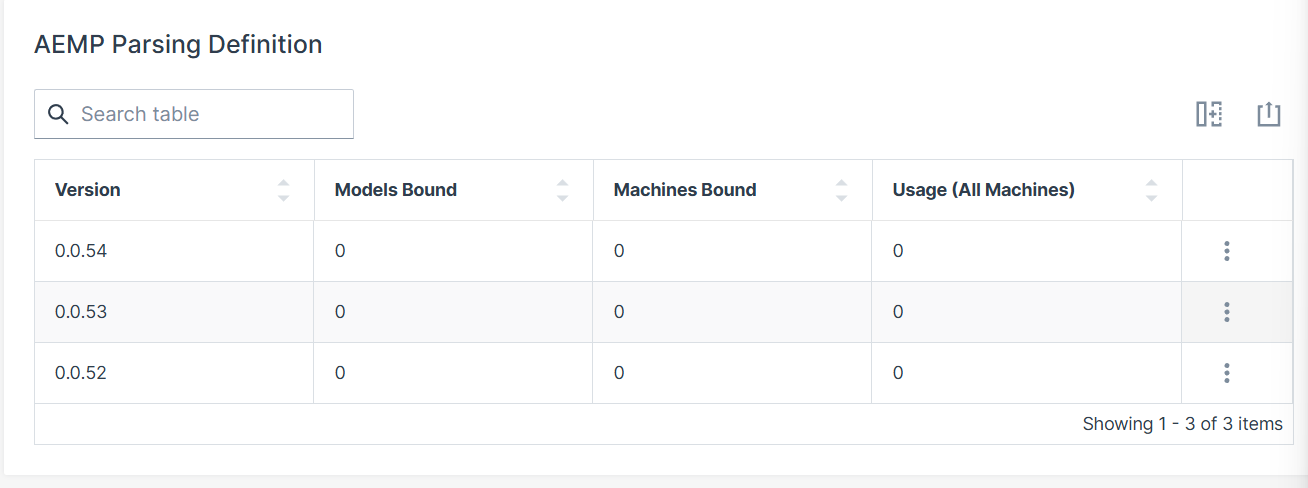 |
This chapter is aimed to explain the most typical use cases with the following workflow:
| # | Section | Workflow |
|---|---|---|
| 1. | PDC Upload | Shows how to upload a new PDC file or a new version of a PDC file. |
| 2. | PDC Assignment | Shows how a new PDC or new version of a PDC can be assigned to a model or to a machine. |
| 3. | Edit PDC Assignment | Shows how the assignment of the PDC can be changed. |
| 4. | PDC Download | Shows how the file can be downloaded for further processing. |
The following table shows an overview of the required permission sets in relation to the various PDC management tasks:
| Permission Set | Level | PDC Management Task |
|---|---|---|
| Models | Admin | View PDCs. |
| Models | Admin | Manage PDCs. |
| Models | Admin | Assign a PDC to a machine. |
| Models | Admin | Assign a PDC to a model. |
| Models | Admin | Upload a PDC. |
| Models | Admin | Edit PDC to machine or model assignment. |
| Machines | Admin | View PDCs. |
| Machines | Admin | Manage PDCs. |
| Machines | Admin | Assign a PDC to a machine. |
| Machines | Admin | List available PDCs. |
| Machines | Admin | Edit PDC to machine assignment. |
PDC Upload
To upload a PDC, proceed as follows:
-
Navigate to Settings > Machine Data Management > PDCs.
-
Click UPLOAD PDC in the upper right corner.
-
Select or drag and drop the PDC file.
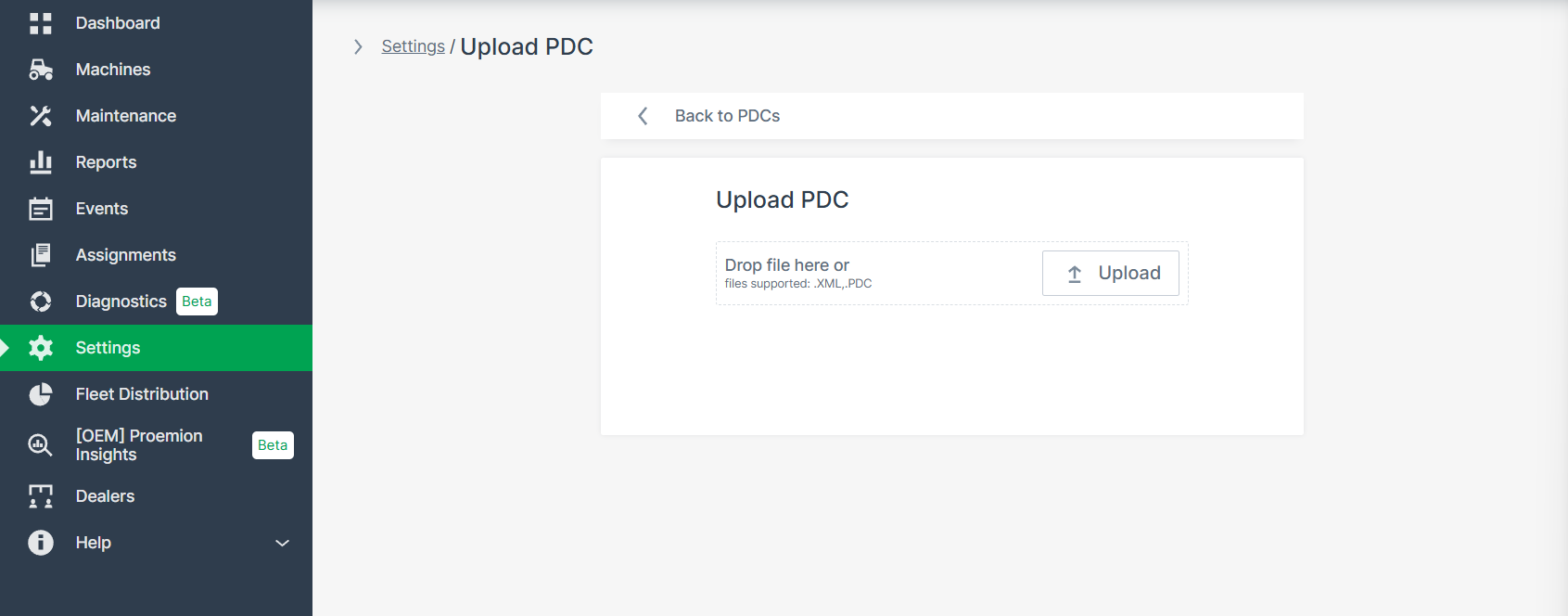
Figure 2: PDC Upload -
Click Upload.
PDC versioning is managed via UUID, major, minor and patch numbers. For updates, increment patch and keep UUID; for new PDCs, use new UUID and version.
PDC Assignment
PDCs must be assigned to models or machines to take effect.
Assign PDC to Model(s)
To assign a PDC to specific model(s), proceed as follows:
-
Navigate to Settings > Machine Data Management > PDCs.
-
Click the Details button at the end of the row of the desired PDC to open the details page.
-
Via the
 at the end of the line of the desired version of the corresponding PDC file, select Manage version in the dropdown menu: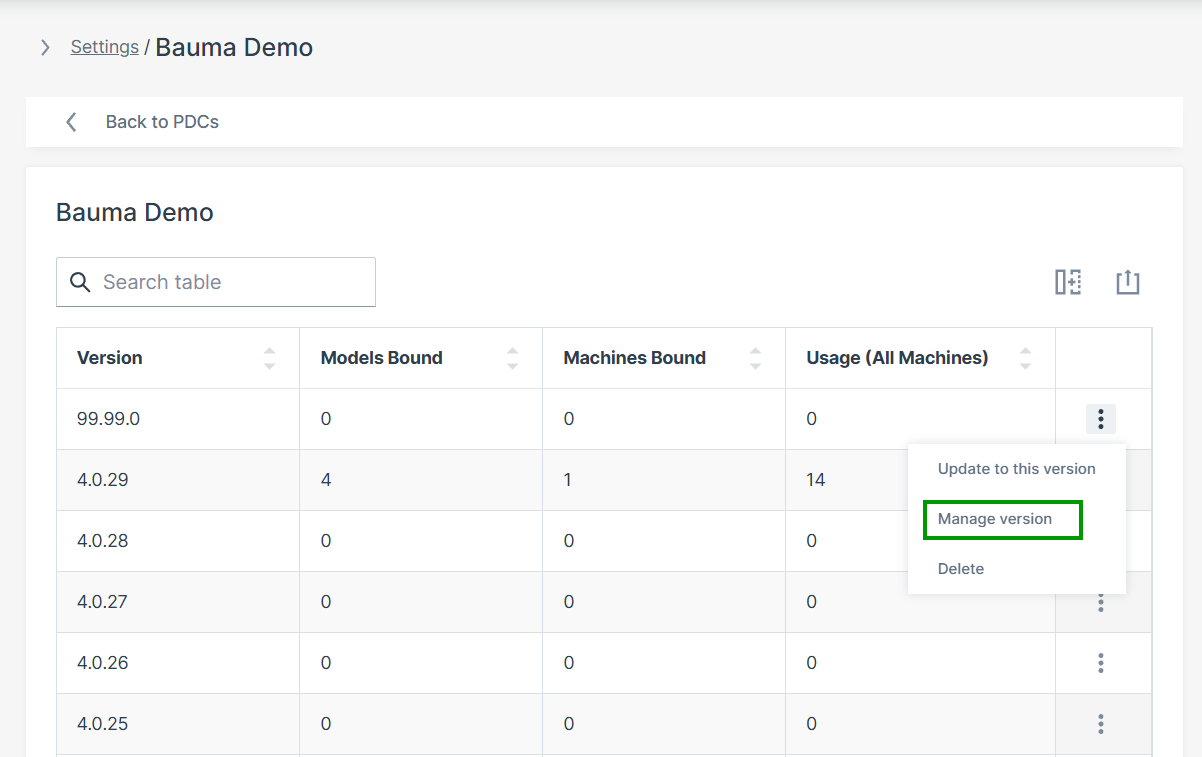
Figure 3: Manage version The overview page of the PDC file in the selected version opens:
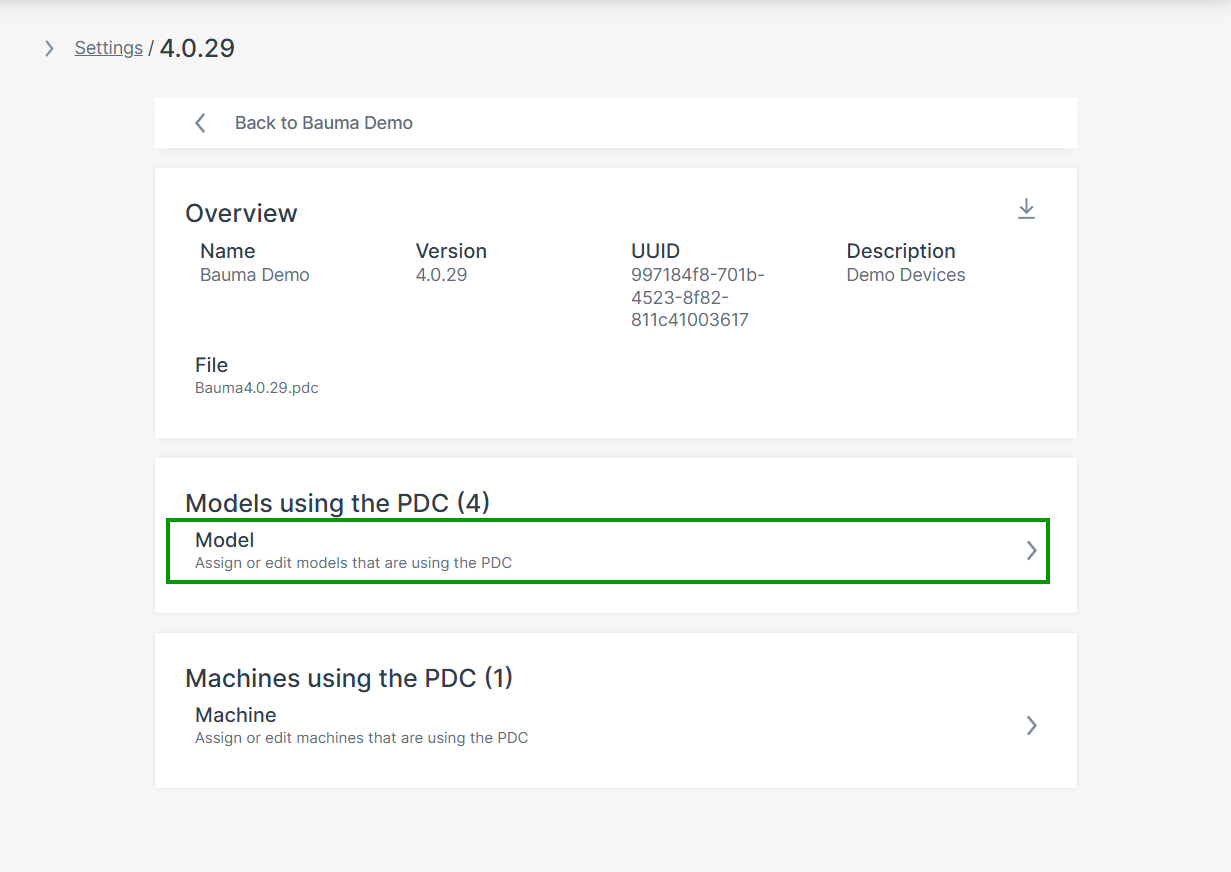
Figure 4: PDC version overview page -
Click the Model field. The Models using PDC page opens, showing the table of already assigned models.
-
Click Assign/Unassign model to assign the selected version of the PDC to a new model.
The dropdown menu with the available models opens: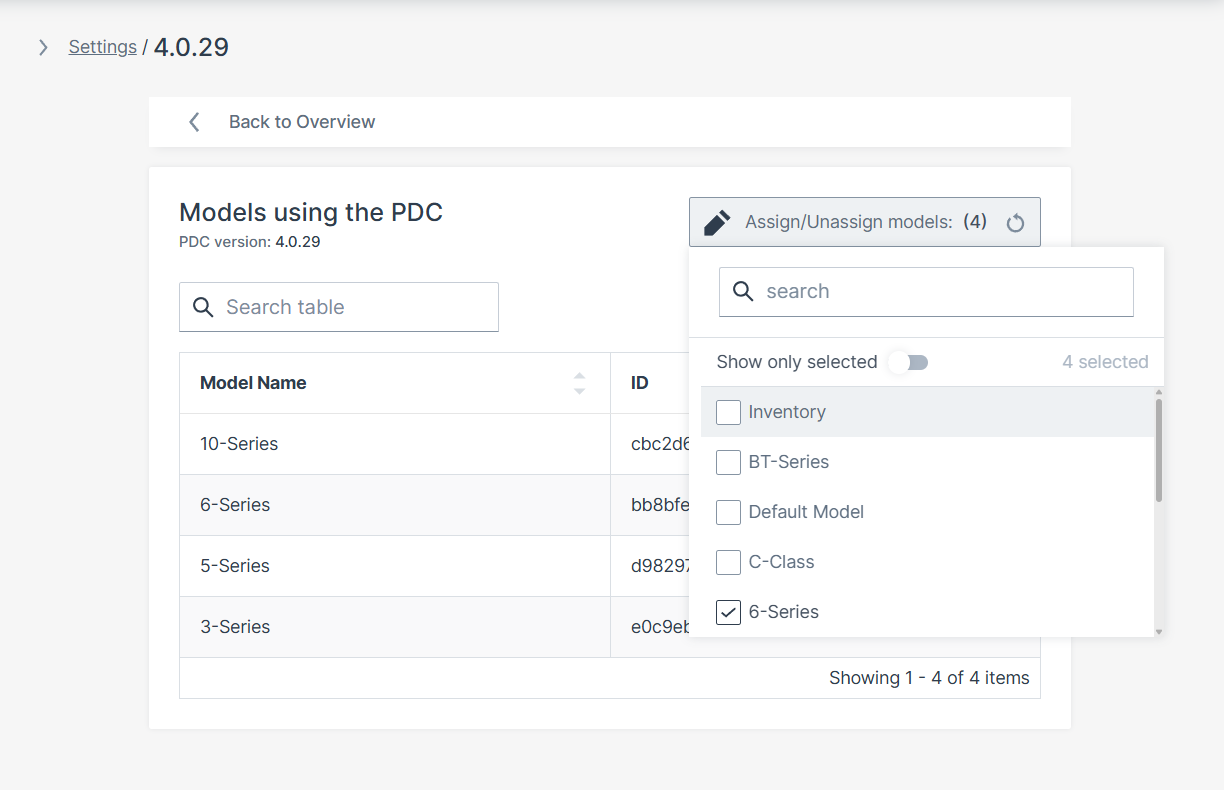
Figure 5: Models using PDC overview -
Select the corresponding model(s).
Assign PDC to Machine(s)
Note
It is recommended to use direct machine assignment only for testing. Afterward, assign to the model for standardization.
-
Navigate as above and open the Manage version option in the dropdown menu.
-
Click the Machine input field to open the Machine selector.
-
Search and select the desired machine(s) to assign the selected PDC version.
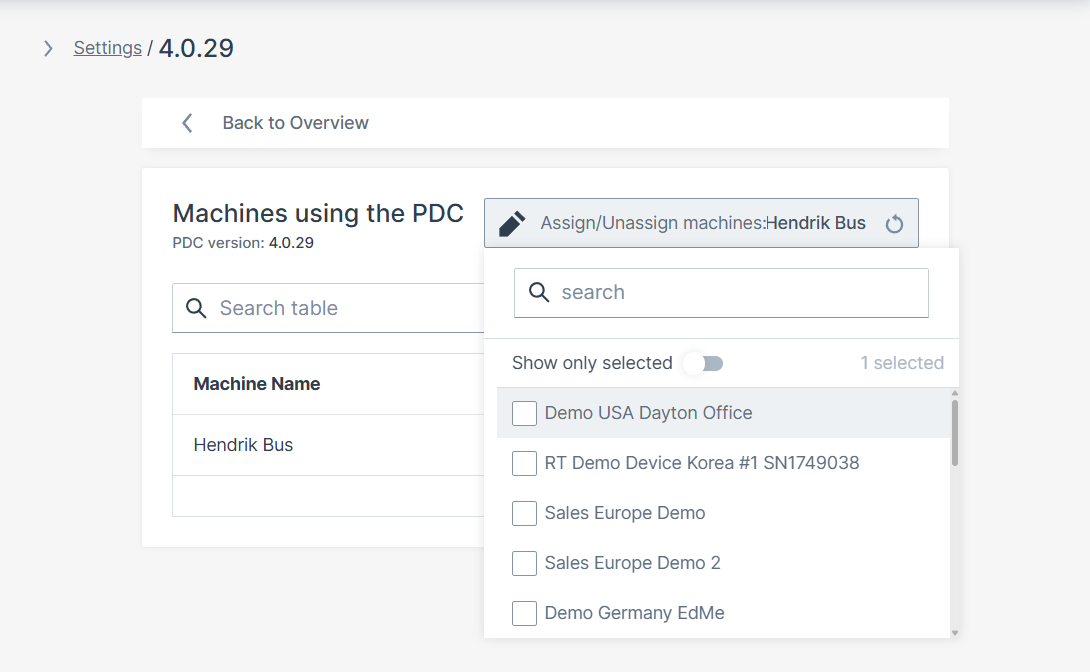
- Select the corresponding machine(s).
Update PDC Versions for Assigned Machines
To update all machines with a common PDC to a new version, proceed as follows:
-
Navigate as above and open the Update to this version option in the dropdown menu.
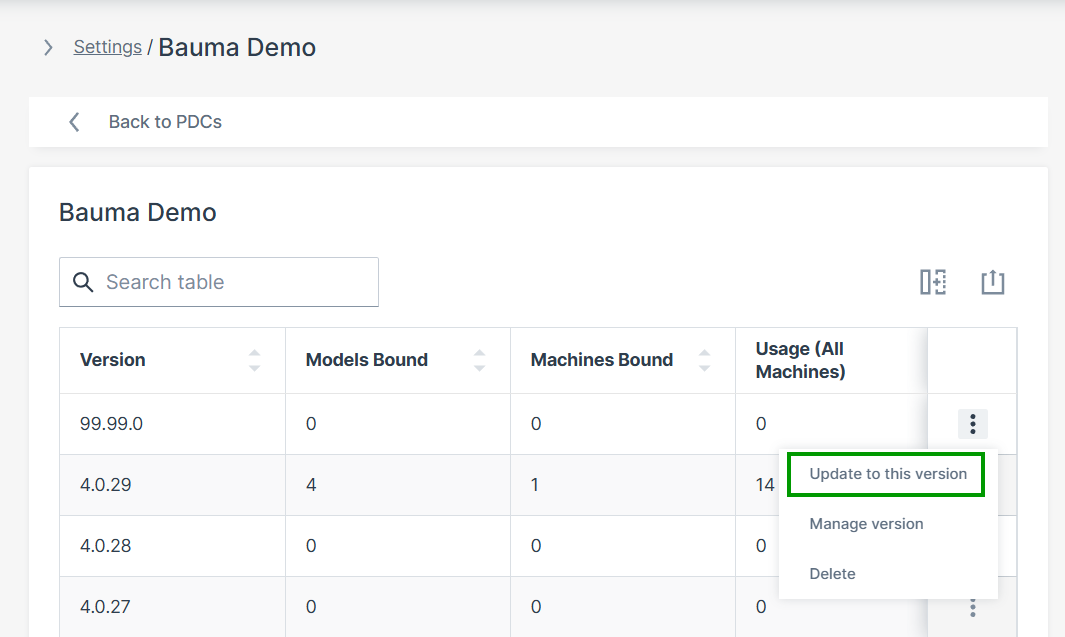
Figure 7: Update Machines to new version of PDC -
Select the PDC version(s) to update.
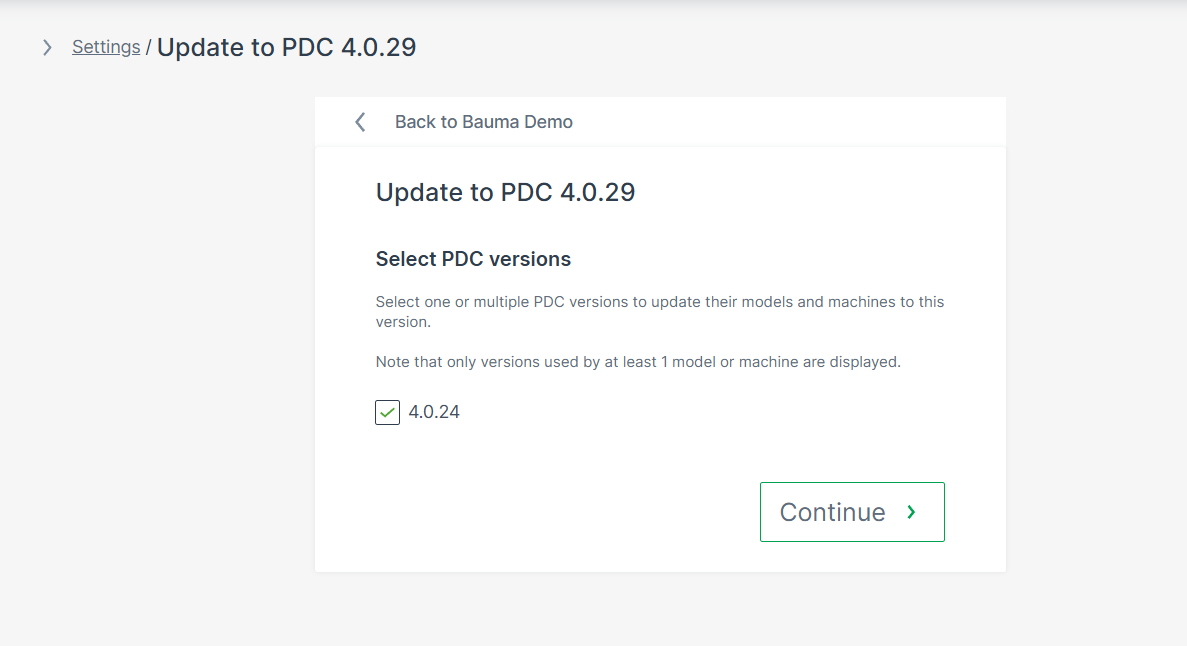
Figure 8: Update Dialog - Select PDCs for Update -
Click Continue.
-
Review summary.
-
Click UPDATE to apply. A confirmation message appears.
Edit PDC Assignment
Assignment changes can be done via:
-
Manage version dialog (see above).
-
EDIT MODEL dialog. Refer to Models Management and adapt the PDC assignment accordingly.
-
Manage Machine dialog:
On the Machine Page, select the machine you want to manage and click the Manage Machine vehicle button in the top-right corner.
This opens the Manage Machine window.
PDC Download
If an existing PDC version needs to be modified, it can be downloaded for further editing.
To download a PDC file, proceed as follows:
-
Navigate as above and open the Manage version option in the dropdown menu.
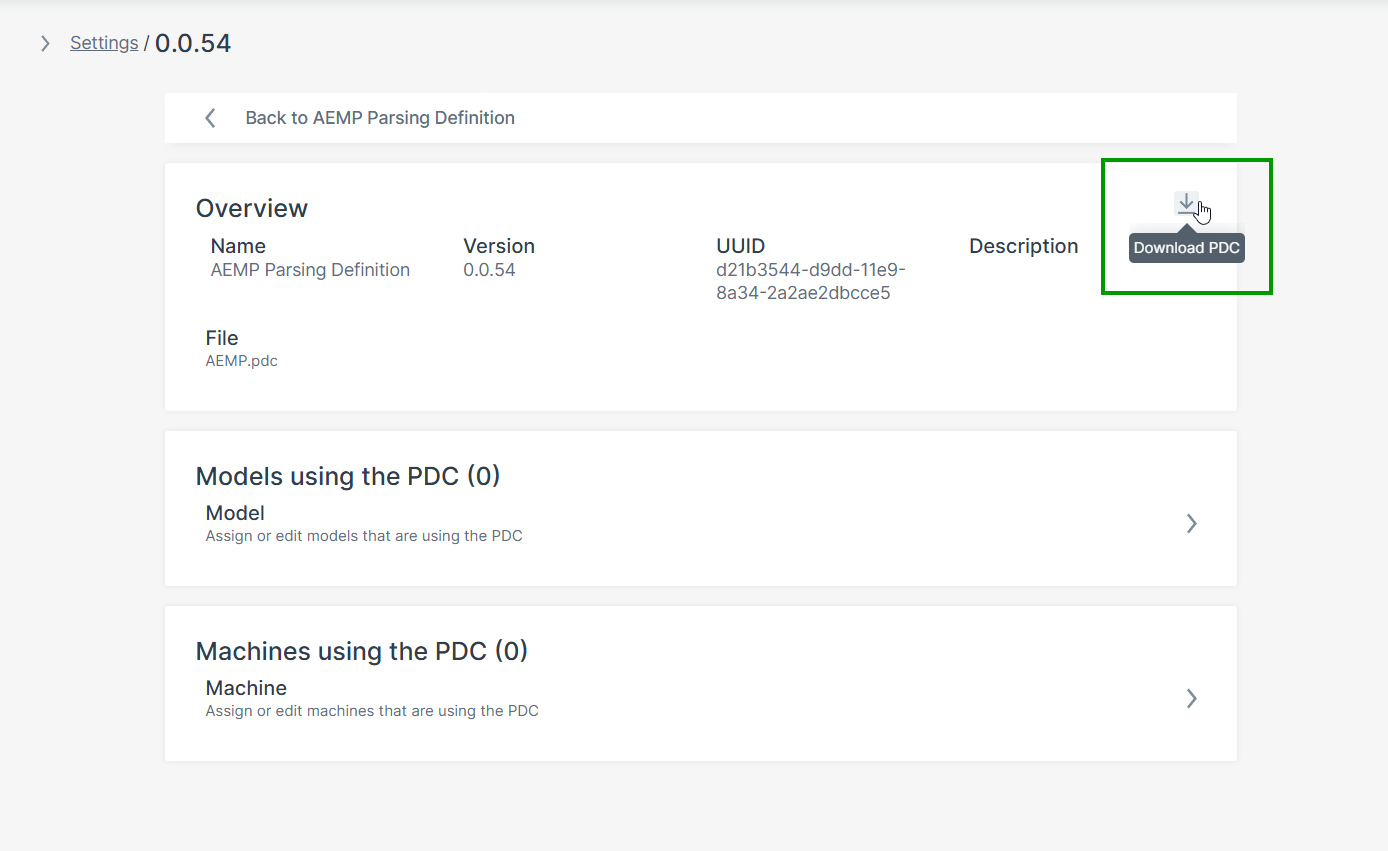
-
Click on the download sign in the upper right corner.
Delete PDC
Note
PDC versions assigned to models or machines cannot be deleted; the delete option is disabled.
To remove assigned PDCs, contact your Proemion representative.
To delete a PDC with unused version, i.e. with 0 Usage, proceed as follows:
-
Navigate as above and open the Delete option in the dropdown menu.
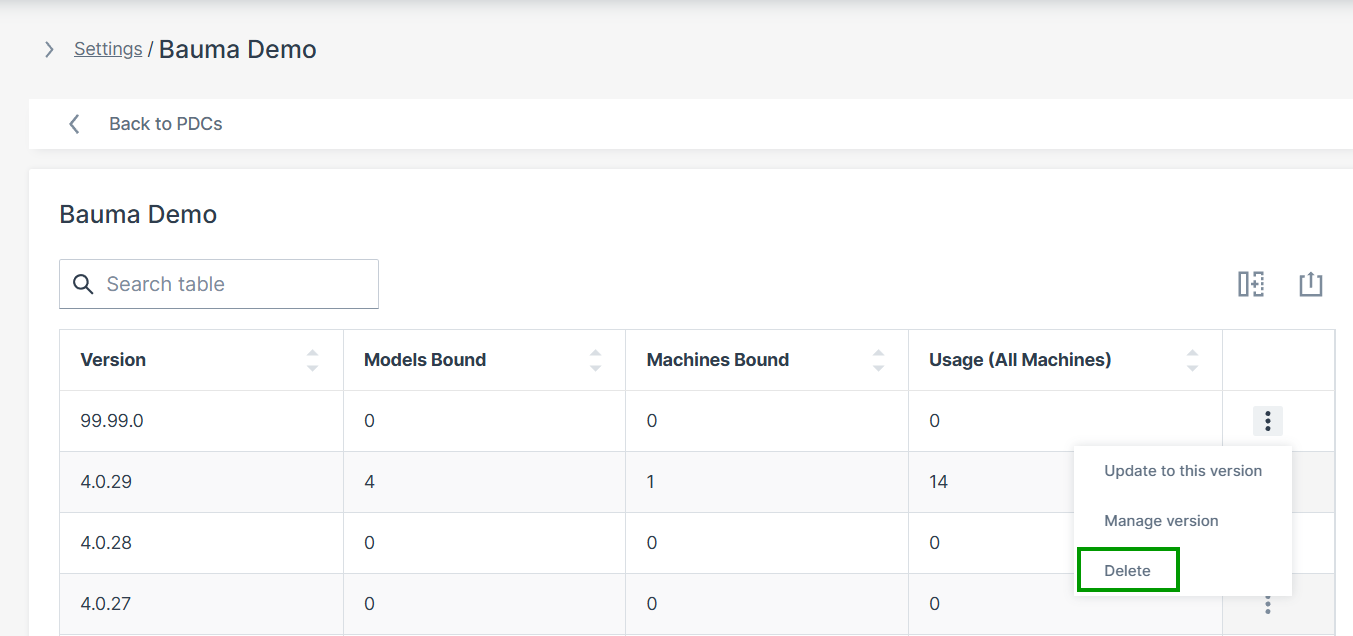
Figure 10: Delete PDC -
Click on Delete this version. A confirmation message appears.
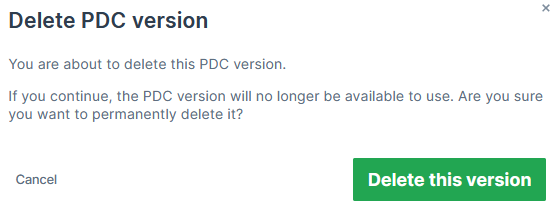
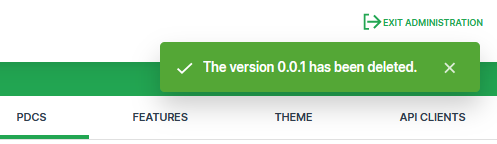
Figure 11: Delete PDC Confirmation