Signal Catalog
The Signal Catalog offers a centralized management of the signals and their definitions, i.e. signal properties, e.g. the signal key, label, unit and format.
The Signal Catalog summarizes and compares value definitions for repeated signals of the active PDC files within the entire organization's fleet.
You can use the Signal Catalog to standardize and unify the value definition of your PDC files and thereby enable a seamless analysis of the signals across the entire fleet.
Also, some DataPlatform standard functions such as Maintenance Tasks and Assignments rely on harmonized signals.
Read in the following chapter how to get an Overview of all Signals, Create Signal, View and Edit or Delete Signal Details and Resolve Conflicts and find a link to the Migration Guide for the Signal Catalog.
Note
The Signal Catalog only compares the identical signal keys within the value definition of the active PDC files. Similar signal keys but with differences in their spelling are not compared.
Requirements for the PDCs
-
The Signal Catalog only includes signals of PDC files which are assigned to a model or a machine. These are hereinafter referred to as active. Unassigned PDC files are not considered within the Signal Catalog verification.
-
Make sure that the user has access to all assigned PDC files within your organization tree.
-
Further information regarding the PDC content and functions can be found in the PDC Manual.
Migration Guide for the Signal Catalog
Before you can edit all the signal properties, you may migrate all or specific signals of the active PDCs to the Signal Catalog.
For information on how to migrate signals, read the Migration Guide for the Signal Catalog. Click here for the migration guide PDF: Migration Guide for the Signal Catalog PDF.
Overview of all Signals
To access the signals in the DataPortal Signal Catalog, open Settings > Machine Data Management > Signal catalog.
Note
The Signal Catalog is available to users with the Model:Admin permission set.
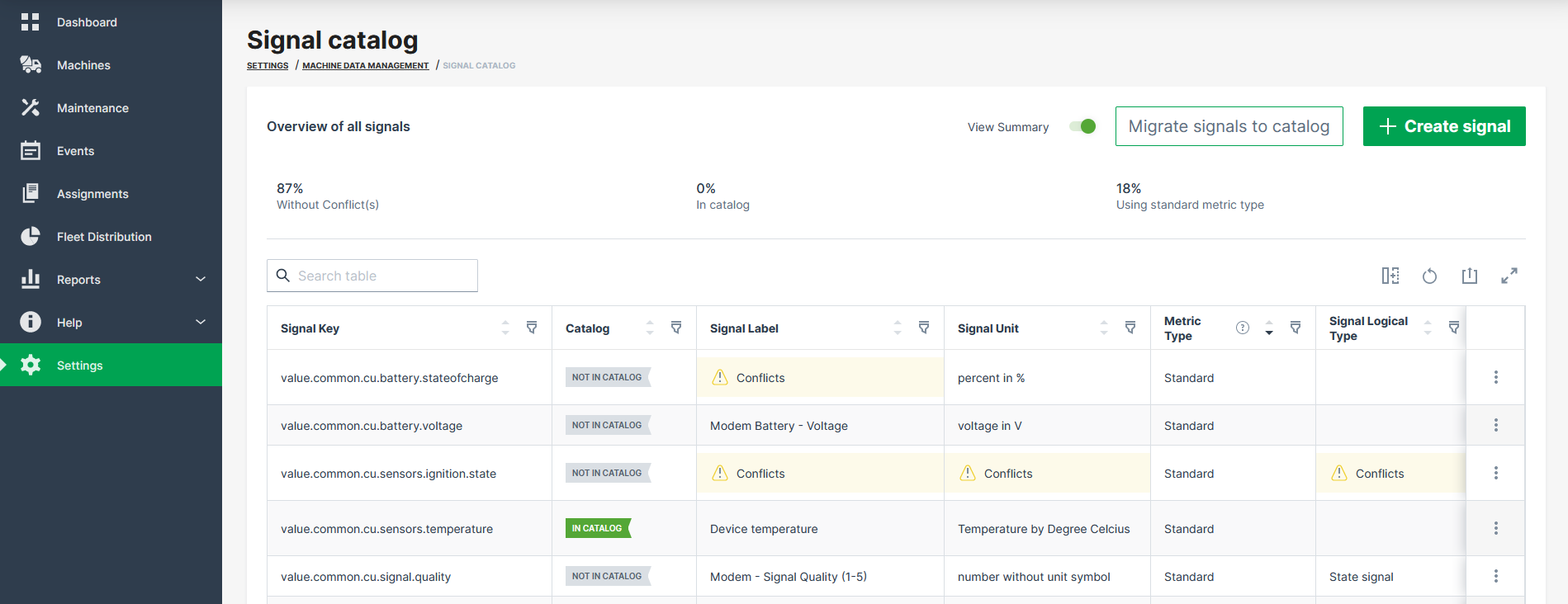
A table opens that lists all signals and their definitions in the organization. For each signal, you can open the Signal Details and view each signal definition in a separate view. If there is a conflicting definition, a conflict icon shows up; you can go to the Signal Details to view the conflict message.
For general information on signals and their definition, read the Proemion Standard Metrics.
The Signal Catalog table shows the following information on the signal definitions, see also image above:
| Item | Description |
|---|---|
| Signal | The unique signal keys of all active PDC files are listed within this column. The value definitions of identical signal keys are checked for variations. Signal keys with a unique name and usage in only a single PDC file have by default a number of conflicts = 0. For the signal names numbers, letters and the characters - and _ are supported; for more information on the syntax, read Standard Metrics Syntax definition. |
| Catalog | In Catalog means that the signal key has been added to the Signal Catalog and can be managed in DataPortal. |
| Signal Label | For every signal key, a label can be defined, i.e. the name or translation of the signal key. If there is no label, a conflict message shows up. For signal labels unicode characters are supported. |
| Signal Unit | The (predefined) unit the metrics are measured in. If there is no unit defined for the unit, a conflict message shows up. |
| Metric Type | Shows whether the signal is a Standard or Custom metric. For the list of standard metrics, see Proemion Standard Metrics. |
| Signal Logical Type | Shows whether the signal is a measurement, state or counter metric. |
| Bound To | Shows whether the signal is bound to a Machine or Model. |
| Visibility | Shows the signal's visibility level: Visible to all, or the specific organization types it is restricted to, e.g. OEM, Distributor, Dealer or Machine Owner. |
| Models | The number of models using this signal key. Note that both standard or custom signal keys may be used by one specific machine only, but 0 models. |
| Machines | The number of machines using this signal key is displayed here. |
| PDCs | The number of active PDC files using this signal key is displayed here. |
| Conflicts | The number of various conflicts across the definitions of the different PDC versions for a common signal key is displayed here. |
Note
Currently, differences regarding the min and max value of the value definition for a specific signal key are not checked and displayed in the signal catalog.
Create Signal
You can create a new signal and its signal definition in the Signal Catalog and later reference it in a PDC to bind it to a model. That means, after creating the signals, you then need to upload a PDC referencing those signal keys to bind them to models, see Bind Signal to PDC.
Note
You mustn't define any details on the value definitions in the PDC as you will define them during the creation of the signal.
To create a new signal, proceed as follows. It is recommended to add as many details as possible to create a valid signal definition.
-
Open Settings > Machine Data Management > Signal catalog.
-
Click Create signal in the upper-right corner.
Figure 2: Create signal button The New signal dialog opens which will guide you through the signal definition.
-
In the Signal Declaration, select the following signal properties:
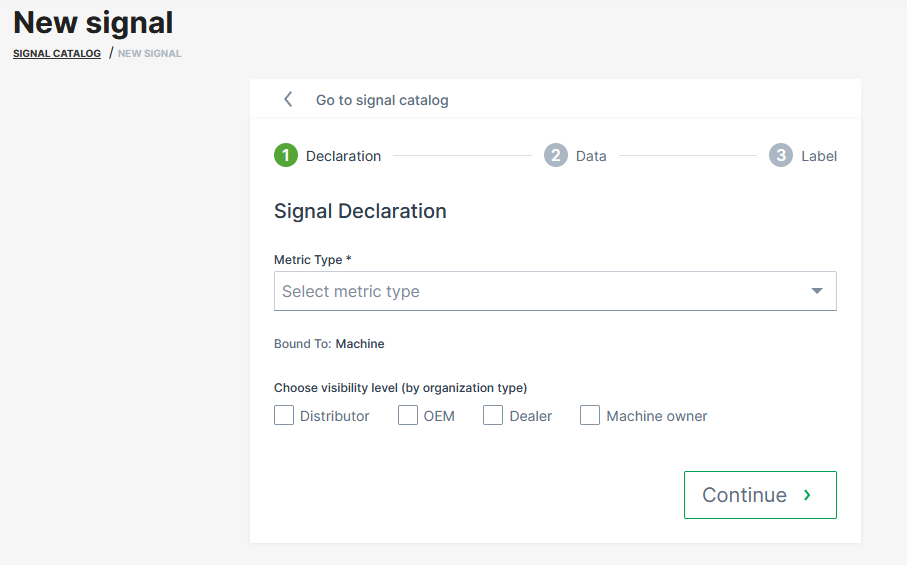
Figure 3: Signal Declaration -
Metric Type: Select the metric type: Standard or Custom.
-
Signal Key: Depending on the metric type, select the standard signal key from the list or enter a custom signal key.
-
Bound to: Shows the signal source of the signal, i.e. whether it is provided per "model" or "machine".
-
Visibility level: Select Visible to all or Specific types only. For Specific types only, additionally select one or more Organization Types in the Organization types field that appears.
-
-
In the Signal Data, select the following signal properties:
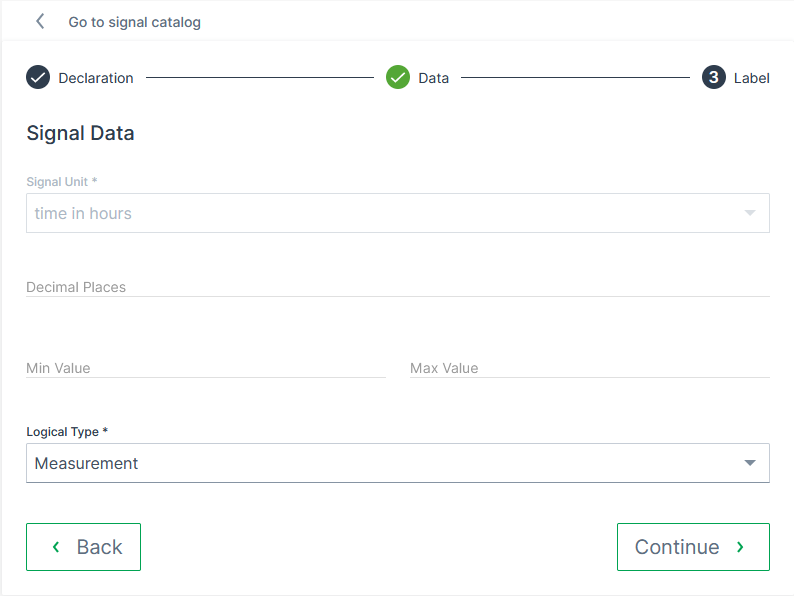
Figure 4: Signal Data In the Data declaration section:
-
Signal Unit: Shows the standard signal unit for the selected signal key, e.g.
percent in %ortime in hours. In case of a custom signal key, you must select the unit from the list. -
Logical Type: Select how the signal data is represented: Measurement, Counter or State.
-
For Counter, additionally define the Direction.
-
For State, select the State Type: Boolean or Enumeration.
-
-
Min Value and Max Value: Enter the valid value range of the signal data.
For State signals, the State configuration section appears:
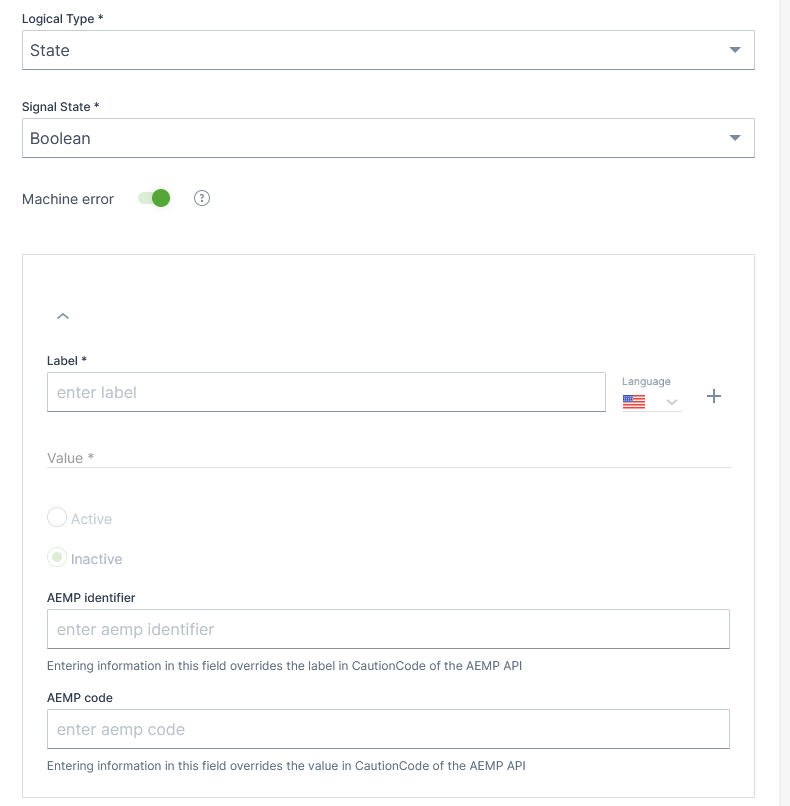
Figure 5: Signal State In the State configuration section, enable Machine error to expose the defined states as CautionCodes on the AEMP API, which are also delivered as the Caution Codes standard metric.
For each state value, define:
-
Value and Label: Add a translation per Language. Use Add value to define additional states.
-
Status: Set the state to Active or Inactive. Active states are visible on the DataPortal and are also exposed as CautionCodes on the AEMP API. Inactive states are hidden from both and are intended for troubleshooting only.
-
If Machine error is enabled, additionally define the AEMP identifier and AEMP code: entering a value here overrides the respective label or value of the CautionCode reported by the AEMP API.
For information on State Signals, see
<category>in PDC Value Definition.In the Display format section:
- Decimal Places: Enter a number of decimal places to be displayed for the unit. This only affects the visual rounding and doesn't change the stored precision of the value.
-
-
In the Signal label, enter the translations for Signal label.
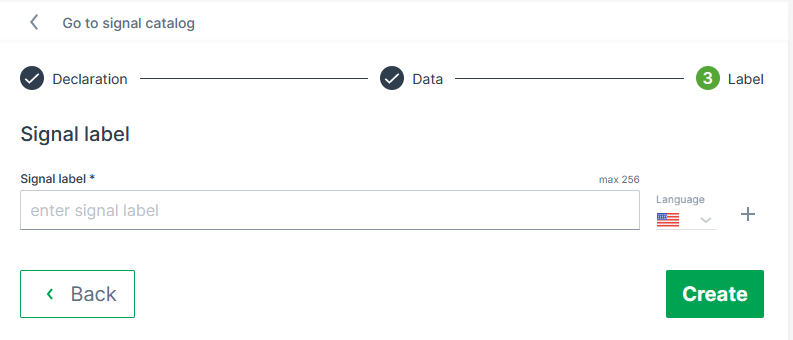
Figure 6: Signal Label -
When finished, click Create to add the signal to the Signal Catalog, or Create + Next to add the signal and immediately continue creating another one.
Bind Signal to PDC
In order to bind the created signal to the model, see Create Signal, i.e. to make the signal active, you must add a reference of the signal key in the PDC:
-
Download the PDC file for the respective model as described in PDC Download.
-
Add the reference to the new signals to the
<ValueDefinitions>section by pasting the following line to the tag:<ValueDefinition key="[New Signal Key]" managedByDataPlatform="true"/> -
Add the parsing definitions for the new signals to the PDC, see PDC Parsing Definition.
-
Upload the PDC to the model again as described in PDC Upload.
-
Assign the new version of the PDC to the machines as described in Update machines to a new PDC version.
Adapt PDC
If you intend to make manual changes to the PDC, first download the latest version from the DataPortal. On download, the DataPortal will replace all <ValueDefinition> for signals from the catalog with <ValueDefinition … managedByDataPlafrom=true />. Then you can apply your changes and upload it again.
Note
PDCs with <ValueDefinition> for signals from the catalog instead of <ValueDefinition … managedByDataPlafrom=true /> will be rejected upon upload.
Add new PDC
In case you want to create an entirely new PDC, you may download the PDC Template. In that case add and adjust the required information like uuid, version, Name, Transformers, ParsingDefinition, etc. See PDC Manual.
Warning
Please note that the PDC Builder software is deprecated and no longer working for PDCs with migrated signals. You need to edit the parsing definitions, etc. directly in the PDC file using an XML or text editor software.
View and Edit or Delete Signal Details
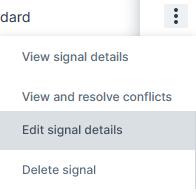
When you open Settings > Machine Data Management > Signal catalog, in the Signal Catalog table, by the end of each signal row the drop-down menu offers the options to:
-
View signal details:
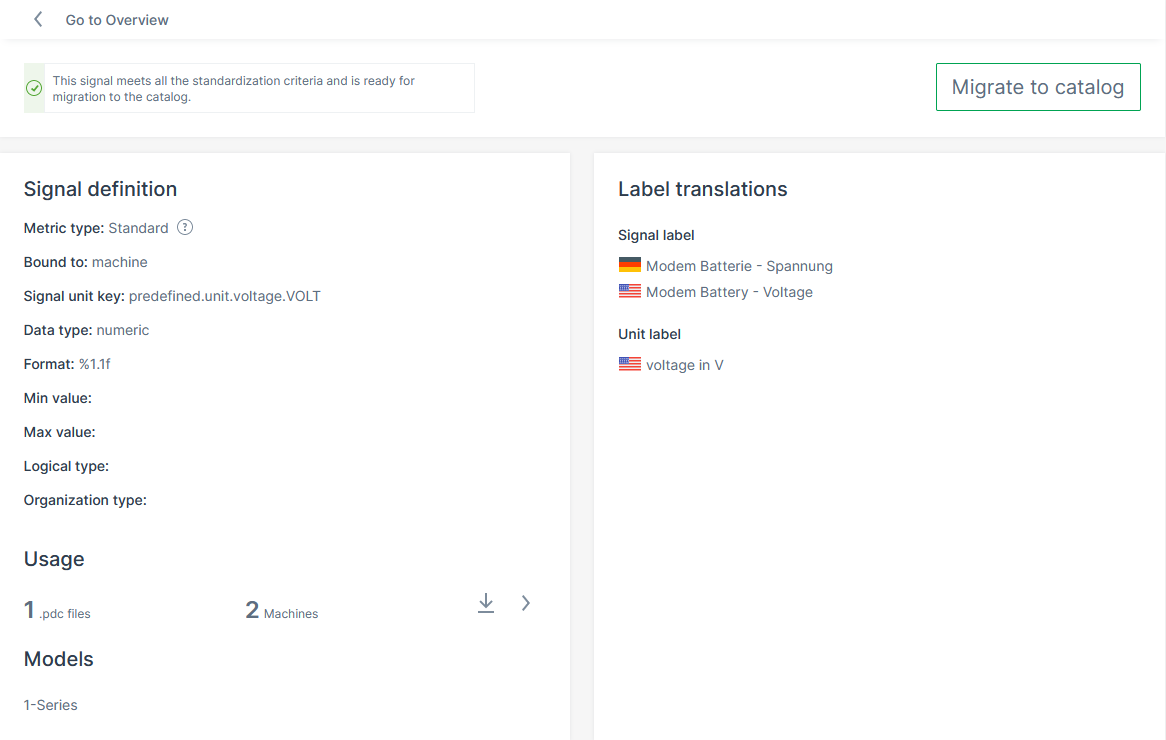
Figure 8: Signal definition details Summarizes the signal properties of the selected signal (for descriptions of the properties, see Create Signal). You can also download the PDCs that include this signals. The following signal properties are also displayed in the signal details:
-
Data type:Shows the type of the signal, e.g.
numeric. -
Format: Shows the defined format for DATETIME, e.g.
HH:MM:SS. -
Visibility level: Signals without any organization type set are also displayed as Visible to all.
-
Label translations for Unit label.
-
-
View and resolve conflicts: See Resolve Conflicts.
-
Edit signal details: Allows you to edit the signal definition fields described below, see "Signal details" list below. The Edit signal page offers searchable drop-down menus or selectable check boxes that ensure to select only valid values for the signal key label, unit and format and other options.
-
Delete signals: The Delete signal option is disabled (greyed out) if the signal is currently in use by one or more PDCs, or if it is not present in the catalog. Please verify the signal's usage and catalog status before attempting to delete it. A corresponding message is displayed in the DataPortal when attempting to delete a signal, see screenshot:
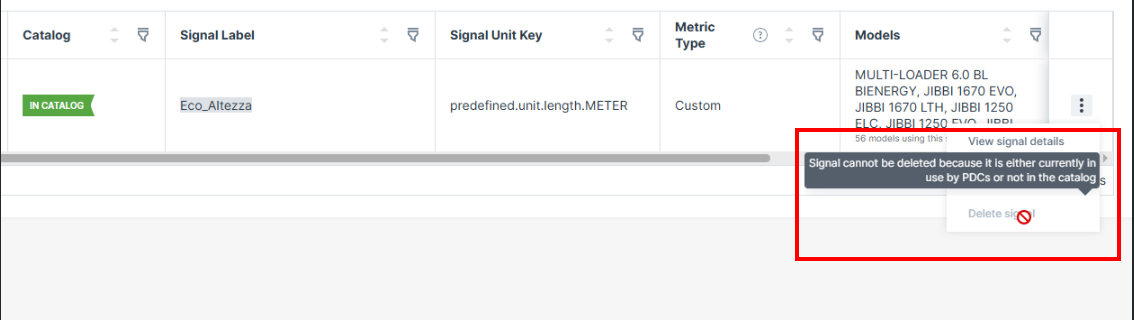
Figure 9: Delete Signal
Resolve Conflicts
Signals that have conflicts cannot be migrated immediately, for example, when the same signal uses different units in different PDCs, e.g. meter and kilometer. The conflict icons in the Signal Catalog table and details indicate the signal definition values with conflicts:

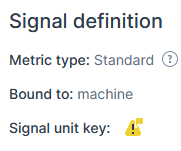
You can migrate the signals with conflicts by resolving the conflicts as described below. A summary of frequently occurring migration conflicts and how to resolve them is described in Migrate signals with conflicts in the Migration Guide for the Signal Catalog.
How to Resolve Conflicts - Sample
To resolve the conflict(s), proceed as follows.
-
Click the View and resolve conflicts button to open the Conflicts View.
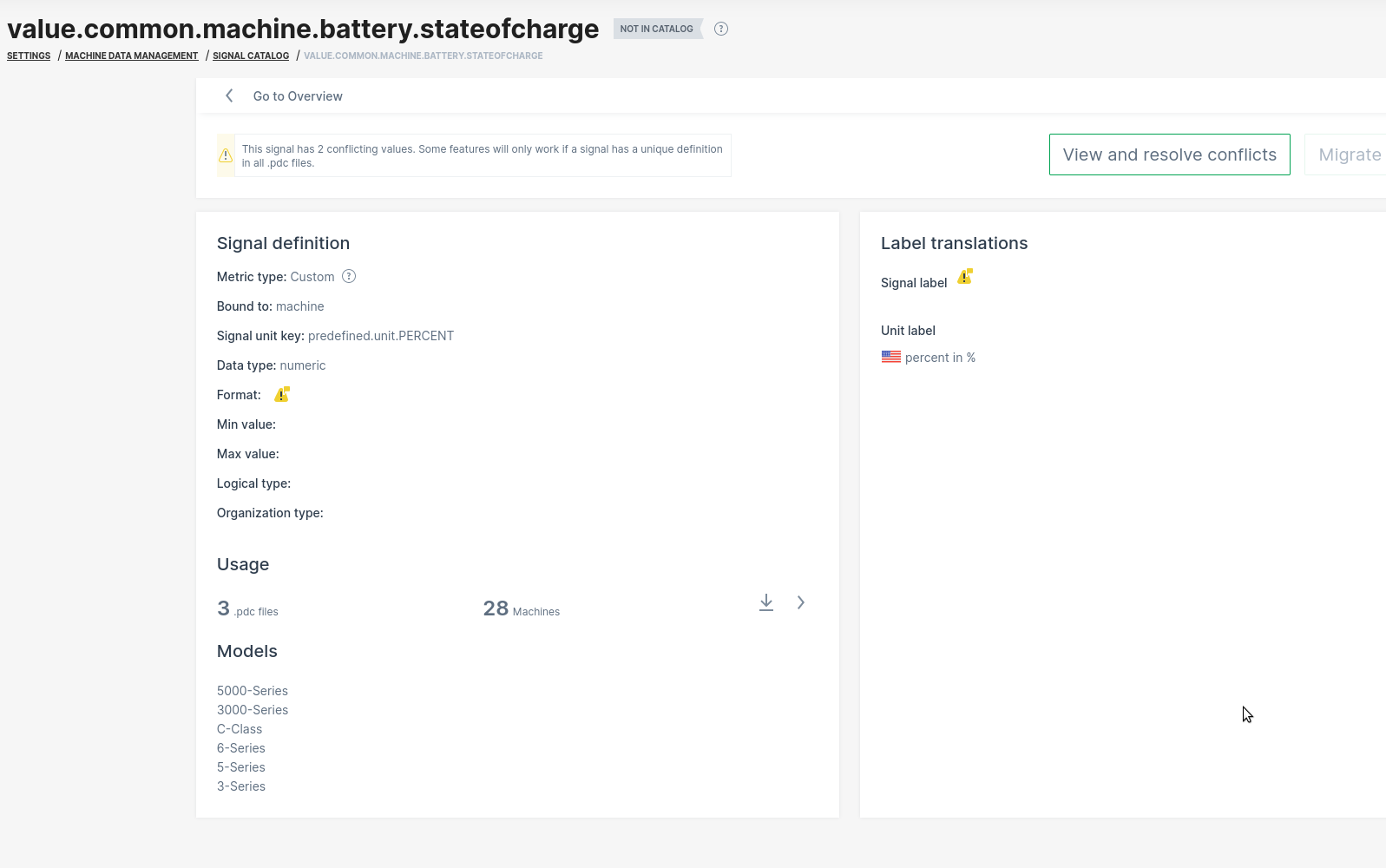
Figure 12: Signal conflict details -
In the Conflicts View, a "Summary of conflicting values" is shown. Click on the Resolve conflicts to start the conflict resolution.
Note
This is only available for signals without states.
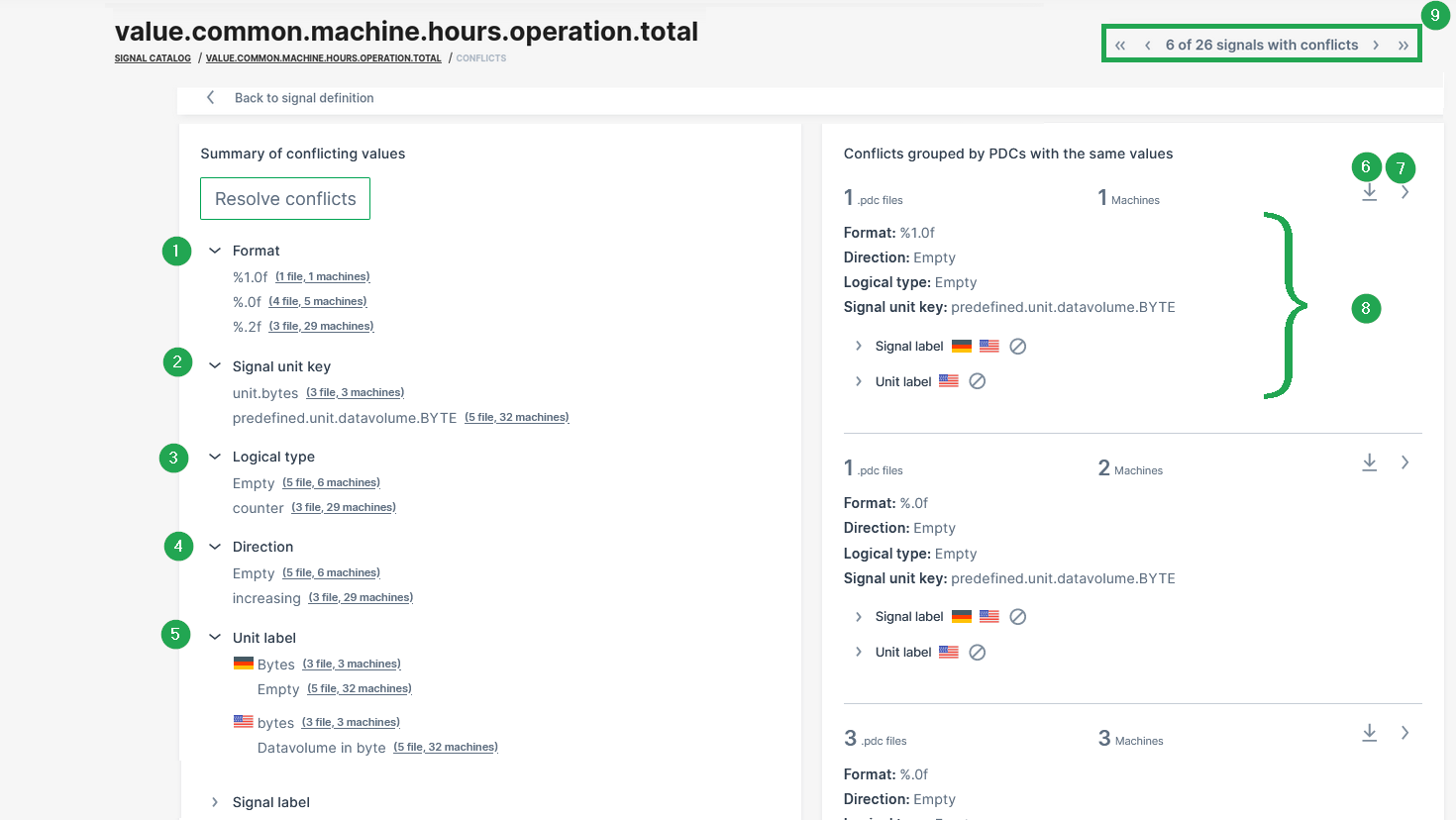
Figure 13: Conflict details # Item Description Summary of conflicting values 1 Format Maximum number of decimals is different across the PDCs. 2 Signal unit key The signal unit key is different across the PDCs. 3 Logical type There are 3 PDCs with no logical type defined. 4 Direction There are 5 PDCs with no direction defined. 5 Unit label There are 5 PDCs with not signal unit label defined and there is a variation with the spelling. Other conflicting values might be: Signal label There is a wrong unit label configured. Custom Units There is a conflicting custom unit. Resolve it by selecting one of the predefined units from the list of standard signals (not from PDC). Permissions The assigned access permissions for this signal are not aligned. Conflicts grouped by PDCs with the same values 6 Conflicts per PDC Summary of the conflict related parameters for the specific PDC file. 7 Download of PDC Option to download the affected PDC file in xml format. 8 Details See further version details of this PDC. 9 Navigation Navigation through all signals with a conflict. -
In the Resolve conflicts view, select the correct value for each signal property that is listed in this conflict view, e.g. "Signal unit key", "Format", "Signal labels" as shown in the following image.
Note
The selected values are stored in the signal catalog and effectively overriding all conflicting definitions in PDCs.
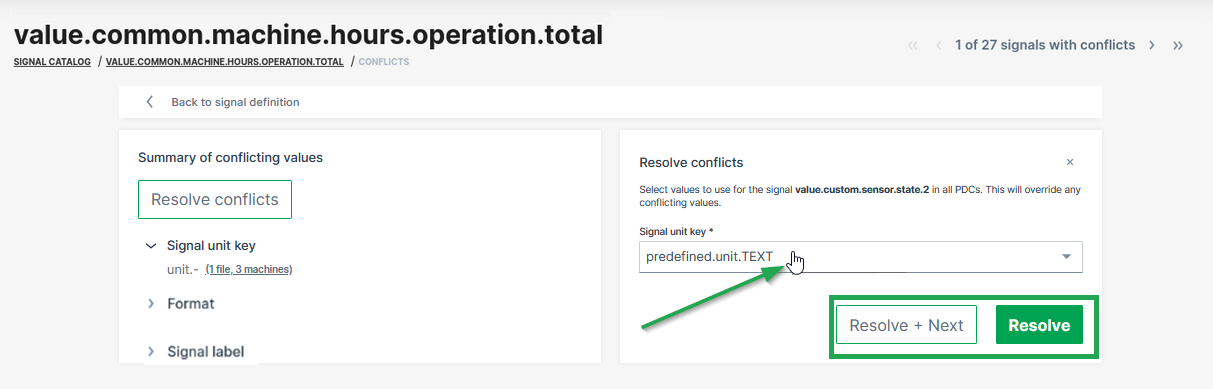
Figure 14: Resolve conflicts -
Proceed as follows:
Resolve + Next Resolve Click Resolve + Next to resolve this signal and go to the next conflict. A new dialog window opens to confirm this update and automatically migrate the signal to the catalog and proceed with the next conflict: Click Resolve to resolve the current conflict. A new dialog window opens to confirm this update and automatically migrate the signal to the catalog: 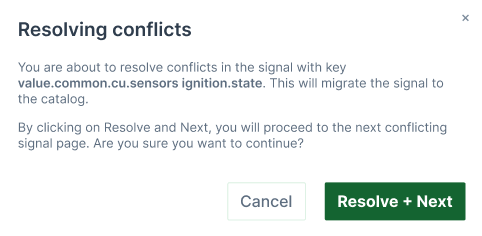
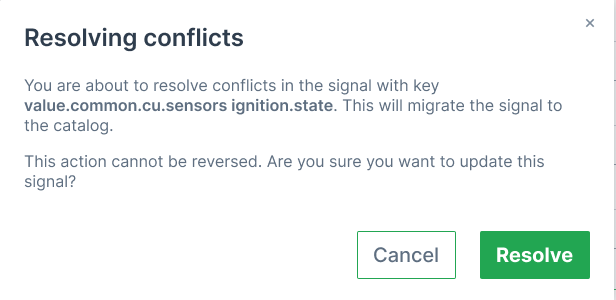
You will be then forwarded to the next signal. Note that you can navigate through the signal conflicts using the navigation buttons in the top-right corner. You will be then forwarded to the Overview of all Signals.