The Migration Guide for the Signal Catalog describes how to migrate the signal definition from the definition in PDCs to a unique definition on the DataPlatform. |
1. Migration Guide for the Signal Catalog
The Signal Catalog enables the editing of signal definitions used across the organization’s fleet.
In addition, you can now migrate all the currently applied signal definitions from the machines' PDCs to the DataPlatform, resp. DataPortal, which allows you to edit the (repeated) signal definitions for all machines at once.
Beforehand, identical signal definitions used by several machines could only be edited separately in each PDC of a machine, leading to redundant work and conflicts.
In the following, it is described how to migrate the signal definitions to the Signal Catalog.
Start with the migration of system-used metrics
We highly recommend focusing on the migration of the System-Used Signals (value.common.*), i.e. standard metrics used for the DataPlatform standard features, e.g. Machine Companion App (Google Play), Maintenance Tasks, OEM Insights, etc. and the other easy-to-migrate signals, e.g. signals without conflicts, with predefined units, etc.
This allows you to continue the usage of the DataPlatform and DataPortal while migrating the remaining signals subsequently.
Examples of system-used metrics:
value.common.machine.hours.operation.total
value.common.engine.fuel.level
value.common.machine.distance.total
1.1. Requirements
-
The permission set Models:Admin, see Models Subject, for the DataPortal is needed for the migration of the signal properties.
-
Signal definitions are stored at the tenant.
The user must be a member of a tenant organization, read Tenant. -
Only valid signal definitions are considered. That means:
-
Without any conflicts.
-
Using a predefined unit (custom units are not supported).
-
Must be
boundTo: machine(notmodel). -
Standard signal, i.e. must be present in the standard Signal Catalog.
-
Or custom signal must use the prefix
value.*
-
| In the DataPortal, signal definitions are not strictly validated according to the Proemion Standard Metrics. |
1.2. Migrate Signals
You can individually migrate signal definitions to the Signal Catalog or perform a mass migration for all signals that do not have any conflicting configuration.
We recommend starting the migration with the signals without conflicts and afterwards migrating the signals with conflicts one after the other.
The Signal Catalog migration can be done in incremental steps. It is not needed to execute all in one batch.
| Signal migration cannot be reverted. |
| When using migrated signals, the process for PDC changes and adding new signals is slightly changed. See Add new Signal. |
The Signal Catalog table shows you in the Catalog column whether a signal key is "Not in Catalog".
It also indicates "Conflicts" within signal definitions in case there are any.
The View summary toggle will show you the total number of the signals "Without conflicts", "In Catalog" and "Use standard metric key".
1.2.1. Migrate all signal definitions without conflicts
-
Open Settings > Machine Data Management > Signal catalog.
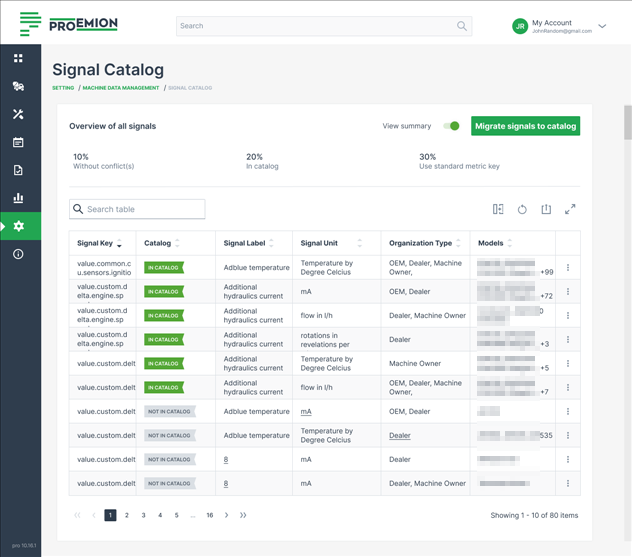 Figure 1. Signal Catalog table
 -
Click Migrate signals to catalog in the upper-right corner.
The button is not shown when all signals have been already migrated. -
Confirm the dialog window that displays the number of the signals to be migrated.
✓ When the signal definitions are valid, i.e. met the Requirements, the success message shows the number of successfully migrated signals.
In the Signal Catalog table they will get the label In Catalog and can now be managed in the UI, see View and Edit or Delete Signal Details.
1.2.2. Migrate specific signal definitions
-
Open Settings > Machine Data Management > Signal catalog.
-
Click View Signal Details by the end of the row of the desired signal key.
The details page opens: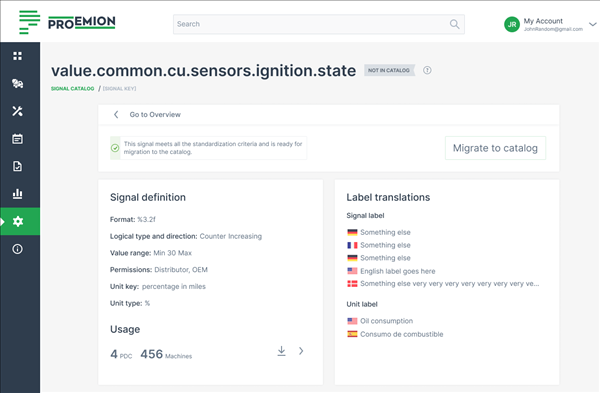 Figure 2. Signal definition - Not in Catalog
 -
Click Migrate to catalog in the upper-right corner.
When the signal key is not eligible to migrate, i.e. does not meet the Requirements, the button is greyed out: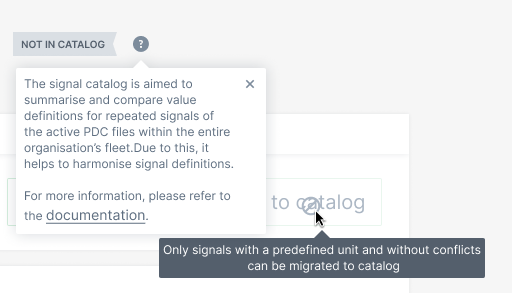 Figure 3. Signal not eligible to migrate
 -
Confirm the dialog window to start the migration.
✓ A success message indicates the successful migration.
In the Signal Catalog table the signal key has then the label In Catalog.
1.2.3. Migrate signals with conflicts
|
The Signal Catalog migration can be done in incremental steps. It is not needed to execute all in one batch. You can display the non-migrated signal definitions by filtering the table by the option "Not in Catalog" in the column "Catalog". |
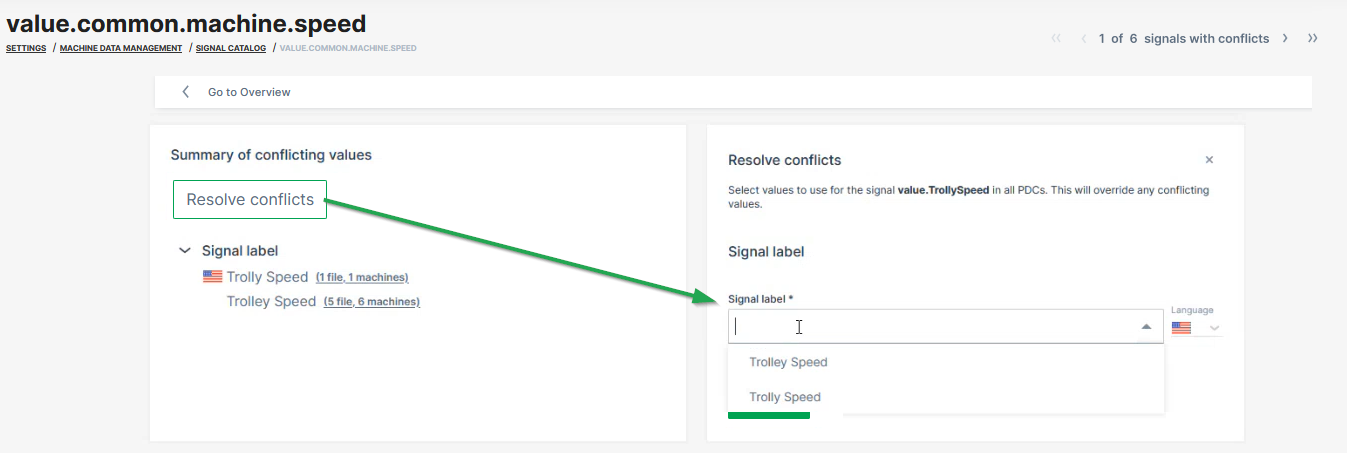
Check the instructions in Resolve Conflicts for migrating signals with conflicts.
Below you can find some guidance on the resolution of frequently occurring migration conflicts.
In case of problems, contact our Support.
Signal Label Conflicts
Options:
-
Choose the most appropriate signal name.
-
Completely different signal names:
This could be a case of two different signals using the same key! The conflict most likely must be resolved by updating the PDCs first.
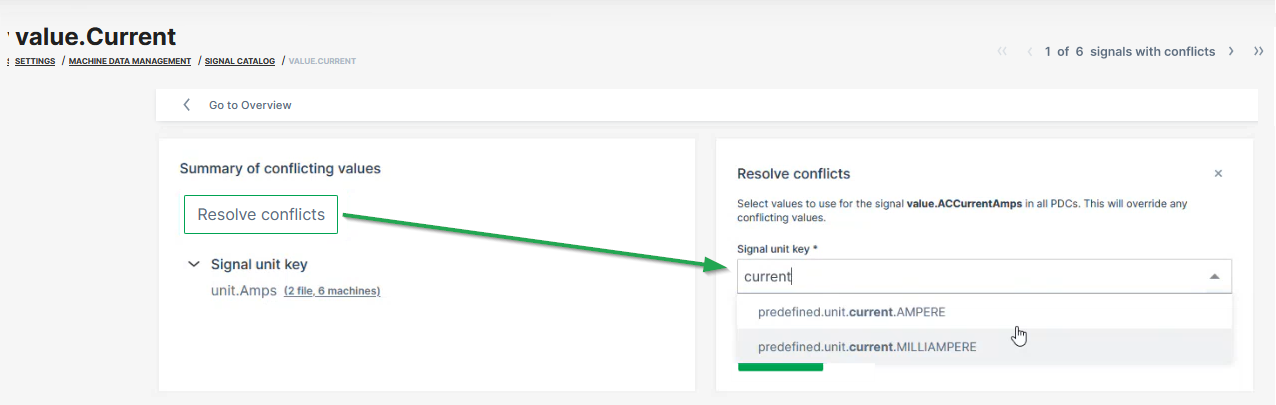
Unit Key Conflicts
Options:
-
If custom units are used, check if an appropriate standard unit is available and select it.
If there is no appropriate standard unit available check with Support if it can be added. -
Choose the most appropriate custom unit.
In case, completely different units are used, the conflict most likely must be resolved by updating the PDCs first.
The PDC transformers may need to be adjusted.
Also, the historical data may need to be adjusted.
Contact Support for assistance in that case.
|
Be careful when resolving conflicts on different units! The wizard suggests changing units that are assigned wrongly to Standard Metrics signals. This would result in wrong unit display! The conflict most likely must be resolved by updating the PDCs first. |
Data Type Conflicts
This conflict most likely must be resolved by updating the PDCs first. It seems that different signals are using the same signal key.
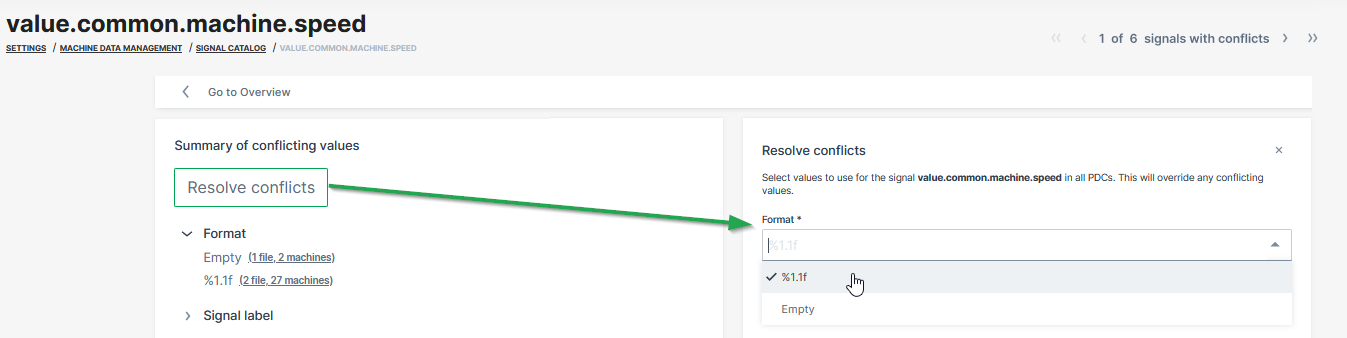
Format Conflicts
Options:
-
Check what is the most reasonable formatting for this signal.
-
Use the highest precision formatting.
Min/Max Conflicts
Options:
-
Check your machine’s signal specification for the correct values.
-
Check what is the most reasonable min/max values for this signal.
-
Use the most narrow range.
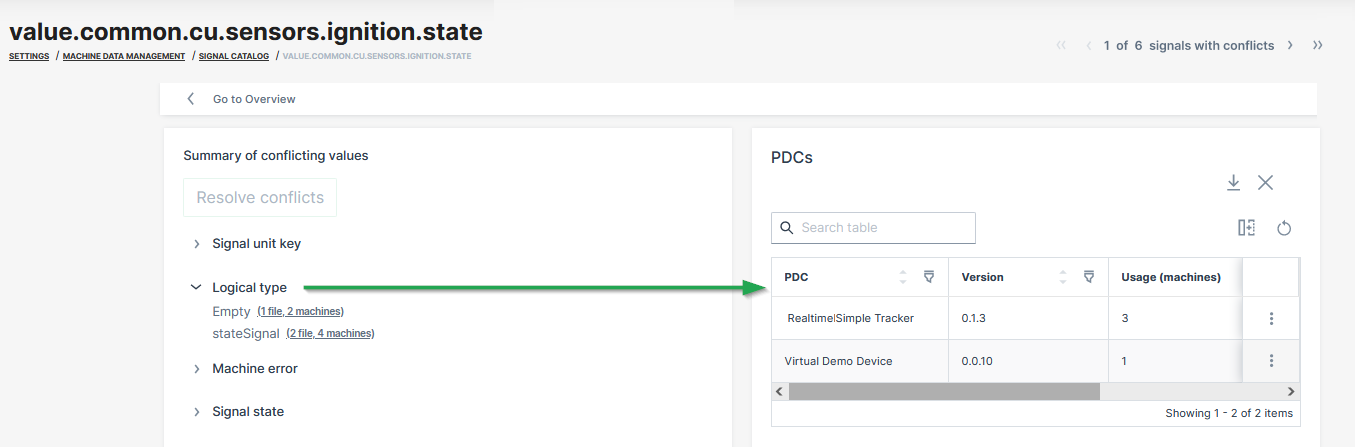
Logical Type Conflicts
Options:
-
Check your machine’s signal specification for the correct signal type.
-
Check what is the most reasonable signal type.
-
If the options are Measurement or a specific type, usually choose the specific type.
-
Signals that are counters should be set as Counter with the direction setting.
1.3. Add new Signal
New signals need to be introduced to the Signal Catalog first before being added to a PDC.
To add new signals to an existing PDC or create an entirely new PDC for a new model, please follow the steps indicated here:
-
Create the new signal as described in Create Signal.
-
Download the PDC file for the respective model as described in PDC Download.
-
Add the reference to the new signals to the
<ValueDefinitions>section by pasting the following line to the tag:<ValueDefinition key="[New Signal Key]" managedByDataPlatform="true"/> -
Add the parsing definitions for the new signals to the PDC, see PDC Parsing Definition.
-
Upload the PDC to the model again as described in PDC Upload.
-
Assign the new version of the PDC to the machines as described in Update machines to a new PDC version.
✓ The new signal is now included in both the Signal Catalog and PDC and applied to the machine model.
1.3.1. Adapt PDC
If you intend to make manual changes to the PDC, first download the latest version from the DataPortal.
On download, the DataPortal will replace all <ValueDefinition> for signals from the catalog with <ValueDefinition … managedByDataPlafrom=true />.
Then you can apply your changes and upload it again.
PDCs with <ValueDefinition> for signals from the catalog instead of <ValueDefinition … managedByDataPlafrom=true /> will be rejected upon upload.
|
1.3.2. Add new PDC
In case you want to create an entirely new PDC, you may download the PDC Template.
In that case add and adjust the required information like uuid, version, Name, Transformers, ParsingDefinition, etc. See PDC Manual.
|
Please note that the PDC Builder software is deprecated and no longer working for PDCs with migrated signals. You need to edit the parsing definitions, etc. directly in the PDC file using an XML or text editor software. |
Version: 11.0.1021 · Cookie Preferences