Organization Unit Management
Organization Units (OU/org units or sub-organization) are groups of users with a name and type (category) and are subordinate to the user's organization. Organization Units may have their own sub-organizations and users, and machines can be assigned to org units separately. Users can only see DataPortal objects in their own organization unit and the sub-organizations (subsidiaries).
Permissions
Different actions on organization units, such as viewing, adding, or moving them, require different Permission Sets, from Organization:View to Organization:Admin. The exact capabilities are listed under Permission Set.
Management Permission by Organization Type
For a detailed overview of the user capabilities for creating Business Units/sub-organizations from each level, see section the table below.
| Organization Type | Permissions |
|---|---|
| OEMs | - Create new Dealer and Machine Owner Business Unit with each Dealer/Machine Owner root. |
| - Create, edit or delete all (sub-)organizations within the Business Units. | |
| Dealers | - Create new Machine Owner Business Unit with Machine Owner root. |
| - Create, edit or delete sub-organizations of organization type Dealer or Machine Owner within an existing Business Units. The Organization:Maintain permissions is needed. | |
| Machine Owners | - Create, edit or delete sub-organizations of organization type Machine Owner. |
Organization Type
Organization units are assigned to organization types based on the tasks performed. The organization type serves three purposes: it gives users a visual label to identify what kind of organization they are looking at, it controls which user segments can access specific PDC signals, and it determines which Organization Dashboard and Machine Page layouts are shown to a user.
The organization types have the following hierarchical order:
-
Distributor
-
OEM (manufacturer)
-
Dealer
-
Machine Owner
-
None, a legacy type from migration that should not be assigned to new organizations.
A child organization's type can never be higher in this hierarchy than its parent's, though levels may be skipped, e.g. a Distributor may have a Machine Owner sub-organization directly.
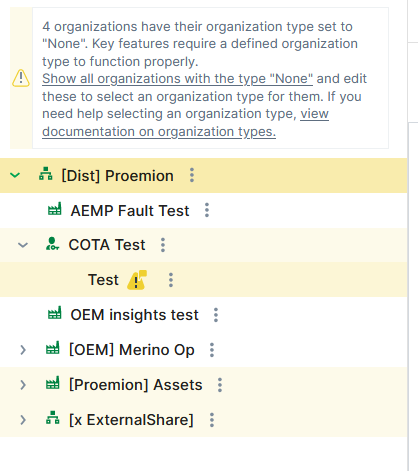
With the Feature Switch "Machine Pages by Organization Type" it is mandatory to assign the organization type to all organization units. A warning will be displayed next to the organization when it has no organization type (None). You can then click the link Show all organizations with the type "None" that will expand the organization tree to the relevant organization units:
Note
If the parent organization unit has no organization type defined, only then "None" can be assigned; the warning will be displayed nevertheless. Otherwise, it is mandatory to select the organization type.
System Organizations
Proemion automatically creates special organizations for technical purposes based on shipment information. These organizations are system-managed and act as technical inboxes for shipped CUs before they are assigned to a machine and activated.
System-managed organizations are identified by the prefix [System] in the organization name.
They are required for correct shipment mapping and activation logic and are not intended to be deleted by users but can be renamed.
For further information refer to installed and pending CU's.
Create Business Units and Sub-Organizations
The creation of Business Units and sub-organizations is done in the menu Settings > Administration > Organization Structure. They can be created either directly in the Organization Tree, see Organization Structure Overview, or in the SUB-ORGANIZATIONs tab.
Proceed as follows to create a Business Unit (root) or sub-organization.
-
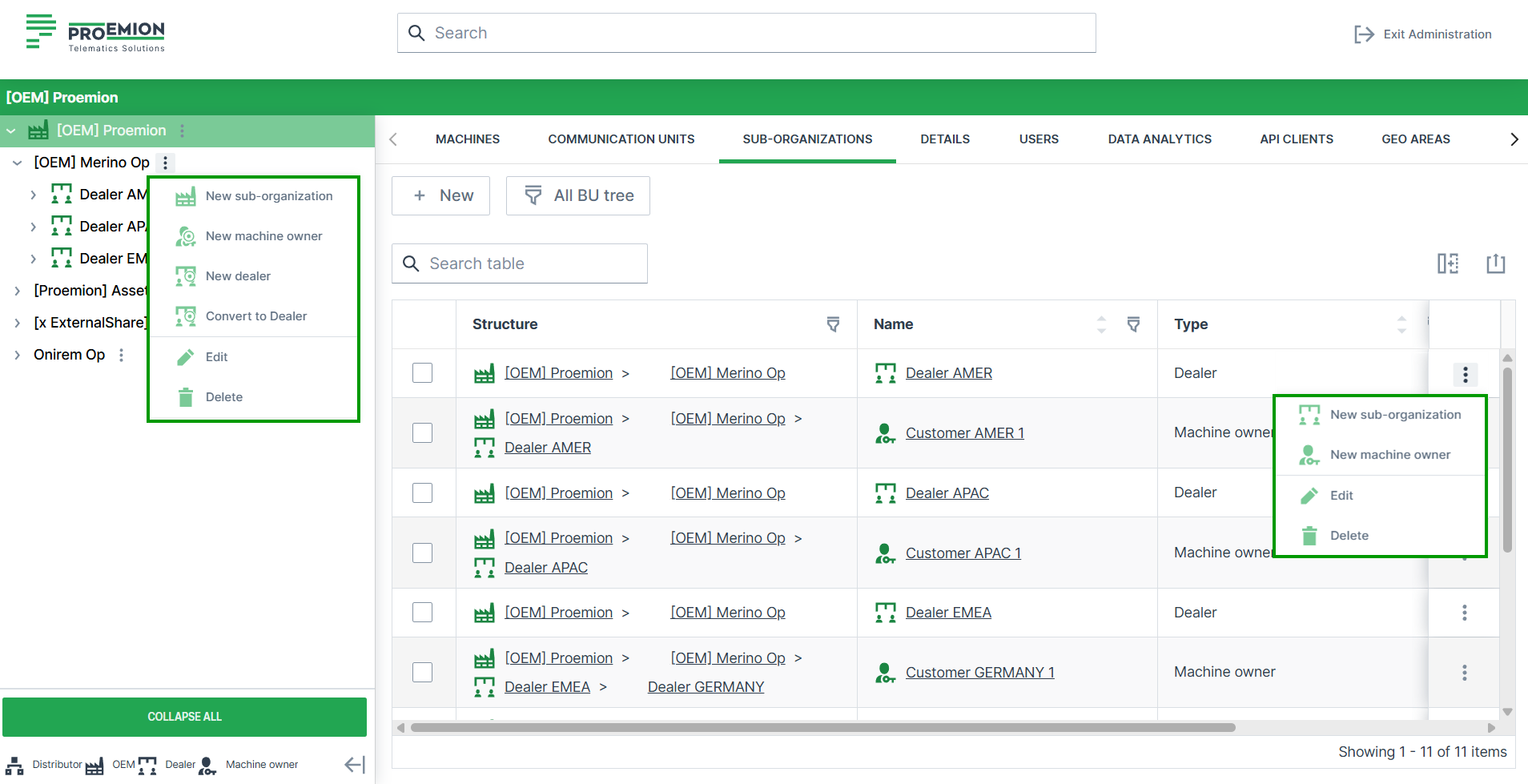
In the Organization Tree or in SUB-ORGANIZATIONS where the new Business Unit or sub-organization needs to be added, click the three-dots icon
 .
. -
Select the New sub-organization or select New Dealer/New Machine Owner to create a new Business Units with the root organization.
-
Add the name of the Business Unit root/sub-organization and optionally add an OEM external key.
-
Submit to save the changes.
Business Unit of type OEM can be created at the top of the Organization tree by the OEM. Below, an arbitrary number of Dealer- and Machine Owner Business Units as needed with each including one Business Unit root and an arbitrary number of sub-organizations for each Business Unit. Consider that the following relation is also possible: 1 OEM (root) > 1 Dealer (root) > 1 Machine Owner (root).
Sub-organizations are created related to their parent organization, i.e. are of the same type as their parent organization.
Note
Selecting an organization in the Organization Tree changes the structure under SUB-ORGANIZATION!
Edit Organization Unit
To change the details for an organization unit:
-
Open Settings > Administration > Organization Structure.
-
Select the (sub-)organization unit that you want to change.
-
Click on the 3-dots icon
. -
Click on Edit to edit the properties of this organization.
-
Optionally change the Name for the sub-organization.
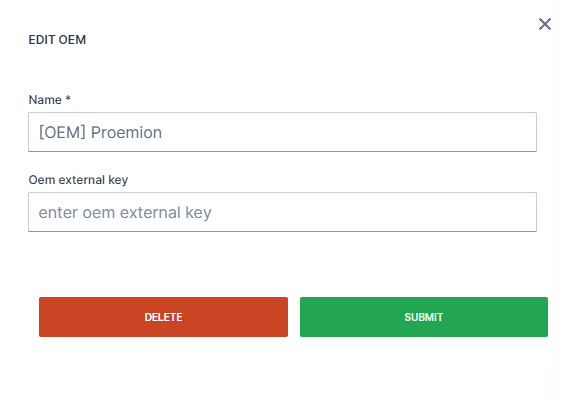
Figure 2: Edit Sub-Organization Details -
Click the SUBMIT button to save your changes.
Remove Organization Unit
Note
DELETE (Remove) only works when there are no entities assigned to this organization anymore. Otherwise, this message will appear: The organization is still in use by having PDCs, users, devices, machines, models, assignments or sub-organizations associated with it.
To remove an organization unit:
-
Open Settings > Administration > Organization Structure.
-
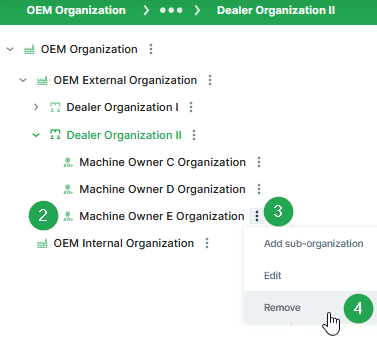
Select the organization unit that you want to remove.
-
Click on the three-dots icon
. -
Click on Remove to remove this organization. ✓ The Delete organization dialog opens.
-
Read the summary. For example: Are you sure you want to delete the organization "Machine Owner E Organization"?
-
Click on Delete to remove the organization.
✓ The success message Organization deleted successfully appears in the upper right corner.
OEM external key
The external key can be used to assign machines or users to the organization based on it.
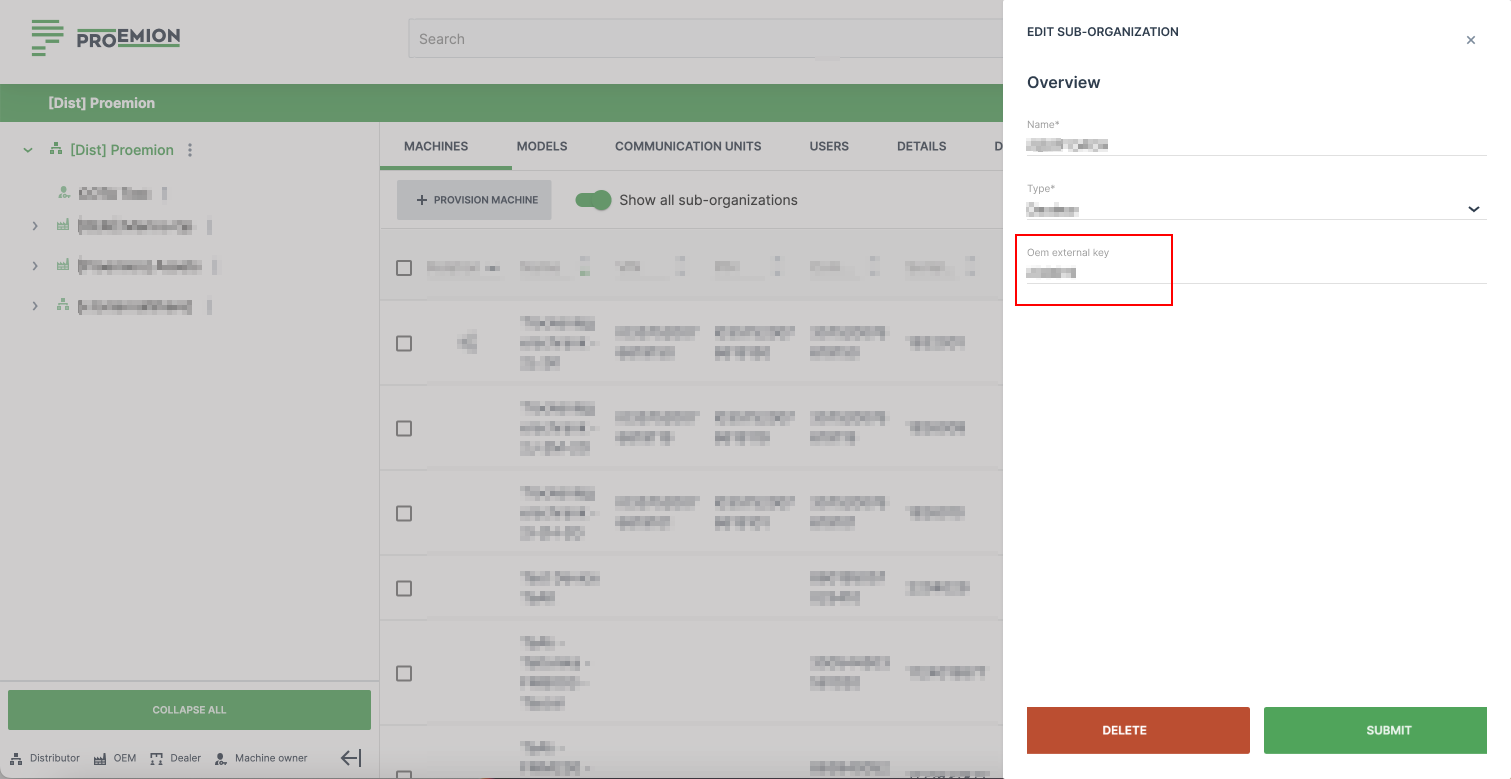
The OEM external key can be added and edited to new and existing (sub-)organizations by the admin of the parent organization. The parent organization must be of type "OEM".