Organization Dashboard
The organization associated dashboard displays the required datasets and information for the entire organization. Depending on user permission sets, users are able to adjust the layout of this page, see Dashboard Page Layout.
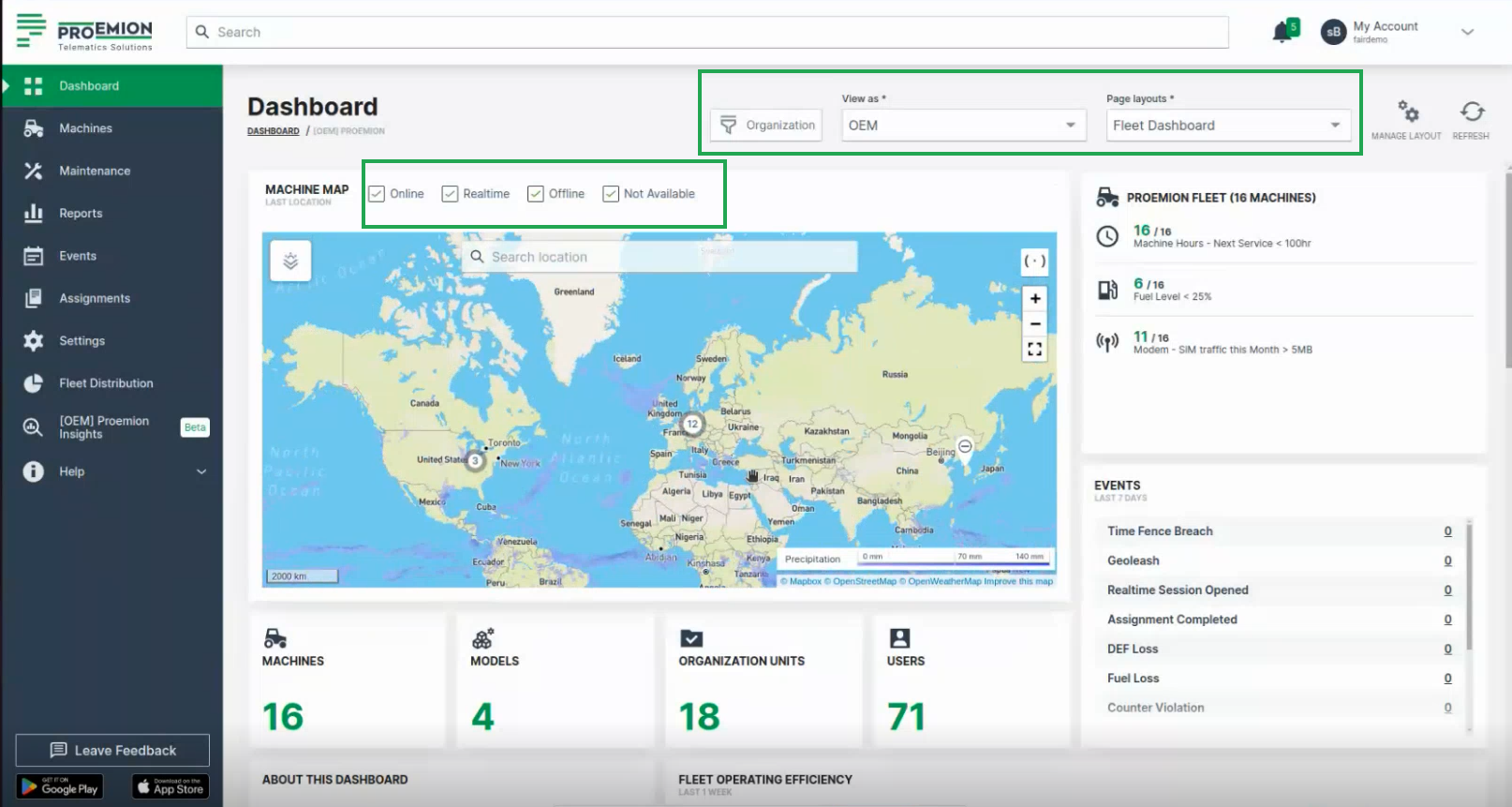
Consider to activate the filters shown above the map for displaying machines in the map that are:
- Online
- Realtime (having a Realtime session)
- Offline
- Not available (for 3rd party machines, i.e. none CANlink® mobile machines)
Organizations
An organization comprises groups of users in hierarchical org units that carry out management tasks. The highest rank in the hierarchy is the distributor level org unit that has visibility of the entire organization. The distributor creates and performs administrative functions for child org units. Generally an organization manages machine models, machines, data and objects such as reports and widgets. The primary org unit types are:
| Classification | Visibility | Description |
|---|---|---|
| Distributor | manufacturer (OEM), dealer, machine owner | Provides telematics devices, services, 1st-level support and escalation to 2nd-level support. |
| OEM | Dealer, machine owner | Machine/equipment manufacturer. |
| Dealer | Machine owner | Provides machines including customer service to end-customers. |
| Machine Owner | Operators and machines | Owner/operator of the machine in operation. |
Org unit members can view child org units but not parent or sister org units.
Org units contain users, models, machines and communication units. Users are assigned entitlements or permissions that allow them to perform functions, manage users, data and machines.
The primary roles are "Admin" and "Maintainer, see Permission levels.
The Admin is responsible for creating the structure of the organization (creating org units, models, widgets) including configuring permissions for Maintainers.
The Maintainer is responsible for managing models, widget layouts, machines and users in org units.
Filter by Organizations
As the Organization Dashboard shows data in the widgets of the entire organization tree, you can filter the dashboard by the organization units for your individual view in the DataPortal. This can be done for every dashboard configuration.
To filter the dashboards, proceed as follows:
-
In the Dashboard menu, open to the Organizations drop-down.
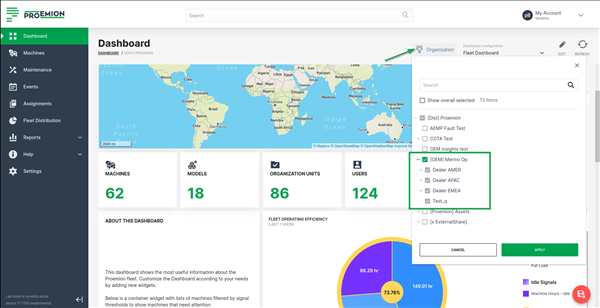
Figure 2: Organization associated Dashboard - Organizations Filter -
Select the organizations that you want to view their data in the dashboard (widgets). When selecting an organization (parent), all its children organizations are selected, too, and will be greyed out. This means that all widgets will fetch information for the selected organization together with its children.
-
As a result, the dashboard shows data only from the selected organizations. An icon will be displayed in the widgets that show the filtered data.
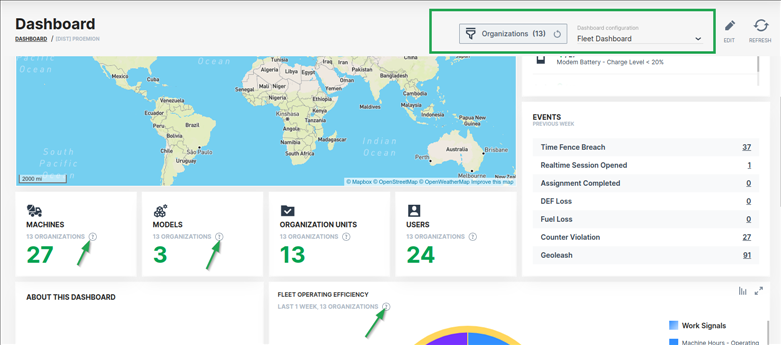
Note
The filter criteria are preserved when switching between dashboards during a session in the DataPortal.
View as
Use the View as drop-down to switch your view of the organization dashboard to the one of either an OEM, Dealer, or Machine Owner, based on the organization type.
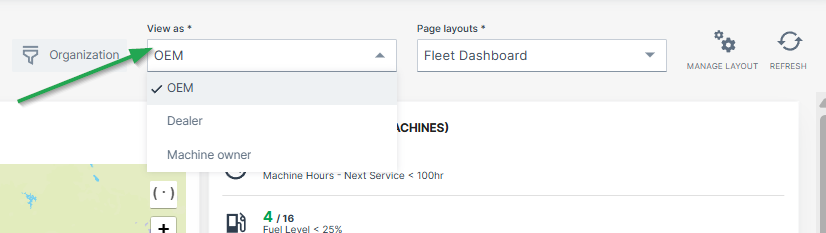
To define organization types for each organization dashboard, go to Visibility level/Binding in the Dashboard Page Layout
Page Layouts
It is also possible to create and save multiple organization dashboards/layouts that display different widgets and/or time range.
In this case, select the desired organization dashboard from the Page layouts drop-down:
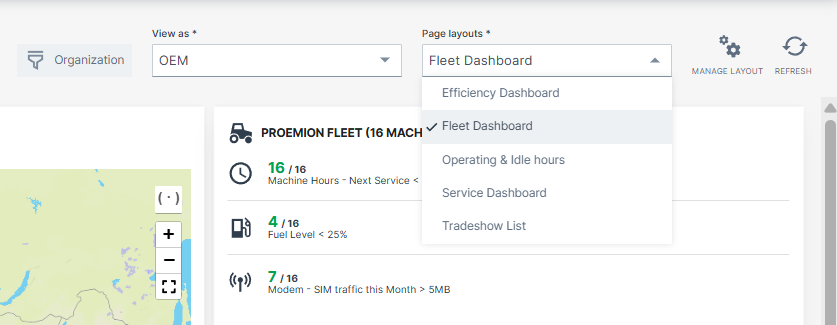
To define different layouts of organization dashboards, go to Duplicate/Create Layout in the Dashboard Page Layout