Dashboard Page Layout
The Dashboard Page Layout is the central place for configuring the Organization Dashboard, so-called "Home Dashboard", and its layout of widgets.
The Organization Dashboard is displayed upon entering the DataPortal and is bound to an Organization Type.
When activated, the Dashboard Page Layout menu is to be found in Settings > Portal Appearance > Dashboard Page Layout.
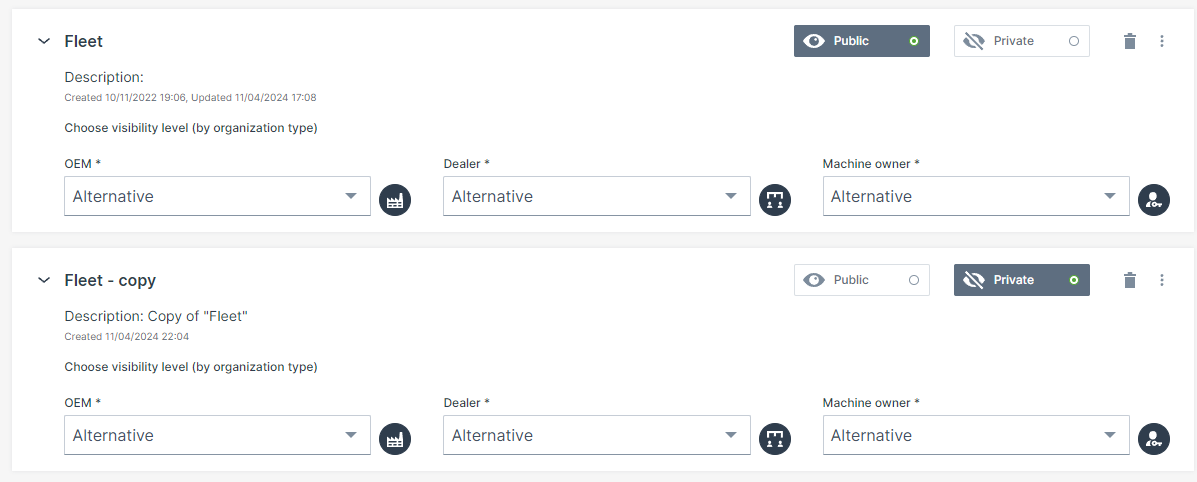
Consider also the following difference:
Next to the "Dashboard Page Layout" menu, there is alo the Machine Page Layout for the Machine Page and is bound to a model and Organization Type.
Requirements
- Activate the Feature Switch for Dashboard Page Layout to enable the Dashboard Page Layout menu.
- The permission to edit and (pre)view the layouts is Dashboard:Admin, see Dashboard Subject.
- This permission can be only granted to users within tenant organization and of Organization Type "OEM" or above.
- Organizations must have a Organization Type assigned.
Consider that each organization type must have configured at most a single default home dashboard. As a dashboard admin you will get notified in case a organization type within the scope of your tenant organization is missing a home dashboard. Via icons, you can also identify which layouts are not bound to an organization type, see Visibility Level/Binding
Layout Visibility
The Layout Visibility specifies if the layout is visible to the organizations and which organization type is allowed to view the layout on the dashboard.
To change the visibility, select the desired layout and click the Edit Layout button.
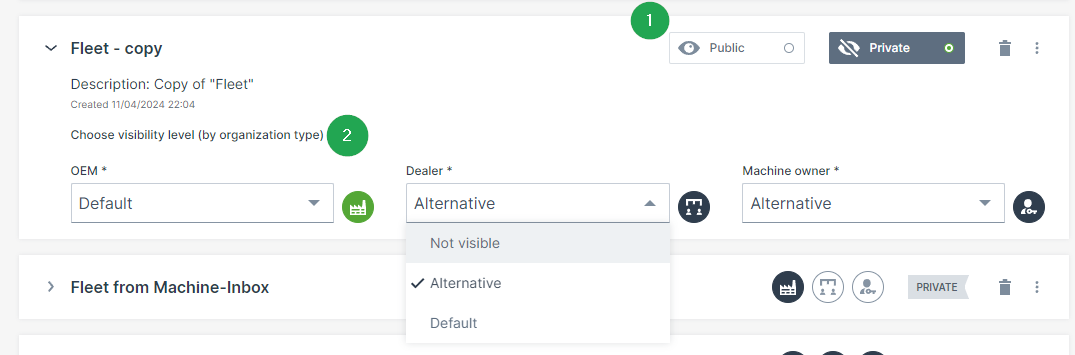
Visibility
Specify the visibility of that layout:
Public: The layout is available for every organization that is allowed to use it.
Private: The layout is only visible to administrators.
This is useful when drafting the layout.
Visibility level/Binding
Specify which the organization type is allowed to view the public layout:
- OEM
- Dealer
- Machine Owner
Specify how the organization type is allowed to view the public layout:
- Default view - layout is available for the organization type and is selected automatically as the first view when opening the Dashboard.
Note
When an organization unit is added to the DataPortal, it will be assigned a default layout.
- Alternative - layout can be selected on the Dashboard via Dashboard Page Layout drop-down menu.
- Not visible - layout is not available.
When the visibility level is set for each organization type (OEM, dealer, machine owner), you can identify the visibility and binding of each layout by the icons:
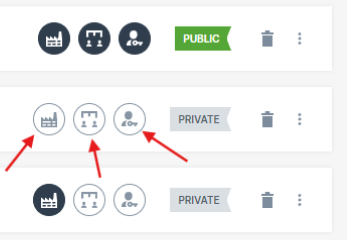
- Bound to all organization types and public.
- Not bound to any organization type and private.
- Bound only to organization type "Dealers" and private.
Edit Layout
You edit layouts by adding widgets that show the data.
Note
Note that you can't change the assigned layout but only the original one.
Consider that there is also the option to Duplicate Layout where you can adapt the copied layout and/or its widgets.
The "create/edit" view can be accessed as follows:
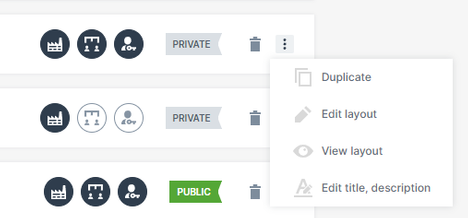
The layout opens in edit mode with the configuration pane on the right side. There, you can add widgets.
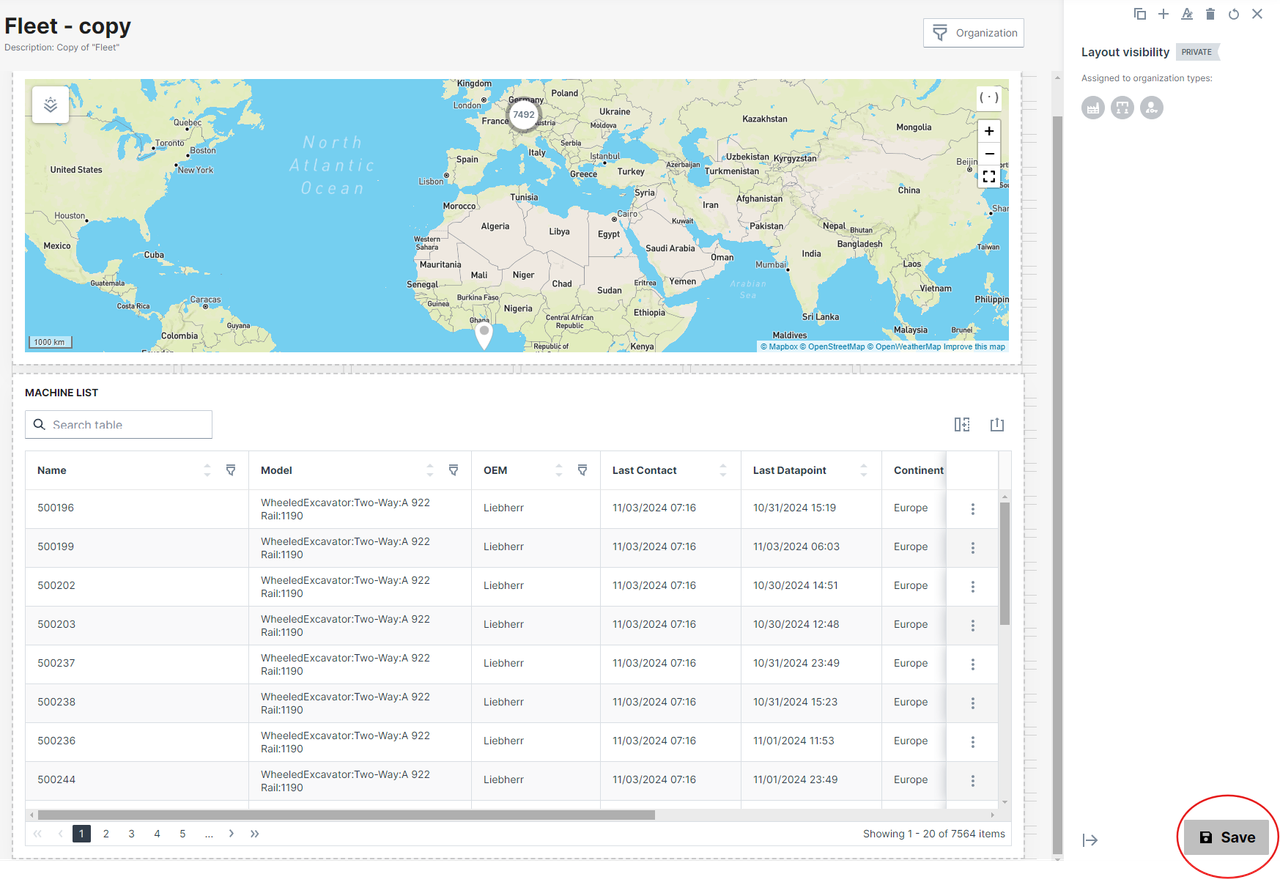
Note
When an organization type is not allowed to view a layout, only the Master Data widget is automatically shown to users when opening the Dashboard.
Note that the Master Data widget is also displayed in case of deleting all layouts assigned to an organization type, see Delete Layout.
Add Widget
Note
Note that there is also the Tab Container widget for organizing the widgets in groups.
Read in the Widget Catalog for a detailed description of each widget's configuration.
To add a widget, proceed as follows.
- To add a widget, select the
 add icon to open the widgets dialog with widgets listed from the Widget Catalog.
 - Select and configure the widget as described in each widget.
- Once you have completed configuring the widget, save your settings. You can also see a Preview Layout.
Resize Widget
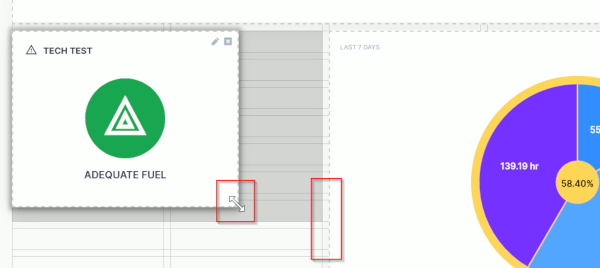
While or after adding the widgets, you can resize or move them by drag-and-drop onto a grid that makes the most efficient use of space.
This is useful, because the display of widget information varies widely, from a single symbol to comprehensive graphs.
Proceed as follows:
- When editing the widget layout, the boundaries for a particular widget are shown as table cells within a broken line boundary.
- Each widget type has a minimum size
- There is a shadow under the widget that displays the footprint the widget will take up once you release the resize indicator. If you resize the widget over another widget it will shift to the next available space on the dashboard.
Preview Layout
You can view the layout of the widgets in a preview. Note that you can only see a preview when the layout has been assigned to an organization.
The View Layout can be accessed as follows:
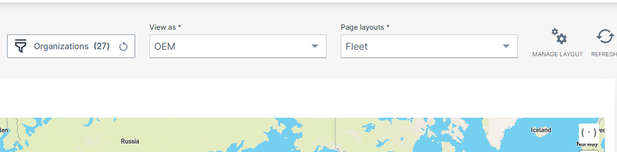
In the preview mode, you have the following options:
-
View as a different organization type to see how users view the Dashboard.
-
Change between the Page layouts assigned to this machine model. You can also select private layouts for the preview.
Duplicate/Create Layout
You can copy the layout of a dashboard to use it as a basis for a new layout, see Edit Layout. Note that also the layout's widgets and their configuration like bindings will be copied, too.
A duplicated dashboard and its bindings are private. As a result, the new layout will be applied to the same organization types as the original layout, but it won't be visible to users.
If the original layout was the default layout for some organization type, the original layout will remain as such and the new layout will always be an alternative layout.
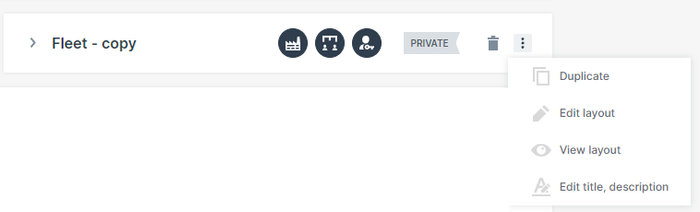
To duplicate a layout, proceed as follows:
The layout has been now duplicated and in the layout name "copy" has been added to distinguish it from the original layout.
Consider to add a layout description to each layout via Edit title, description (can only be seen by the administrator) as the layouts can have the same name.
Delete Layout
In the Dashboard Page Layout, you can delete layouts completely from the Dashboard Page Layout or remove only the binding to the model.
Warning
Deleting a layout will delete it for all organizations using it. Make sure it is unused (see Visibility Level/Binding before deleting it.
Consider the following when removing or deleting a layout that is in use by an organization:
- When the layout was the main layout for the organization, the organization's secondary layout becomes the main layout.
- When no other layout exists for the organization, basic information (which is the <
> widget) will be shown to the users.
To delete a layout completely, click the delete icon displayed next to the Visibility icons:

To remove the binding, proceed as described in Visibility level/Binding.