Tab Container
The Tab Container widget organizes your dashboard by grouping widgets by tabs. You can add multiple tabs along with a label for each and designate one tab as the default.
Each tab can contain widgets and you can configure the header orientation (left, right, or center) and position.
Configuration
Configure the widget and put it on the Organization Dashboard and/or the Model Dashboard by following the steps below:
It is highly recommended to adapt a Machine Page (Model Dashboard) centrally via the Machine Page Layout. If you need to configure the Machine Page for the selected machine only, proceed as follows:
-
In the selected Machine Page, select Manage Layout > Add widgets.
-
Select the desired widget. A preview will be shown.
-
Click Apply. This forwards you to the widget configuration dialog with the options described below.
If you need to adapt the Organization Dashboard, select the desired dashboard configuration and click Edit > Add  to open the widgets catalog, see also Add Widgets to the Organization Dashboard.
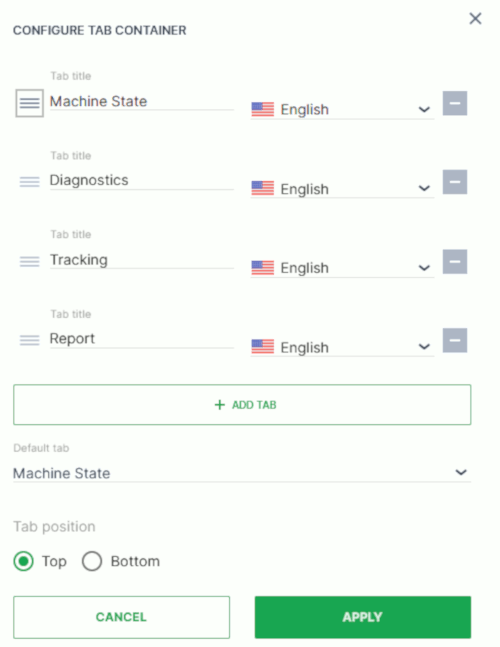
| Item | Description |
|---|---|
| Tab title | Give each tab a distinct name that identifies its contents. |
| Language | Select the language for the tab title. |
| Add Tab | Place additional tabs into the organizer. |
| Default Tab | Select the tab that will be displayed when the page loads. |
| Tab Position | Display the tab above or below the widget title. |
Add Widgets to the Container
Once you have created the Tab Container and placed it on the dashboard, you can add widgets to the current tab
In the layout:
-
Select Edit.
-
Select the Add icon
 on the container to add the selected widget to the container.
 -
Add and configure the widget as you would on the dashboard or the machine details page.
-
Save the widget/changes in the container tab.
-
Save the Organization Dashboard/Model Dashboard.
Model-Based Tab Visibility
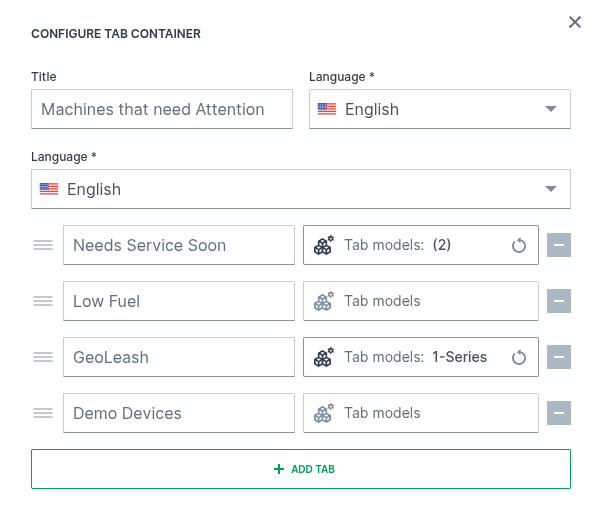
In Fleet Dashboards, tabs can optionally be bound to specific machine models, enabling users to see only relevant tabs and keeping dashboards clear even in mixed-model fleets.
If one or more models are assigned to a tab, the tab is displayed only if:
-
a model is assigned to the tab, and
-
the current user can see at least one machine that belongs to one of the assigned models within the organization tree.
Tabs not assigned to any model remain visible and are not filtered by model-based rules.
Note
This feature applies only to Fleet Dashboards. It does not apply to Model Dashboards.
Example