Add Widgets to the Organization Dashboard
Note
The Dashboard:Admin permission set is needed to Manage Dashboards.
The Organization Dashboard contains an overview of your fleet. Widgets that are visible here are linked to the entire fleet.
Note
The Model Dashboard contains the details for a specific machine assigned to a model displayed within each Machine Page
Widgets for the Machine Page can be configured in the Machine Page Layout.
The following section describes how to add widgets to the Organization Dashboard
Furthermore, read how to arrange the position of widgets in Machine Page Layout.
-
In the upper right corner of the dashboard, select Edit
 to open the dashboard configuration menu.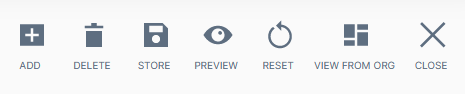
Figure 1: Dashboard edit options Item Description Add Open a widget from the list on the left. Delete WARNING: This will remove the entire dashboard of the organization as well as ALL sub-organizations, that inherit this dashboard. Store Save Dashboard Preview Display your dashboard layout before saving. Reset Restore the default dashboard and widget layout. View From Org View the dashboard for the sub-organization perspective. Note
Note that there is also the Tab Container for organizing the widgets in groups.
-
Select ADD in the Edit options
A dialog opens with all available widgets.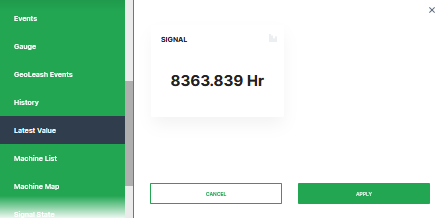
Figure 2: List of Widgets -
Select the desired widget on the left-side panel to open the configuration settings.
-
Preview your widget.
-
Click Apply. This forwards you to the widget configuration dialog
Read also Add Widget in the Machine Page Layout on how to move or resize widgets. -
Once you have completed configuring the widget, save your settings.
Save Dashboard
There are two options to update the dashboard.
-
The first option is to update the existing dashboard and Save it directly. This will keep your structure simple and straight forward, but you have to be aware that all users will directly see the effect.
-
It is also possible to create an updated copy of an already existing dashboard
Therefore, select Edit > modify the dashboard according to your needs and click on Store > Save As to save a new version of the dashboard for your own and your subsequent organization units.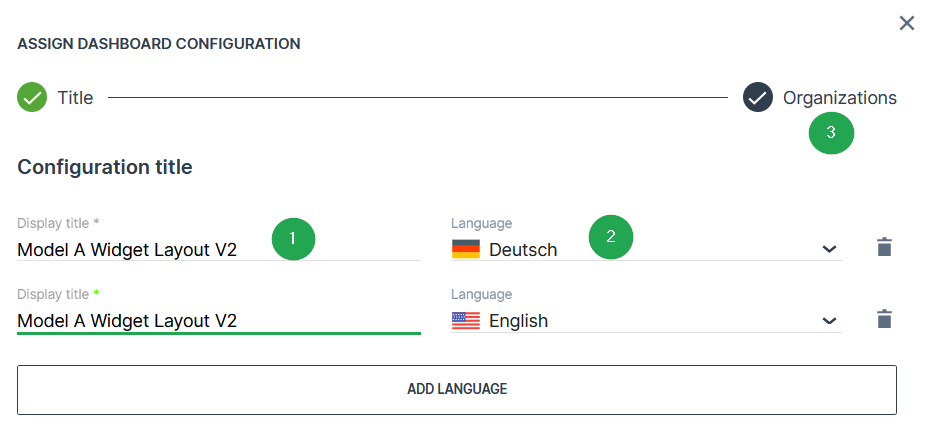
Figure 3: Dashboard Title # Item Description 1 Display Name of the dashboard configuration in the drop-down list. 2 Language Select the language for the dashboard name. To add a language, click the ADD LANGUAGE button. 3 Organizations Select the Organizations assignment panel.
Delete Saved Dashboard
-
Open Edit and select View From Org
 icon.
icon. -
Select the organization where you want to remove the dashboard in the panel.
-
Click Close from the Edit Options menu.
-
Select the Dashboard you want to delete from the Dashboard Configuration drop-down menu.
-
Open Edit Options again.
-
Click the Delete icon
 to remove the dashboard.