Machine Contracts
The DataPortal allows a user with the Contract:Maintain permission set an overview of the contracts and the current status for their machines. When a machine/communication unit (CU) is activated, the tariff is then selected and a contract is created. When the machine changes ownership from the OEM to the machine owner, the contract typically remains with the OEM. Each CU has a single contract. For information on the availability of the Proemion tariffs for each country, see Hosting Plans across Regions.
To view the contracts, open Settings > Administration > Contract.


You may search, sort or filter by the following items.
| Item | Description |
|---|---|
| Contract ID | The identification number of the communication unit's hosting contract. |
| Your Internal Reference Number | Your order/purchase number for internal reference (the internal reference number can be assigned during Go Live). |
| Contract start date | Shows the date when the contract was started. |
| End date / Renewal date | Shows the reference date when the hosting contract will be renewed (in case of a manual Contract Renewal by the user) or terminated in compliance with a period of notice (in case of State = active (cancelled)). |
| Activation Date | Shows the date when the device was activated. |
| Deletion date | Shows the date planned for deleting a terminated machine. |
| Contract State | Shows the current state of the contract. |
| NOTE: Machines with terminated contracts will be removed from the portal after 3 months, i.e. the historic machine and CU data will be then deleted. | |
| For more information on the different states, see Contract State and CU State. | |
| Renewal requested | Indicates if a user requested a renewal. Only if the feature has been activated. |
| Hosting Plan | The identification number of the hosting plan. |
| Hosting Plan Description | The name/description of hosting plan, e.g. "PE DataPlatform Hosting 50 GlobalLight+". |
| CU - ID | The identification number of the communication unit. |
| CU - State | The state of the communication unit. |
| For more information on the different states, see Contract State and CU State. | |
| Machine Name | The identification of the machine. |
| Machine Model | The name/identification of the model. |
| Serial | The unique, identifying number or group of numbers and letters assigned to the machine. |
| PIN | The Part Identification Number of the machine. |
| Machine Location | The current location (country) of the machine. |
| Support in Machine Location | Shows whether the (planned) machine location is supported by the current hosting plan, i.e. whether the country the machine is or will be located in is covered by the hosting plan. The supported country can already be checked in the Go Live menu. |
| Possible values: | |
| - "Supported": The current machine location is supported by the hosting plan. | |
| - "Not Supported": The current machine location is not supported by the hosting plan. | |
| - "Unknown machine location": The location of the machine is not known. | |
| Organization Unit | The organization unit the machine is assigned to. |
Contract Details
To view a single contract, at the end of each row, select  to open the drop-down menu and select the Contract Details. The Contract Details window looks as follows.
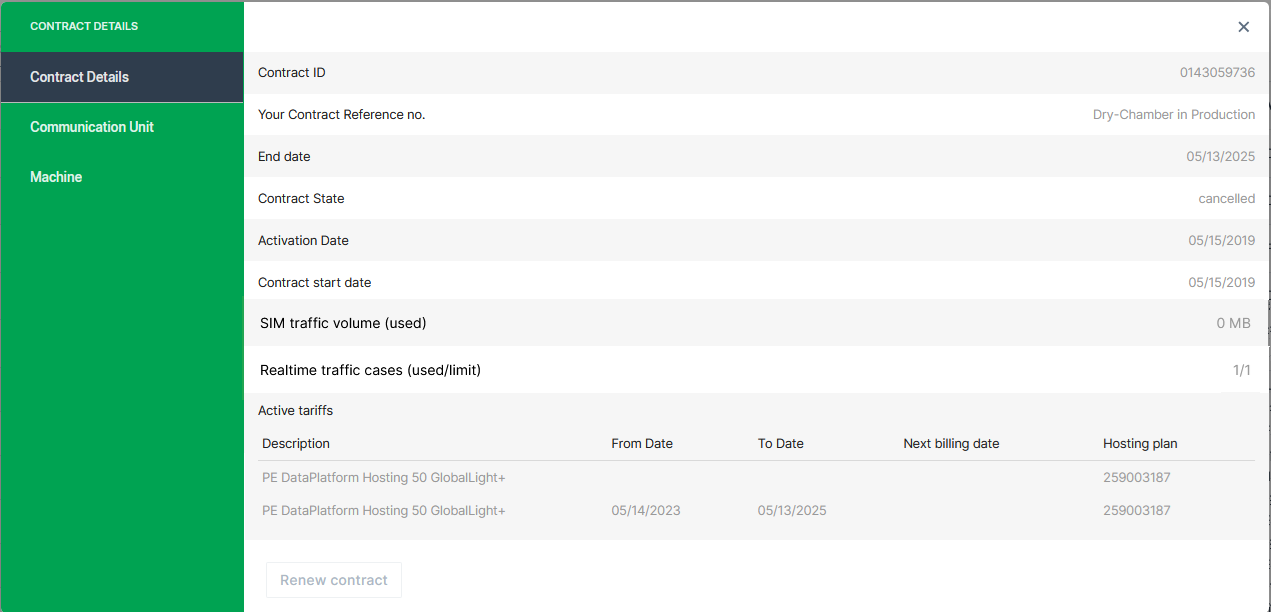
The Contract Details, Communication Unit and Machine tabs may show additional information on the contract, see below.
| Item | Description |
|---|---|
| SIM traffic volume (used/limit)1 2 | Shows the used SIM traffic of the current month and the contract's limit. |
| Realtime traffic cases (used/limit) 1 | Shows the number of Realtime cases of the current month and the contract's limit. See also Realtime Cases by Contract |
| Active tariffs | Shows a list of the description of the active hosting tariffs, i.e. Hosting Plan. 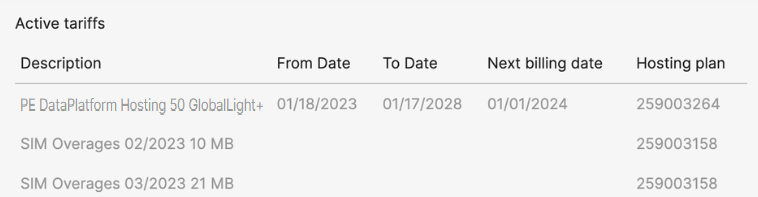 |
| Current SIM card ID | The identification of the SIM card currently used by the CU. |
| Provider | The network provider that was last used for communication by the CU. |
| Last Login | The last time the CU was connected to the DataPlatform. |
Contract State and CU State
The Contract State and CU State may have the following values.
The following Contract states are possible:
| Contract State | Description |
|---|---|
| testphase | Contract with future start date. CU is allowed to connect and send small amounts of data. |
| active | Contract is active. The CU is allowed to send data. All contracts with this state will be renewed automatically a specific time before the Renewal date. |
| active (cancelled) | Contract has a defined End date and will be terminated once this date is reached. The contract term can be extended by using the Contract Renewal function. |
| terminated | Contract has reached its End date and the CU is no longer allowed to connect. Please refer to chapter Reactivation for further details on how to reactivate a terminated device. |
Data retention and GDPR
Machine and communication unit (CU) data are retained for 3 months after contract termination. After contract termination, the contract state changes to terminated and the CU can no longer connect to the DataPlatform. You can reactivate the machine within this 3-month period, as long as it is still visible in your organization. If you reactivate the machine within this period, historical machine and CU data remain available. After 3 months, the machine is automatically removed from the DataPlatform. All historical machine and CU data are permanently deleted and cannot be recovered. Proemion does not retain customer data without a valid contract in order to comply with GDPR requirements.
The following CU states are possible:
| CU State | Description |
|---|---|
| created | CU/Machine exists in the Data Platform. It is ready for Provisioning. Note: Machines with this state may not be visible on your account. |
| provisioned | CU is visible on your account and ready for activation with Go Live. |
| Live | CU is activated and can send data. |
| terminated | CU is no longer allowed to connect. Please refer to chapter Reactivation for further details on how to reactivate a terminated device. |
| archived | CU and machine data have been wiped. Please refer to chapter Reactivation for further details on how to reactivate an archived device. |
| resiled | Machine data have been wiped from the CU. Please refer to chapter Reactivation for further details on how to reactivate a resiled device. |
Filters
Contracts that are "to expire soon" or "expired" or contract renewal "requested" are now listed as filters above the Contracts table.
You must have Contracts:View permissions to view these filters.
When filtering by those options, the contracts will be listed in the table accordingly. In the columns, you can view the machine name, organization unit and other data belonging to the contract, see above.
These filters are also useful for the Contract Renewal process, see below.
Realtime Cases by Contract
Note
A Realtime case is started by a Realtime diagnosis session, and includes all sessions in the subsequent 4 hours window.
The number of Realtime cases are only updated once a day.
Starting in summer 2025, the DataPortal starts to manage the number of Realtime cases based on machine hosting contracts and will enforce usage limitations:
While some machine-specific tariffs allow a predefined set number of Realtime cases per month, others completely restrict Realtime service.
The count and the number of allowed cases is displayed in the Contract Details:

After exceeding the included number of Realtime cases, no new Realtime diagnosis sessions can be established via tools like the Remote Service Tool, Proemion SoftGateway, PLUS+1 Service Tool, etc.
The data logging remains unaffected, i.e. devices can still go online and connect with the DataPlatform and transmit machine logged data (e.g. clf files).
Realtime sessions used by the Proemion Support team are not counted.
Consider that with newer firmware versions, particularly for the CANlink mobile 3600, the distinction between Realtime and Logging modes has been combined into an "Online" mode, which allows for both data logging and Realtime diagnostics simultaneously, see also CANlink mobile 3600 Online feature.
Add Additional Realtime Cases
You may request to add additional Realtime cases to the current month limit.
To do so, contact Service and Support.
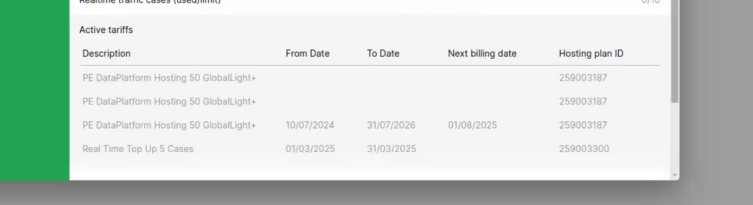
Once the request has been confirmed, you will see a new row "Real Time Top Up [requested number] Cases" in the "Active tariffs" list, see image below, and the "Realtime traffic cases (used/limit)" number increases accordingly.
Contract Renewal
The contract renewal is available on "active (cancelled)" contracts with an end date in the future that is within the next 12 months. Terminated contracts cannot be renewed, but only re-activated, see Reactivation.
Users can either request the renewal; eligible users can directly renew the contracts on their own, see also the Requirements for the required user permissions.
When renewing the contract, both the contract ID and start date of the contract remain the same.
Note
Contracts that are not canceled will be automatically renewed.
Requirements
Users without permissions (e.g. at least Contract:Maintain permissions) can request the renewal of their expired or soon to expire contracts via the Machine Page.
The receiver of the request - usually the OEM or Dealer - can contact the requester, make an offer and renew the contract as described below in Contract Renewal.
The receiver must have the Contract:Maintain permissions - to renew both active canceled contracts and terminated contracts
Renew Contract
To manually renew a contract, proceed as follows:
- In the Contracts menu, select the option Renew Contract via the 3-dots icon by the end of the row :
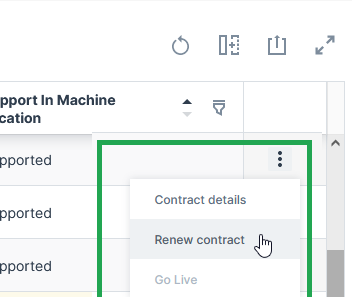
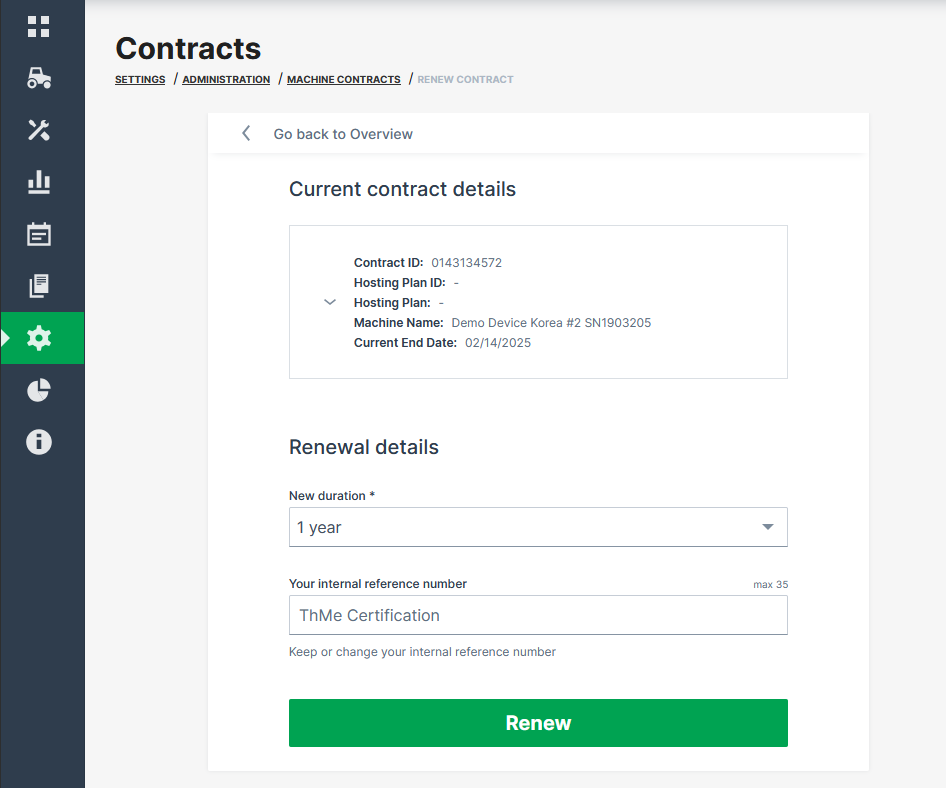
✓ The Renewal details page opens.
-
Select the New duration: 1 Year, 2 Years, 3 Years, 4 Years or 5 Years.
-
Enter a new Your internal reference number (maximum length of 35 characters) or just keep the existing one for later reference (this number can be assigned during Go Live). It is recommended to have a recurring reference number for easier reference of your machine/contract in your system, see Provision Machine Dialog.
-
Click Renew.
✓ The request for contract renewal is transmitted. ✓ You will receive an updated contract confirmation via email.
Note
With the contract renewal, the complete duration will be billed at once.
Contract End Notification
Users with contract permissions of organizations with the contract expiration feature enabled can subscribe to weekly contract notifications.
These notifications inform the user of all contracts that need attention because they are about to expire, have already expired or a customer has expressed interest in extending the contract.
CANlink® mobile light Upgrade
The concept of the CANlink® mobile light is described in the CANlink® mobile 3600 device manual, see CANlink® mobile light.
To upgrade the CANlink® mobile light to a standard device/hosting plan, proceed as follows:
- Go to the Contracts menu and open the Details of the according machine.
- In the Contract Details, select Upgrade, see also image in the Contract Details.
You have successfully requested the upgrade to the standard CANlink® mobile 3600 device with all the features offered and an independent hosting plan.
The request is displayed in the Contracts menu.
You may then subscribe to contract expiration email, see Subscribe to DataPortal Notifications.
-
The SIM traffic volume and the number of Realtime cases are only updated once a day. Due to technical restrictions, there might be some time shift of the displayed data usage and Realtime cases. ↩↩
-
Consider that the actual used SIM traffic volume will be displayed only after closing a session. Example: 5 MB are displayed in the DataPortal, but a message has been sent to the customer because the limit of 10 MB has been already reached during the yet open session. ↩