Time Fence/Timetable
The Time Fences feature allows you to define a schedule for when a machine should be allowed to be in use. An active time fence checks at machine start if a breach - a connection to the portal outside scheduled operation - exists. If so, a breach event is registered resulting in an immediate email notification to the users subscribed to this notification.
Note
The DataPlatform generates time fence breach events when the machine starts operation due to ignition or CAN activity outside the configured schedule. Wake-ups caused by real-time clock (RTC-driven) mechanisms (for example cyclic wake-up intervals or alarm-based wake-ups) do not trigger time fence breach events, even if the device connects to the DataPlatform after waking up.
Note
This feature is only available if it has been activated for the organization from the Features tab in the Administration menu.
For example the schedule can be arranged thusly:
| Day | From - To |
|---|---|
| Monday | 9:00 - 17:00 |
| Tuesday | 9:00 - 17:00 |
| Wednesday | 9:00 - 17:00 |
| Thursday | 9:00 - 17:00 |
| Friday | 9:00 - 17:00 |
A time fence schedule arranged as shown in the table sends a breach event whenever the machine is in operation outside the designated time frames.
Configuration
To configure the Time Fence the Machine:View Permission Set is required.
To do so, proceed as follows:
On the Machine Page, select the machine you want to manage and click the Manage Machine vehicle button in the top-right corner.
This opens the Manage Machine window.
-
In the Manage Machine window, open the Machine advanced functions and select Time Fence.
-
Click the + sign and select a day and time; you can define multiple time fences from Monday to Friday.
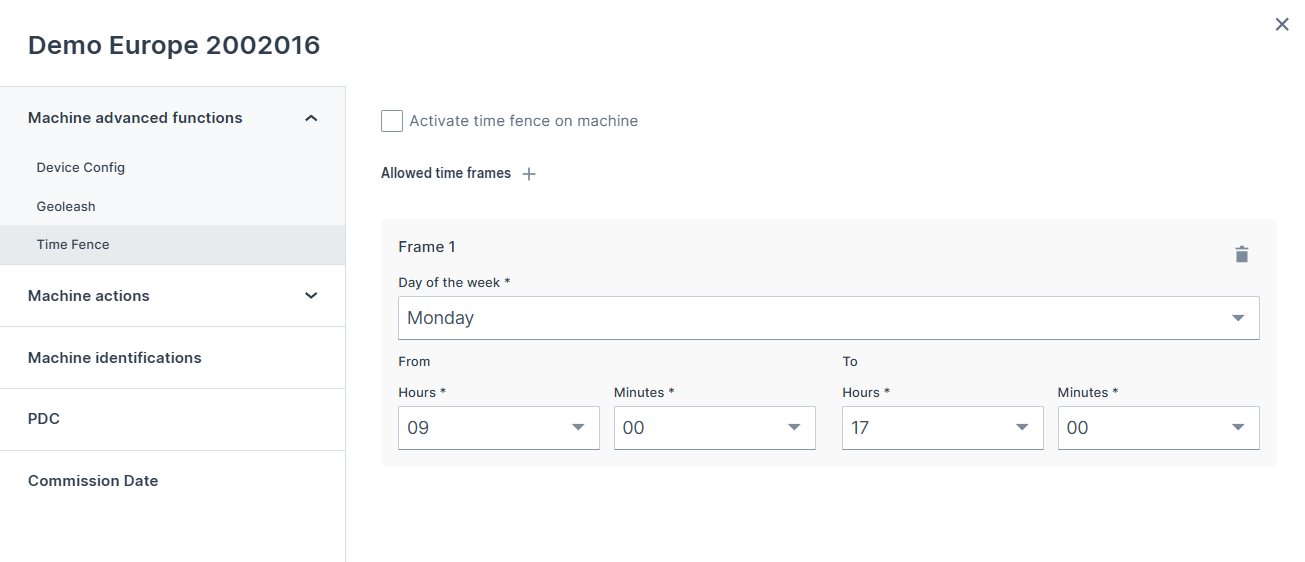
- Click Apply to save the time fence.
Subscribe to Time Fence Notifications
To subscribe to Time Fence Notifications for your organization, configure the Time fence breaches in your Notifications settings
Once subscribed you receive email notification about the first breach per day per machine.
Via Events you can see all breach events:
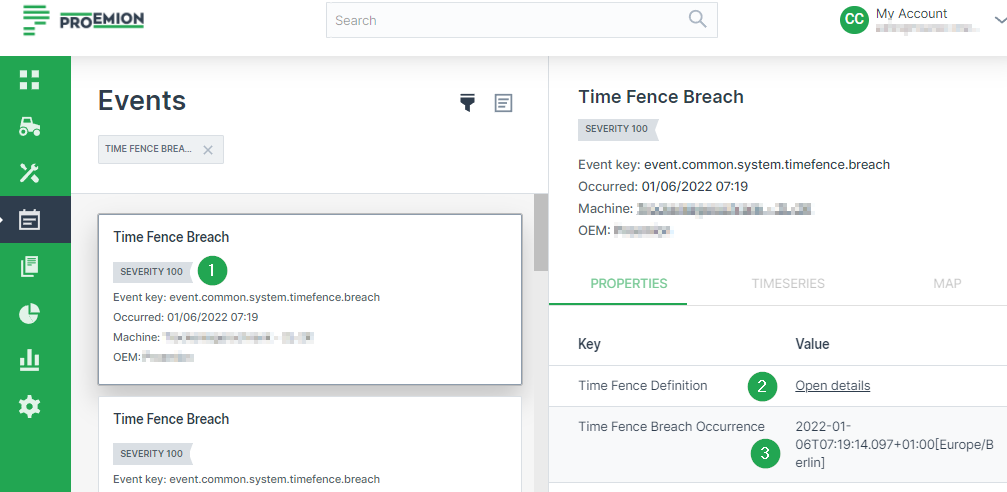
| # | Item | Description |
|---|---|---|
| 1 | Event Severity | Event timestamp (when the event was fired), machine name and severity level. |
| 2 | Time fence Definition | Link to the configured time fence schedule. |
| 3 | Time Fence Breach Occurrence | Incident timestamp (when the breach occurred). |