Geoleash
Geoleash tracks and enables automatic notification about machine relocation (defined as movement from one area to another). Notification is based on a set of criteria requiring minimal configuration.
Note
Geoleash functionality (configuring a boundary) can only be activated for devices (communication units - CU) where the installed firmware supports this feature. Contact your Proemion representative for more information.
Note
Location history access must be set by an organization admin and is necessary to use this feature.
Geoleash vs. Geofence
Geoleash functionality differs from Geofence in the amount of configuration effort required. Geoleash handles designating the area of operation and awareness automatically (based on the initial settings) eliminating the need for detailed configuration. This minimizes the effort for tracking a larger fleet. However, Geofence may still be necessary in some cases and both features can be enabled simultaneously.
Concept
A specific land area is defined by criteria that is set to active. Whenever the machine with active Geoleash criteria breaches (or exits) the boundary, a notification is sent.
Geoleash attributes are described in the following table:
| Attribute | Description |
|---|---|
| Center | The latitude and longitude coordinates applied as the center of the Geoleash circle. Sometimes called a centroid. |
| Length | The Geoleash boundary defined as the radius of the Geoleash circle. |
| Circle | The Geoleash area around the Geoleash center. |
The CU also informs the platform whenever the following events occur:
| Event | Description |
|---|---|
| Passive Breach | The criteria are active and when the communication unit is switched on, a breach is detected based on the current location and a new center is set. |
| Active Breach | The criteria are active and while the communication unit is running the machine breaches the constraint. |
Primary Use Cases
Common Geoleash operation scenarios are shown in the following table:
| Use Case | Function | Description |
|---|---|---|
| Tracking < 5 machines | Passive breach | A machine is relocated outside the Geoleash circle while offline; upon relocation a notification with the new center and circle is sent automatically. |
| Moving from one location to another | Active breach | While in operation, a machine moves from one location to another outside of the set Geoleash, a notification is sent. |
| Machine relocates frequently | Active breach | A machine relocates between multiple work sites while online. Each relocation outside the set Geoleash generates an event notification automatically. |
| Machine activity | View | View the past 10 actions of the machine. |
Setup and Configuration
Note
Geoleash is not enabled for every Proemion CU. If you have questions about this feature, contact your Proemion representative or create a ticket at the Support.
To configure the Geoleash length the Machine:View Permission Set is required.
To do so, proceed as follows:
On the Machine Page, select the machine you want to manage and click the Manage Machine vehicle button in the top-right corner.
This opens the Manage Machine window.
-
In the Manage Machine window, open the Machine advanced functions and select Geoleash.
-
Select Set Geoleash Length from the Active state drop-down menu and set the leash length in meters from the current position.
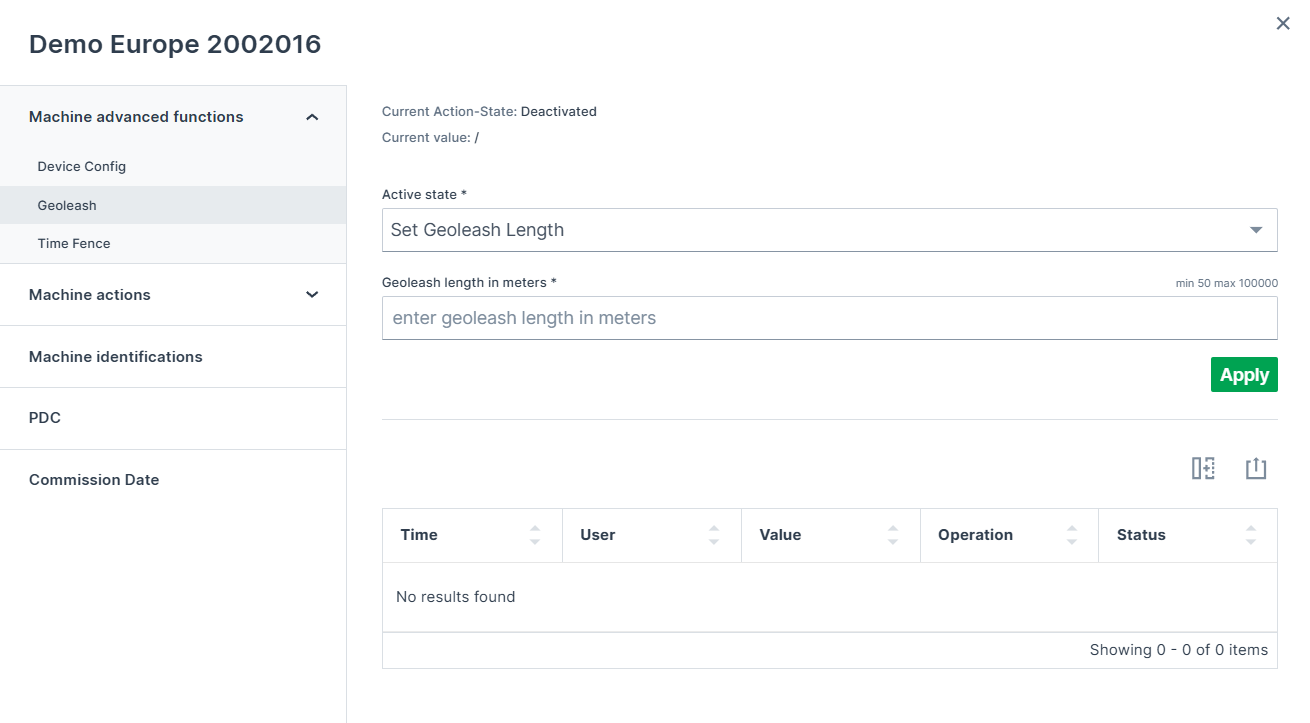
Figure 1: Set Geoleash length -
Click Apply.
Notifications
To enable Geoleash notifications you must first activate the event notifications in your user profile, and then configure Geoleash for the CU. To activate the notifications, go to Notifications settings.
Once a breach has occurred, a notification is sent containing the information found in the following table:
| Info | Description |
|---|---|
| Name | Name of the machine including a link to the machine page. |
| Time | Time the breach occurred. |
| Type | Active or Passive breach. |
| Leash Length | Currently set Geoleash circle length. |
| Previous centroid | Original center location. |
| New centroid | Current center location. |
View Breach Events
To view Geoleash breach events follow the steps below:
-
On the left-hand menu of the DataPortal Dashboard, select Reports.
-
Select the Geoleash module to open the Reports / Geoleash page.
-
Select the time range, the machine and the type of events you want to view.
-
The filtered events appear in the following table.
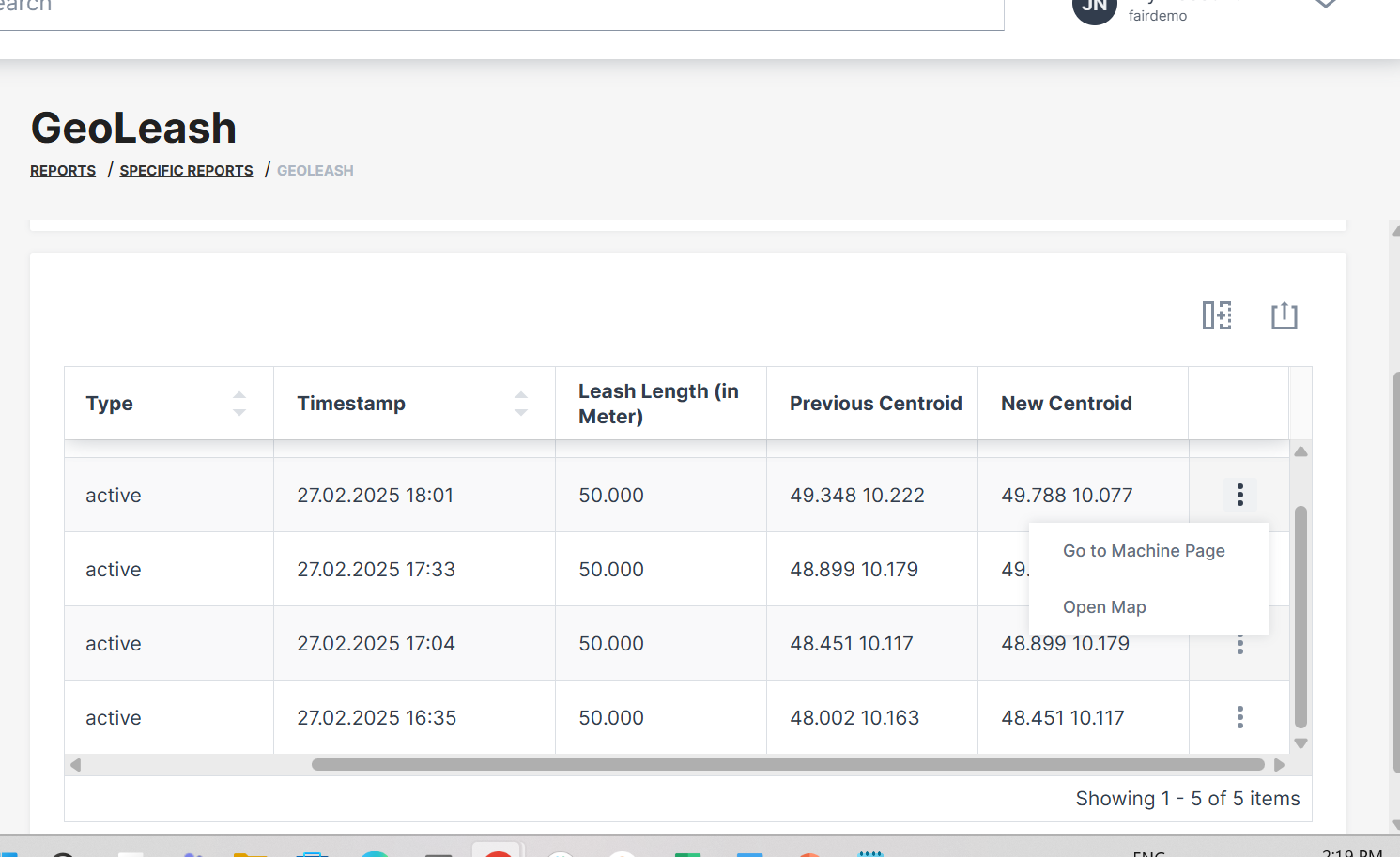
Figure 2: Geoleash View
Note
Geoleash events are automatically deleted after 120 days.
Map View
You can also view the location of Geoleash events listed in the table by selecting the Open Map option at the end of each line of the table entry.
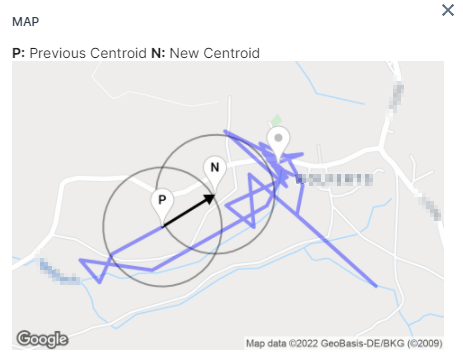
Breach events are visualized by three markers listed on the map:
-
(P) stands for previous centroid or position.
-
(N) stands for the new position.
-
The current position marker has no label.