Connection Types
This documentation provides an overview of the different connection types available for CANlink® mobile devices, with a particular focus on the Online mode, which is the standard connection type for current devices. Legacy connection types such as Logging and Realtime modes are only relevant for older devices and are covered for completeness.
Note
The Online mode replaces the previously separate Logging and Realtime modes that are only used in some legacy devices. In order to use Diagnostic Cases make sure that Realtime cases are included in your machine's Contract Details.
Online Mode
The Online mode connection type combines the functionality of both Logging and Realtime modes. Devices operating in this mode:
- Continuously log data to the DataPortal.
- Support real-time diagnosis sessions for remote diagnostics and monitoring at the same time.
This connection type enables seamless data acquisition and interaction, as devices operate in a combined mode that does not allow switching between Logging and Realtime. Devices using the Online mode connection type appear in the DataPortal with a green indicator (small green circle in the first column). These devices are included in both the Realtime and Online filters. This means they are visible whenever either filter is applied, appearing in both filtered views within the DataPortal.
This feature must be enabled in the Behavior Options.
The mode is displayed and can be filtered in the following DataPortal features, if enabled:
-
Machine Map widget
-
Machine List widget
-
Machine Master Data widget
Realtime/Logging Switch
Note
This functionality is only available for legacy devices.
The Device mode functionality enables switching the CANlink® mobile device between the modes Logging and Realtime.
In Logging mode, the device records preconfigured machine signals when it is online and transmits them to the DataPlatform. In contrast, in Realtime mode, the device transmits raw CAN messages to a service application for live diagnostics, and no signals are logged to the DataPlatform.
Device Mode
-
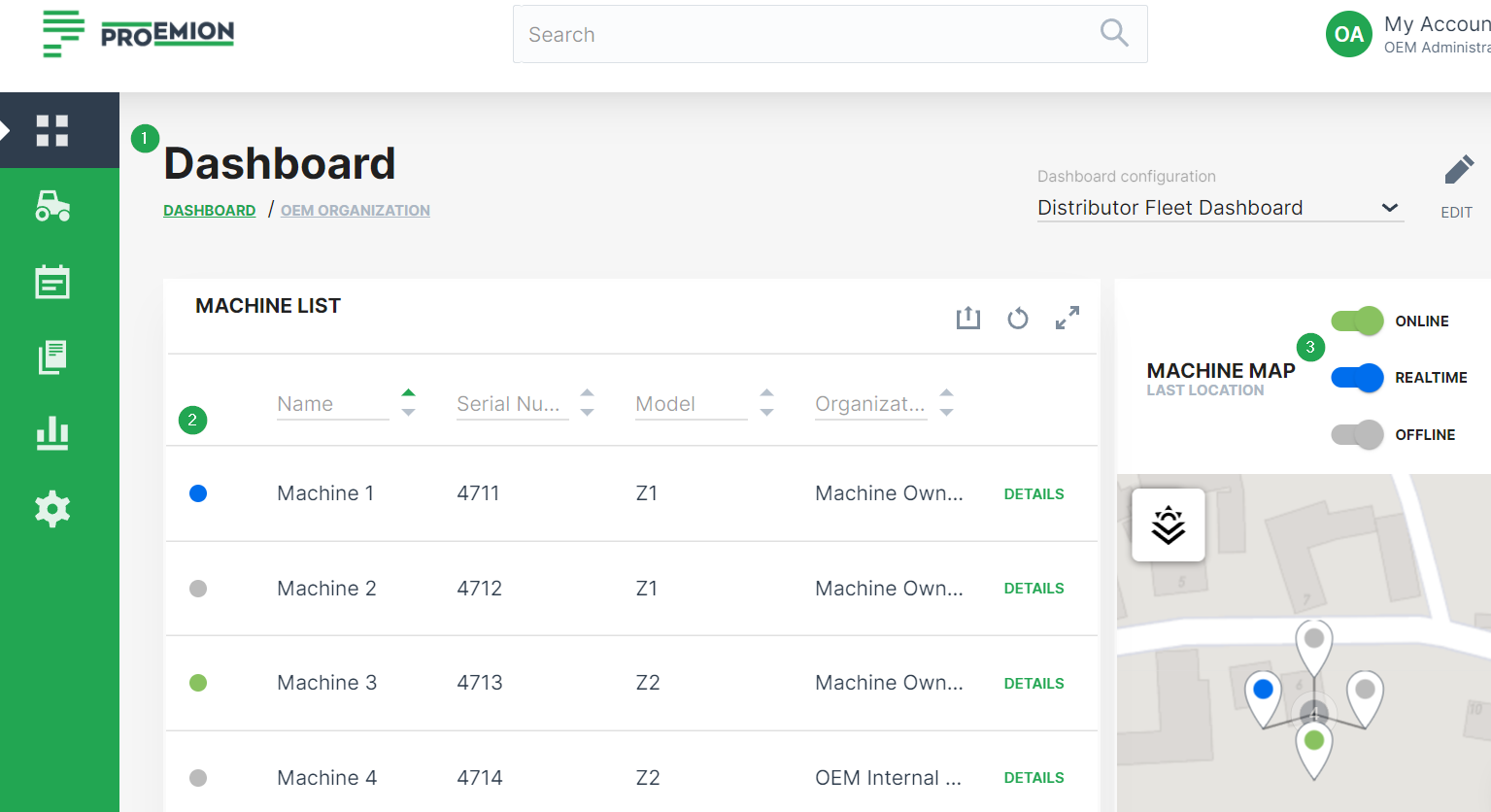
You can see the current mode for the machines in both the Organization Dashboard and Model Dashboard.
Note
To display the online status and device mode of the machines, the administrator should have enabled the Machine List or the Machine Map widgets that both show the indicators.
-
On the left of each machine row within the Machine List widget, Realtime mode is indicated by a blue online marker and Logging is indicated by a green online marker.
-
The machine map widget allows to filter machines by their online status/device mode. This is done by means of the corresponding toggle switch.
Switch Device Mode
The Realtime:Admin Permission Set is required to switch between Realtime and Logging modes. If the communication unit is offline, the device mode switch is not available.
To switch the device mode, proceed as follows:
On the Machine Page, select the machine you want to manage and click the Manage Machine vehicle button in the top-right corner.
This opens the Manage Machine window.
-
In the Manage Machine window, open the Machine advanced functions drop-down menu and select Device mode.
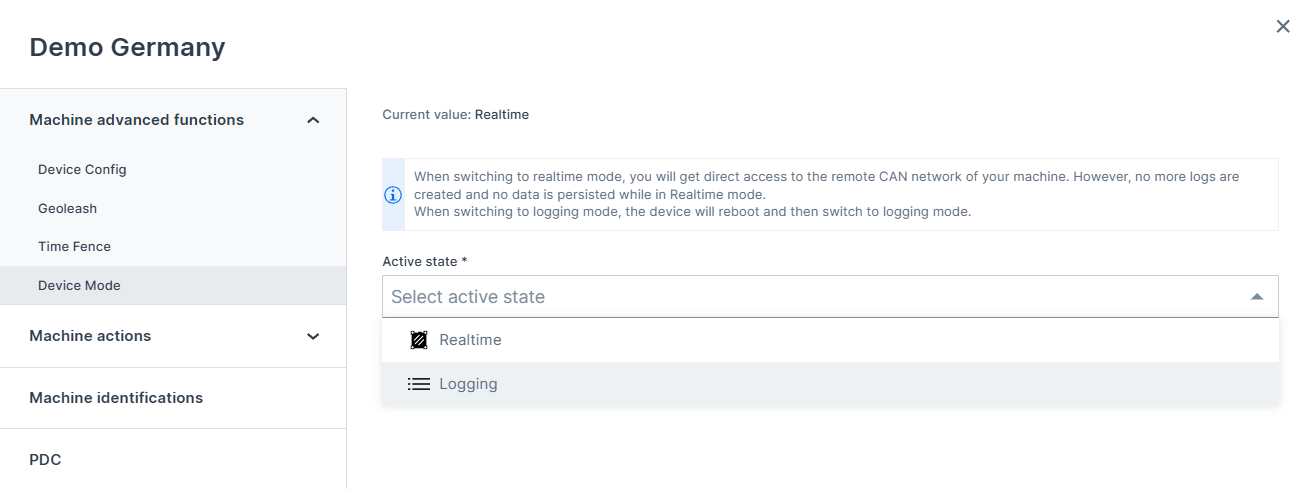
Figure 2: Device Mode Dialog -
Select Realtime or Logging mode from the Active state drop-down menu.