Machine List
The Machine List widget allows users to view a list of machines, specify details on display and include selected signals for each machine
You can select the machines from the list or sort using a filter.
Configuration
Configure the widget and place it on the Organization Dashboard.
It is highly recommended to adapt a Machine Page (Model Dashboard) centrally via the Machine Page Layout. If you need to configure the Machine Page for the selected machine only, proceed as follows:
-
In the selected Machine Page, select Manage Layout > Add widgets.
-
Select the desired widget. A preview will be shown.
-
Click Apply. This forwards you to the widget configuration dialog with the options described below.
If you need to adapt the Organization Dashboard, select the desired dashboard configuration and click Edit > Add  to open the widgets catalog, see also Add Widgets to the Organization Dashboard.
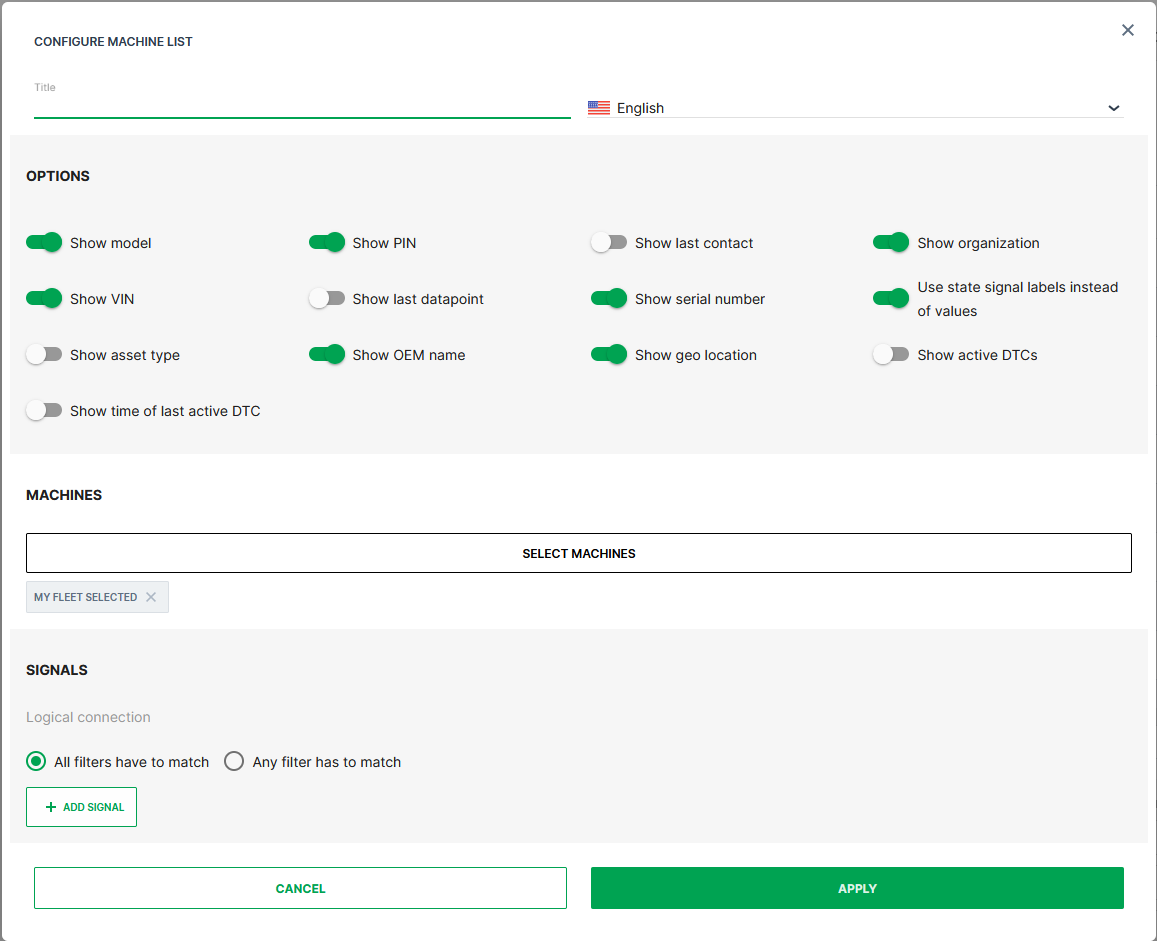
| # | Item | Description |
|---|---|---|
| 1 | ||
| Title | The label for the widget (English is the default, additional languages must be configured. See Language below). | |
| Language | Select the language for the title of the widget. | |
| 2 | Options | |
| Show model: Toggle model display. On by default. | ||
| Show organization: Toggle organization display. On by default. | ||
| Show serial number: Toggle serial number display. On by default. | ||
| Show PIN: Toggle PIN display. On by default. | ||
| Show VIN: Toggle VIN display. On by default. | ||
| Use model-configured signal labels: Present custom error codes or machine states in textual form. See Signal Labels. | ||
| Active DTCs: Count of active DTCs. | ||
| Time of Last Active DTC: Start time of the most recent and still ongoing DTC. | ||
| 3 | Machines | Select the machines from the provided list of all machines or based on entered filter criteria, see Select Machines below. |
| 4 | Signals | See Custom Signal Filter below. |
Select Machines
Note
Auto-select my fleet in the By Organizations tab is pre-selected and will be applied when no other filter is set.
Click Select Machines to filter and select the machines that will be listed in the widget.
You can select the machines by the following options:
By Model*:
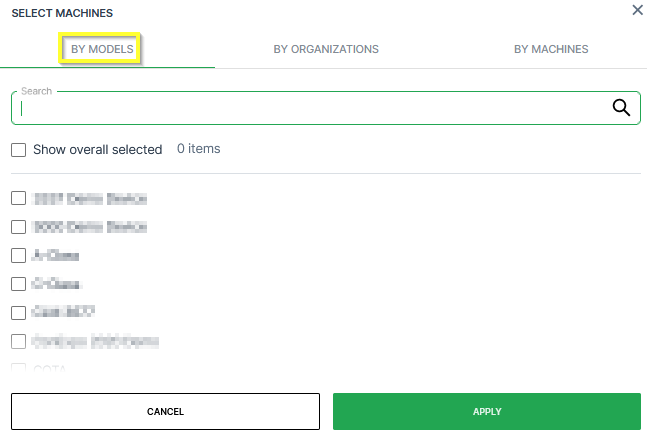
In the By Models tab, you can select the machines belonging to certain models:
-
Search: Search a specific model.
-
Models list: Select the models individually in the list of models.
-
Show overall selected: Display which models have been selected already.
By Organization:
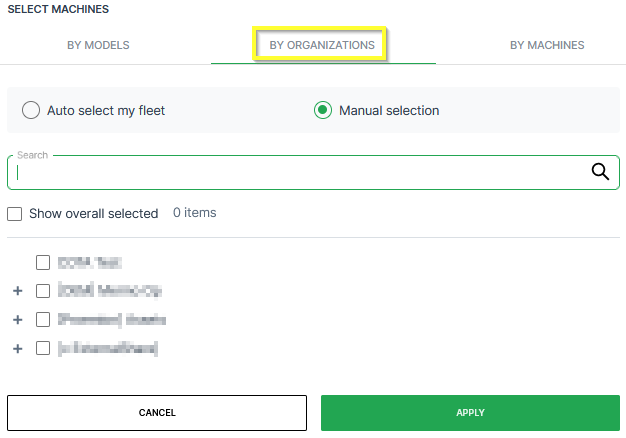
In the By Organizations tab, you can select the machines belonging to certain organization units:
-
Auto-select my fleet: Select all the organization units together with the sub-organizations that your user has access to.
-
Manual selection: Select individual organization units in the list of organizations. When selecting the top-level, all sub-organizations will be selected.
-
Search: Search a specific organization.
-
Show overall selected: Display which organizations have been selected already.
By Machine:
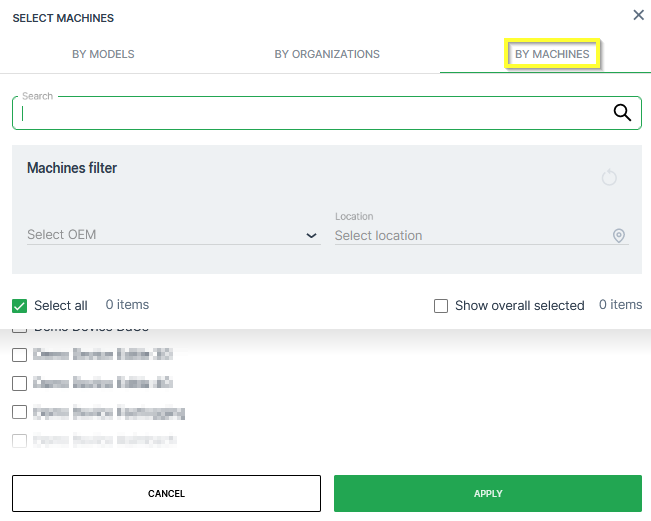
In the By Models tab, you can select the machines individually:
-
Search: Search a specific machine.
-
Machines filter: Filter the list of machines by OEM or Location.
-
Select all: Select all available machines that your user has access to.
-
Show overall selected: Display which machines have been selected already.
-
List of Machine: Select specific machines.
Custom Signal Filter
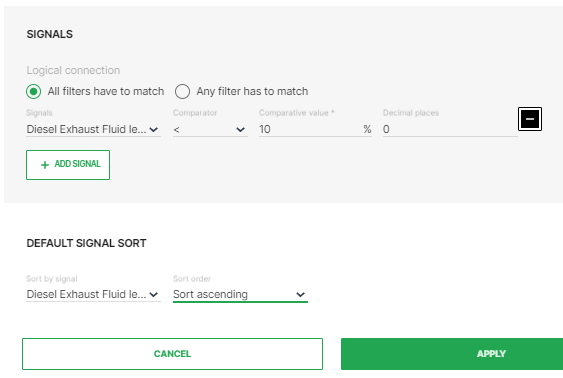
This section expands to display signal configuration options when Add Signal is clicked. Custom signal filters allow the display of machines that meet one or more criteria.
| Option | Description |
|---|---|
| All filters have to match | ALL conditions must be met to display the machine in the list. |
| Any filter has to match | ANY (at least one) conditions must be met to display the machine in the list. |
| Signals | Signal to filter results by. |
| Comparator | Comparison operators >, < and = are available for numeric values, and contains is available for string values. |
| Comparative value | Value used to filter and sort results. |
| Decimal Places | Decimal places considered in the filter results. |
| Default Signal Sort | Sort by signal: Signal used to sort the signals. Sort order: Choose from Sort ascending or Sort descending. |
Sample
Suggested Usage: Inventory list of Machines
Includes devices with [Online (Logging_and_Realtime]online_(logging_and_realtime.md).
After configuring the Machine List widget, the signals will be displayed in a table with the following columns, see also image below:
-
ID
-
Connection status
-
Name
-
VIN
-
PIN
-
Serial Number
-
Model
-
OEM
-
Organization
-
Continent
-
Country
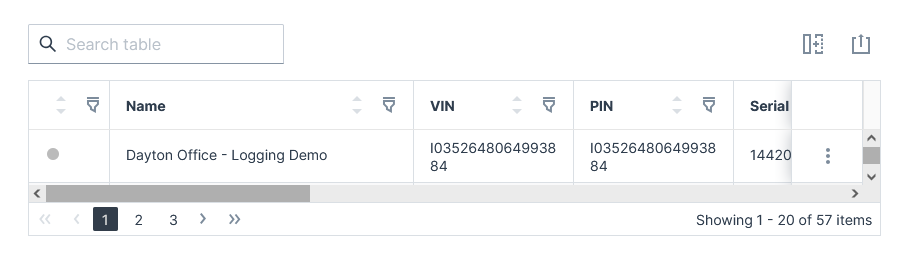
For information on how to adapt the table view, see Table Options
For information on how to export this table with the included columns, see Export Table.