
Machine Map
The Machine Map widget allows users to view machines in their organization on a map and grouped in clusters separate from the rest of the fleet. A group of machines can also be selected to be displayed on the map.
Tip
Weather and Map overlay features are available with the Weather Forecasts and Overlay.
Configuration
Configure the widget and place it on the Organization Dashboard by following the steps below:
It is highly recommended to adapt a Machine Page (Model Dashboard) centrally via the Machine Page Layout. If you need to configure the Machine Page for the selected machine only, proceed as follows:
-
In the selected Machine Page, select Manage Layout > Add widgets.
-
Select the desired widget. A preview will be shown.
-
Click Apply. This forwards you to the widget configuration dialog with the options described below.
If you need to adapt the Organization Dashboard, select the desired dashboard configuration and click Edit > Add  to open the widgets catalog, see also Add Widgets to the Organization Dashboard.
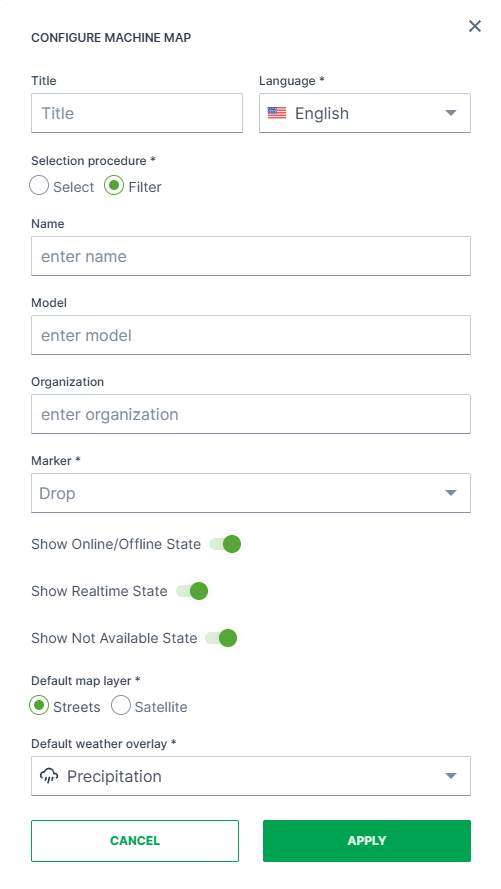
| Item | Description |
|---|---|
| Title | The label for the widget (English is the default, additional languages must be configured. See Language below). |
| Language | Select the language for the title of the widget. |
| Select | Provide a list of machines from an entire organization or a specific organization. |
| Filter | Select machines based on entered criteria. If all fields are empty, then all machines are listed. |
| Name | Machine name |
| Model | Model name |
| Organization | Specify the organization in which the machines should be selected. |
| Marker | Select either Drop or Machine as the machine indicator on the map. |
| Show Online/Offline State | Toggle current activation status display. Includes devices with Online (Logging and Realtime). |
| Show Realtime State | Toggle display of logging vs. realtime/online communication status. Includes devices with Online (Logging and Realtime). |
| Show Not Available State | Toggle display of devices that are currently not available or inactive. |
| Default Map Layer | Set the default map overlay. Choose between Streets or Satellite. For examples, see Maps Overlay. |
| Default Weather Overlay | Set the default weather overlay in the machine map. Choose between: No Overlay, Clouds, Precipitation, Air Pressure, Wind Speed, Temperature For examples, see Maps Overlay. |
Note
For tracking options, you may use the Reports feature, see Map/Location Reporting.
Sample
Suggested Usage of the Machine Map Widget: Overview of the distribution and position of the machines.
-
The map shows clusters of machines. A cluster icon represents many machines which are in close geographical proximity.
-
When zooming-in, bigger clusters are broken down into smaller ones until it shows the individual machines on the map.
-
When clicking a machine on the map, a pop-up will be displayed with detailed information, see Machines Overview.