Asset Types
Asset Types is a combination of a label and icon used to categorize machine models based on their functionalities, e.g. dumper, excavator, etc.
This allows to filter models by the assigned labels, e.g. on the map, and to have an overview of the available asset types throughout the entire organization/fleet in the Settings > Machine Data Management > Asset Types menu:
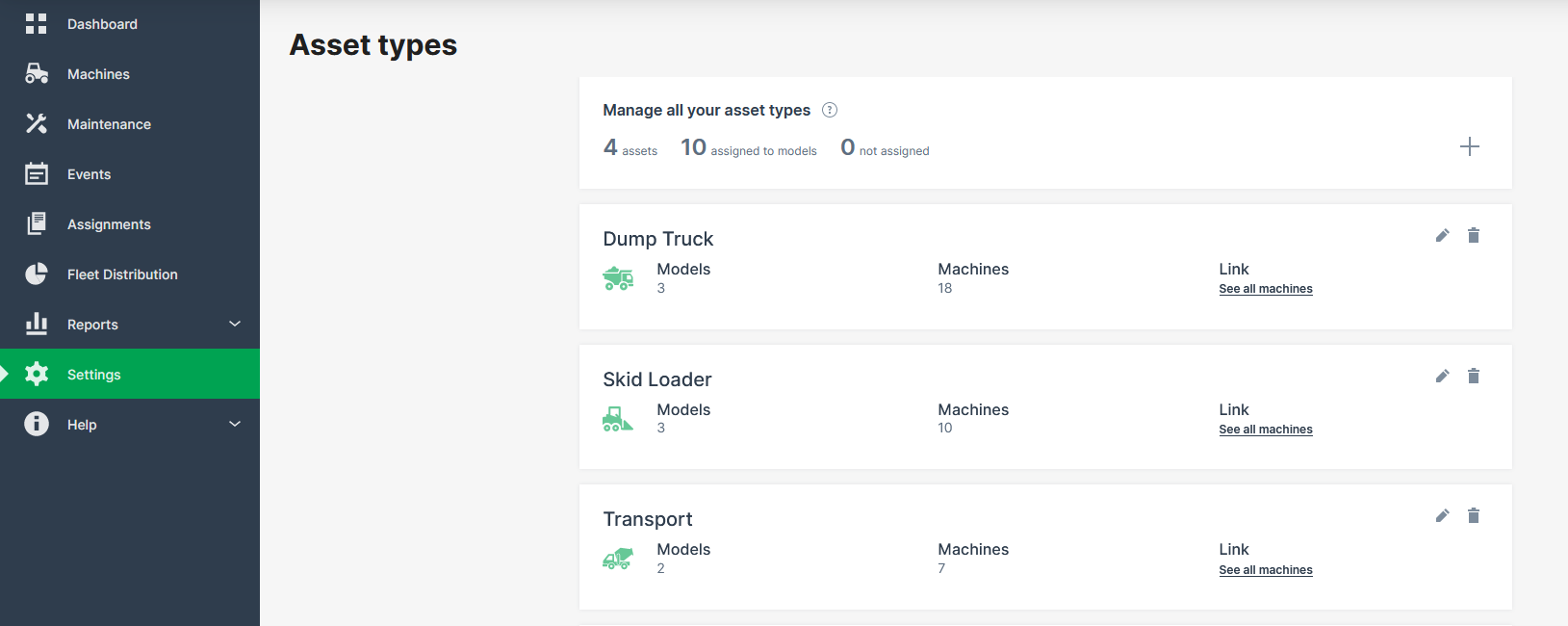
Clicking the link See all machines leads you the Machines Overview with the filter already set for the selected asset type.
The Asset Types together with its label and icon is defined by a tenant, typically the OEM (see also Tenant), while the assignment of the asset type to models can be done by any user with Model:Admin permissions, see Requirements.
Requirements
The required permission sets are following:
-
Model:Admin to define asset types only by users within tenant organizations, e.g. OEM organizations.
-
Model:Admin to assign models to asset types in the Asset Type menu only by users within tenant organizations.
-
Model:Admin to assign or edit models to asset types in the Model menu (by any user).
-
No specific permission required to view the assigned asset types on the map or where included within the DataPortal.
Define Asset Types
To define a new asset type, proceed as follows.
-
Open Settings > Machine Data Management > Asset types. Here you can view the already existing asset types, if available.
-
Click the add icon
 to open the Asset type details dialog: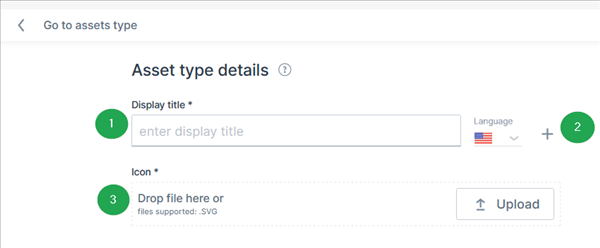
Figure 2: Asset type details # Item Description 1 Display title The label which will be displayed in the Asset Types overview and on the Machines Overview, both Map and List views. 2 Language Add a new label for each language. 3 Icon Upload an icon for the asset type.
Now you can proceed with assigning asset types to models.
Assign Asset Types to Models
There are two ways to assign models to an asset type. Consider the Requirements.
Assign asset type in Asset Type menu:
-
Open Settings > Machine Data Management > Asset types.
-
Click the link See all machines. This opens the Asset type details dialog:
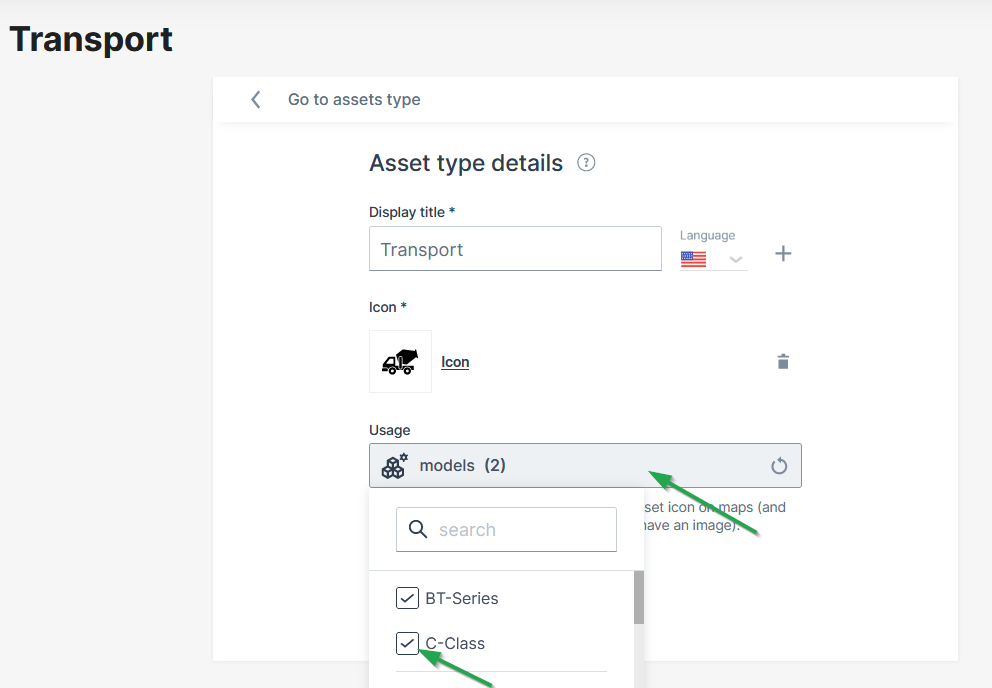
Figure 3: Assign asset type menu -
Click the field Usage to open the drop-down menu of available models.
-
Select the models you want to assign to the asset type.
✓ The model is now assigned to the asset type.
Assign asset type in Models dialog:
You can assign asset types to models in the Create Model and/or Edit Models dialogs and also change or remove them.
Guidelines for Creating Icons
The following guidelines are useful when providing asset icons for the DataPortal to make sure they are rendered correctly.
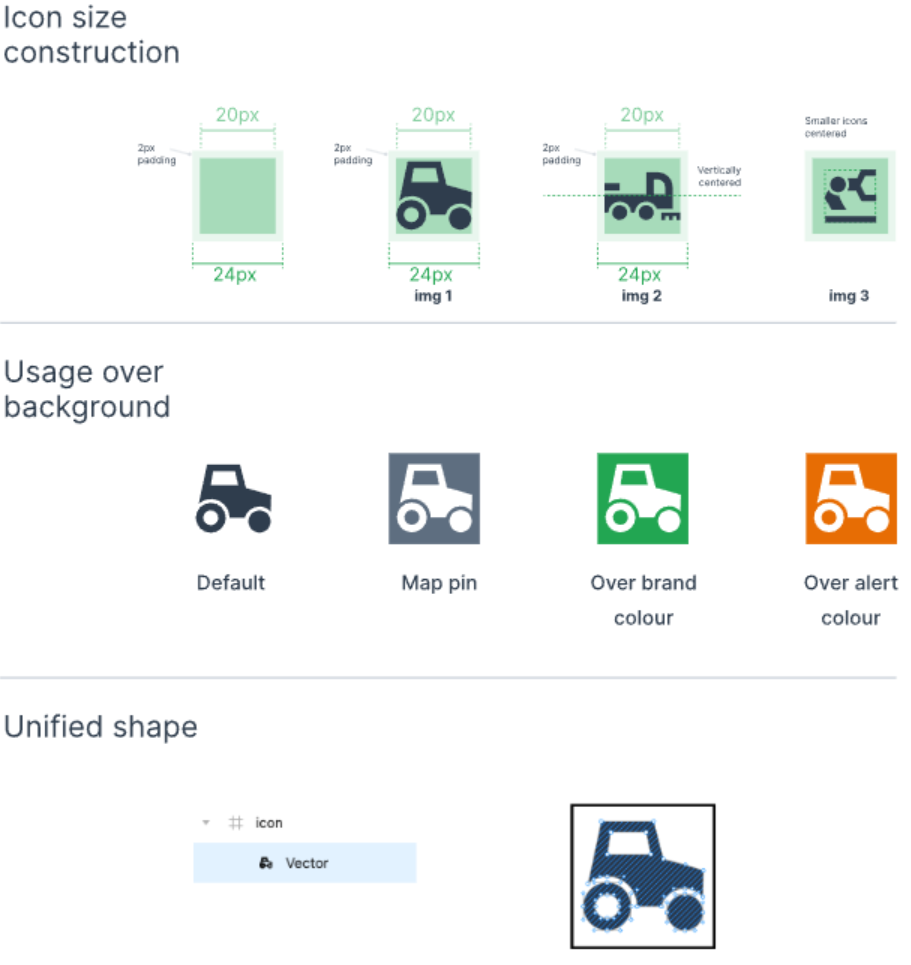
Assets icons are used in the format 24px x 24px on:
- map pins in white over contrast backgrount
- navigation contrast colour over brand colour background
They are used on a machine model page in a larger format if there is no model image for the machine.
Creating assets
When creating your artwork, ensure it conforms to the following:
Recommended size: 24px X 24px, 48px X 48px, 72px X72px
Shape: Full square with no round corners
Format: SVG
Vector: unified shape
Color: unified color (preferably all black)
Padding: leave 2px internally around the image
Background: transparent
If the asset icon is not squared, center its position vertically and/or horizontally (img 2 and 3).