The following sections describe the first steps that are required for the initial commissioning of the device.
Furthermore, it contains useful information on how to connect, configure, and mount the device.
Installing Software
Use the Proemion Configurator software to configure the device.
You can evaluate the transmitted data with:
- the Remote Service Tool software,
- a 3rd Party App for Android or iOS via Byte Command Protocol API,
- the RM CAN Device Monitor Pro CANopen.
Use the Firmware Programmer software for firmware updates.
The software can be downloaded from our Download Center.
| Software | Path on Download Center |
|---|---|
| Proemion Configurator | 03_Proemion Tools Software\01_Software\01_Proemion Configurator |
| Firmware Programmer | 03_Proemion Tools Software\01_Software\02_Proemion Firmware Programmer |
| Remote Service Tool software | 03_Proemion Tools Software\01_Software\04_Remote Service Tool |
| RM CAN Device Monitor Pro CANopen | 05_Utilities\01_RM CAN Device Monitor |
| USB driver | 05_Utilities\06_USB Drivers |
Execute the relevant application file (setup.exe, install.bat or similar) and follow the instructions on the screen to install the software on your PC.
RM CAN Device Monitor Pro CANopen
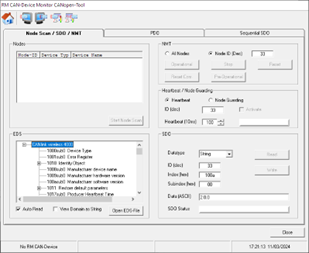
The RM CAN Device Monitor Pro CANopen can load an .eds file, and read and write to any address in that specification.
One disadvantage of this tool is that any operation can only be done in a serial fashion:
- Select object
- Edit settings
- Write object
- Repeat.....
This means that common tasks may be more quickly performed with a .dod file and the Proemion Configurator.
Proemion Configurator
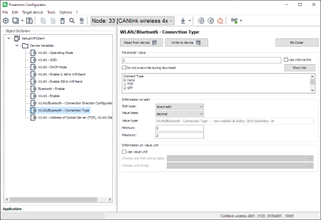
The Proemion Configurator is our default software for configuring the Proemion CLM and CLW device families.
With this tool, you can load in a set of Objects to read or program, and quickly setup the device.
This is our recommended method for setting up your CANlink® wireless 4000, and will form the basis for explaining how to configure the device in this document.
The Proemion Configurator can be downloaded from Download Center under: 03_Proemion Tools Software > 01_Software > 01_PROEMION Configurator
See Connect to Proemion Configurator for connection options.