Firmware update
The firmware for the CANlink wireless 4000 series exists in two formats:
-
The application firmware only.
-
The application firmware and additionally the firmware for the radio module when available.
The second option is referred to as a "bundle", and supports new and improved functionality from the radio module.
Both options are explained in this section.
Certain previous versions of firmware require a certain installation sequence.
Refer to the corresponding release notes which can be found in the firmware directory.
The firmware files are available in the Download Center under: 01_Proemion_Devices > 08_CANlink wireless 4000 > 03_Firmware > CANlink wireless 4000 Firmware
| Firmware | Path in Download Center |
|---|---|
| Application | CANlink_wireless_4001.signed.binCANlink_wireless_4003.signed.bin |
| Bundle | \Bundle\CANlink_wireless_4001_bundle.signed.bin\Bundle\CANlink_wireless_4003_bundle.signed.bin |
Note
Either the device firmware or the 'bundle' may be updated with the Proemion Firmware Programmer.
The bundle may always be safely installed (but the update takes longer because it includes both binaries).
To save time, if the radio module version is unchanged (which is typically true), the device firmware only may be updated.
It will be clearly indicated if the bundle version must be updated in the firmware Release Notes.
More details can be found in the document Upgrading Firmware in the Firmware folder in the Download Center.
| Firmware | Path on Download Center |
|---|---|
| Application | 01_Proemion_Devices\08_CANlink wireless 4000\03_Firmware\ |
| Bundle | 01_Proemion_Devices\08_CANlink wireless 4000\03_Firmware\Bundle\ |
Prerequisites
To perform a firmware update, you need the Proemion Firmware Programmer software and a CAN connection with the device via a PCAN-USB CAN/USB interface.
The software can be downloaded from Download Center under: 03_Proemion Tools Software > 01_Software.
If you have an older CANview USB CAN/USB interface, follow the instructions for this device.
-
Install the Proemion Firmware Programmer prior to the update procedure.
-
Connect your PC to the CAN interface of the CANlink® wireless 4000 with a PCAN-USB CAN/USB Interface (including a 120 Ohm CAN bus termination resistor):
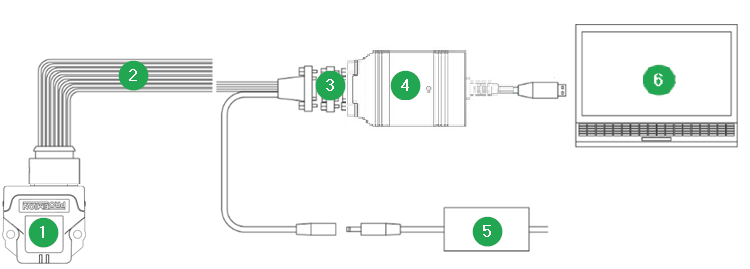
Figure 1: CANlink® wireless 4000 Connection to PC via PCAN-USB - CAN/USB Interface
| # | Item |
|---|---|
| 1 | CANlink® wireless 4000 |
| 2 | CLW4K Starter Cable |
| 3 | CAN bus terminator D-Sub/D-Sub, 120Ω |
| 4 | PCAN-USB - CAN/USB Interface |
| 5 | Power supply unit |
| 6 | PC with Proemion Firmware Programmer |
Select the firmware file
-
In the Proemion Firmware Programmer, click File > Open.
-
Select the
*.binfile with the correct firmware. This could be named something likeCANlink_wireless_4001.signed.binfor the device firmware update, orCANlink_wireless_4001_bundle.signed.binfor the bundle update.
The bundle update packages are in the \bundles\ subdirectory.
Configure the communication device
-
Open the Proemion Firmware Programmer.
-
In the main window of the Proemion Firmware Programmer, click the
 > COMMUNICATION SETTINGS in the drop-down.
The Communication Settings window opens: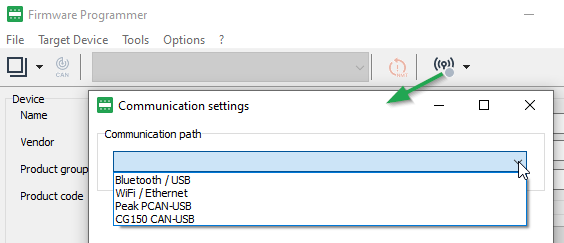
Figure 2: Communication Settings path -
Choose the Communication Path, i.e. the communication device, in this case "Peak PCAN-USB":
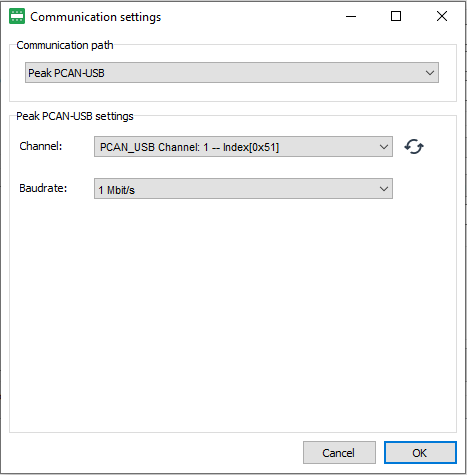
Figure 3: Communication Settings - PCAN -
Select the Channel and Baudrate. The default CAN baud rate is 250 kbit/s.
-
Click OK to save the settings.
The main window is shown again.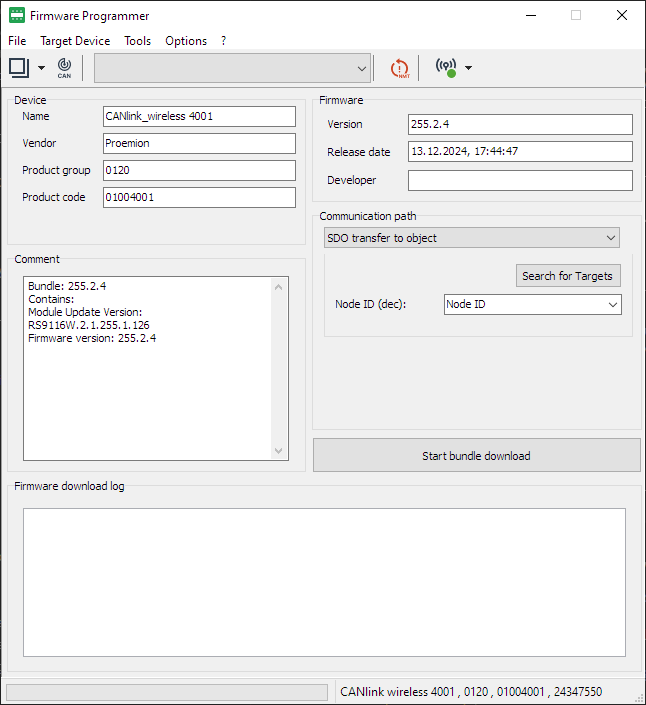
Figure 4: Firmware Programmer - main window
Select Communication Path
If a Bundle file was selected, the communication path is automatically set to SDO transfer to object.
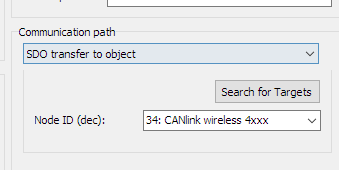
If a device firmware file (CANlink_wireless_400x.signed.bin) was selected, the Communication path offers two options:
-
Connection via CAN
-
Connection via USB
Select the first option, via CAN.
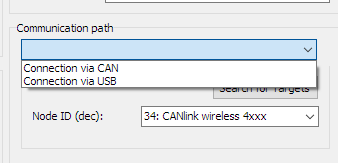
Select the device for the firmware update
-
In the main window of the Proemion Firmware Programmer, ensure that Connection via CAN is preselected in the Communication path field.
-
To start the Node scan, click Search for Targets.
A list of Node IDs found will be shown, and the first node automatically selected.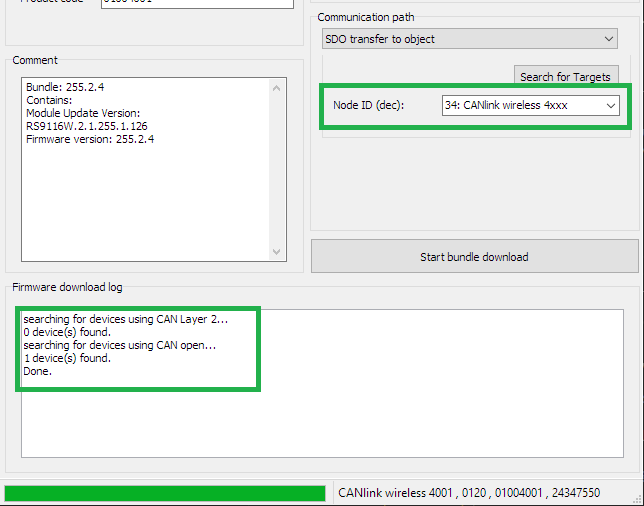
Figure 7: Firmware Programmer - Search for Targets -
Select the corresponding device (if necessary).
The default Node ID of the CAN 1 interface is 34 (decimal) and the found device is displayed as 34: CANlink wireless 4xxx. -
Click the Start firmware download button.
Device Firmware Update
During a the firmware update with only the Device firmware, both LEDs on the device rapidly flash green.
| CAN1 Baudrate | Update duration (approximate) |
|---|---|
| 250kb/s (default) |
02m00s |
| 1Mb/s | 01m30s |
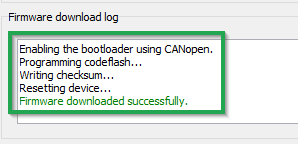
The following messages will appear in the Firmware download log:
Enabling the bootloader using CANopen.
Programming codeflash...
Writing checksum...
Resetting device...
The message Firmware downloaded successfully appears when the firmware update is complete.
Firmware Bundle Update
The firmware of the CANlink® wireless 4000 can be simply updated in one step using a Firmware Bundle. These files are called
-
CANlink_wireless_4001_bundle.signed.bin for the 4001 model
-
CANlink_wireless_4003_bundle.signed.bin for the 4003 model
These are located in the \bundles\ directory of the firmware package downloaded from the Download Center.
The bundle may only be updated using the CAN1 bus.
Update Process
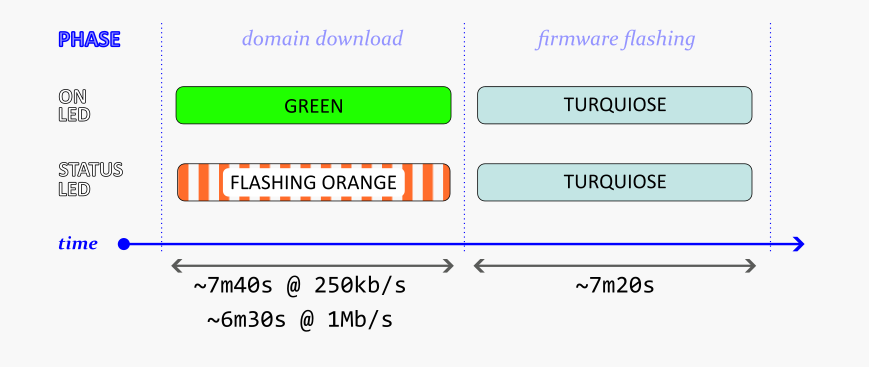
Update Timing
The Bundle Update process consists of two phases:
-
Download
-
Flashing
The duration of the Download phase depends on the configured device baudrate, whereas the Flashing phase remains a constant length.
| CAN1 Baudrate | Download duration (approximate) |
|---|---|
| 250kb/s (default) |
07m40s |
| 1Mb/s | 06m30s |
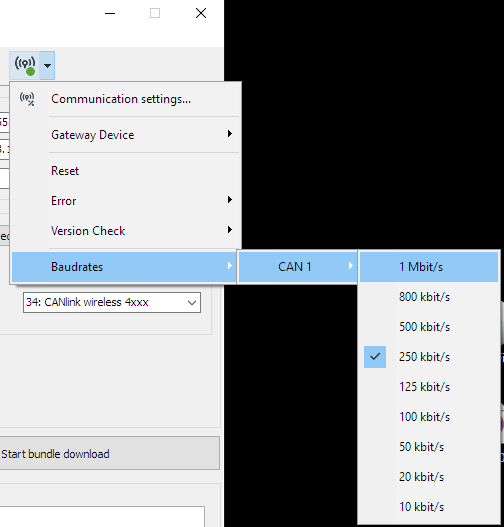
Both baudrate of the device CAN bus and the CANUSB dongle must be set to the same rate.
-
To set the baudrate of the device, see the CAN baudrate section under ObjectDictionary
-
To change baudrates in the Firmware Programmer, select the appropriate value in the Communication Settings
After a firmware update
The behavior of the firmware may have changed in the new version.
Please read the release notes included with the new version, to see if there has been any affect on your configuration.
The default values of some settings may have changed to comply with updated firmware: Please do a Factory Reset to set all values back to default.
Then you may configure your device accordingly.
Note
The firmware update may reset or add configuration settings of the device.
After the firmware update, reload your configuration to the device with the latest version of the Proemion Configurator software.