Configure a Manual CAN Receive Filter
Remote Service Tool writes the CAN filters of the application to the volatile memory (RAM) when it establishes the connection to the CAN interface device. These settings stay active until new filters overwrite them, or the device reboots. For normal operation, enable Auto filter (global) as the optimal setting for the CAN receive filters. In rare applications, it may be necessary to configure Manual filters, as described in this chapter.
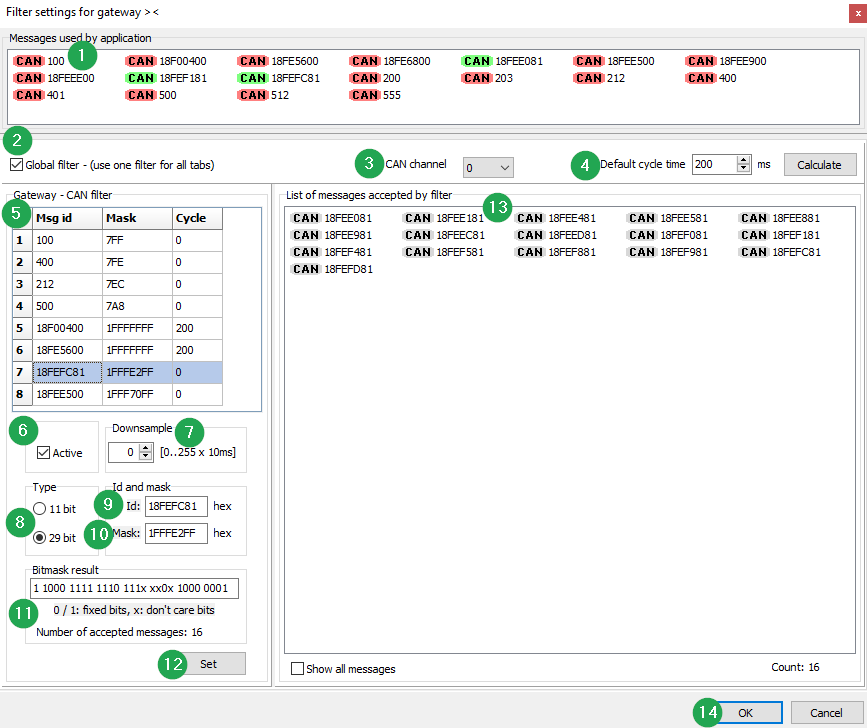
| # | Item | Description |
|---|---|---|
| 1 | Messages used by application | Shows an overview of the CAN message identifiers used in the active DBS file. Remote Service Tool shows CAN messages received by the filter channel of the communication gateway selected in the Gateway – CAN filter list in green. Highlight all filter channels in the Gateway – CAN filter list using Shift + click on the first and last entry to check whether all the CAN message identifiers are shown in green, meaning all messages can be processed. |
| 2 | Global filter | Tick Global filter (use one filter for all tabs) to use one filter for all tabs. This may require a larger transmission bandwidth than all communication paths support, but offers faster tab switches, since Remote Service Tool doesn't need to change the filter settings first. |
| 3 | CAN channel | Select 0 for CAN1, 1 for CAN2, and 2 for CAN3. |
| 4 | Default cycle time | The default time used when Downsample is enabled. |
| 5 | CAN filters list | Shows the configured filters. A maximum of 8 filters per CAN interface is available. |
| 6 | Active | Enable this checkbox to activate the configured filter. |
| 7 | Downsample | After a CAN message passes through the channel, the channel closes for the configured downsample time, then opens again with the same filter configuration. Leave this time set to 0 when the filter mask is open for more than one message. |
| 8 | Message type | Choose between an 11-bit or a 29-bit CAN message. |
| 9 | CAN identifier | Enter the required CAN identifier. If there's a cluster of CAN identifiers to receive with this filter, define the filter mask according to Filter Calculation. |
| 10 | Mask | Enter the filter mask 7FF (for 11-bit IDs) or 1FFFFFFF (for 29-bit IDs) to receive only a single CAN identifier. |
| 11 | Bitmask result | Shows information about the configured filter mask and the number of accepted messages. A binary 0 means the bit isn't evaluated (don't care). A binary 1 means the corresponding bit of a received CAN message must have the same value as the configured message ID. |
| 12 | Set | Click this button to apply the settings to the manual filter configuration. |
| 13 | List of messages accepted by filter | Shows all CAN message identifiers accepted by the filter highlighted in Gateway – CAN filter. |
| 14 | OK | Click this button once the filter configuration is complete. The window closes automatically, and Remote Service Tool sets the filter to Manual filter. |
| 15 | Cancel | Click this button to dismiss and abort the manual filter configuration. |
See Filter Message Example for a worked example of this dialog.
Check the Performance Monitor
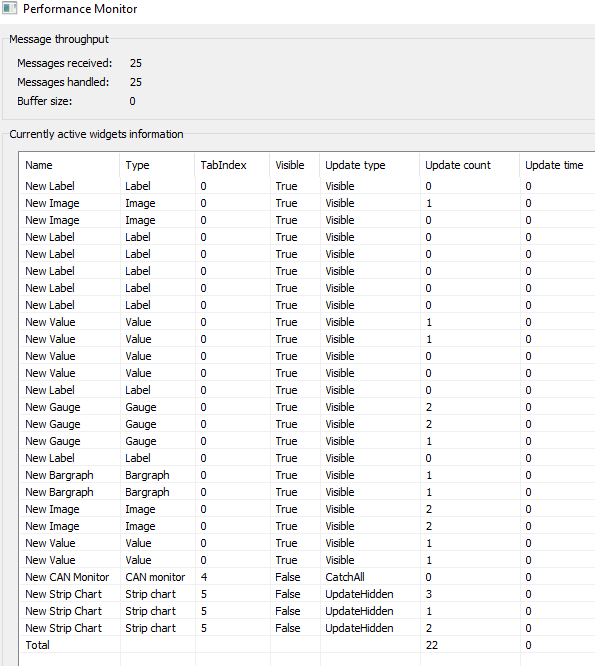
The Performance Monitor provides an overview of the received CAN messages count and their distribution to the active widgets. Usually, Auto filter (global) calculates the masks for the CAN receive filter so that it only transmits the CAN messages relevant for the application.
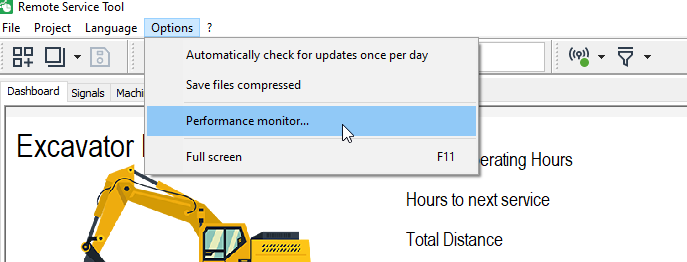
- Click Options > Performance monitor….
- Check the number of received messages and their distribution to the active widgets.
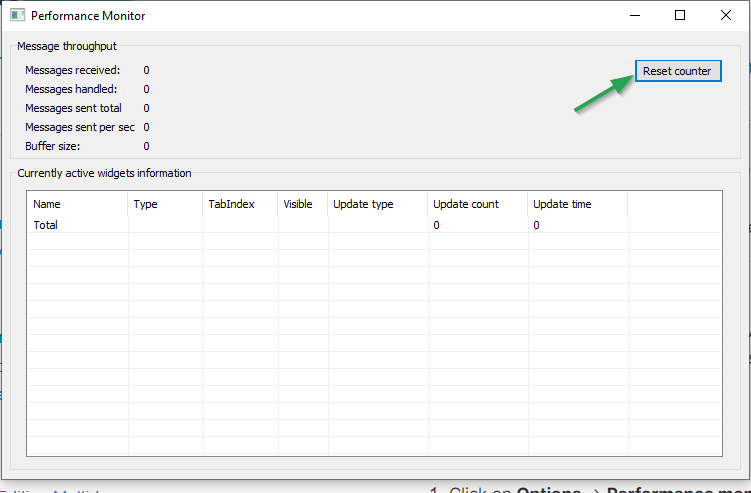
You can also reset the counter in the performance monitor: