Filter Message Example
The following example shows how to define a CAN receive filter for PGN 61444 at the CAN1 interface of the gateway device. Assuming the priority and source address aren't known, the filter mask ignores the bits for priority and source address.
- Click the filter settings icon
 .
- Select Manual filter > Configure.
- Configure the manual filter as shown in the table below.
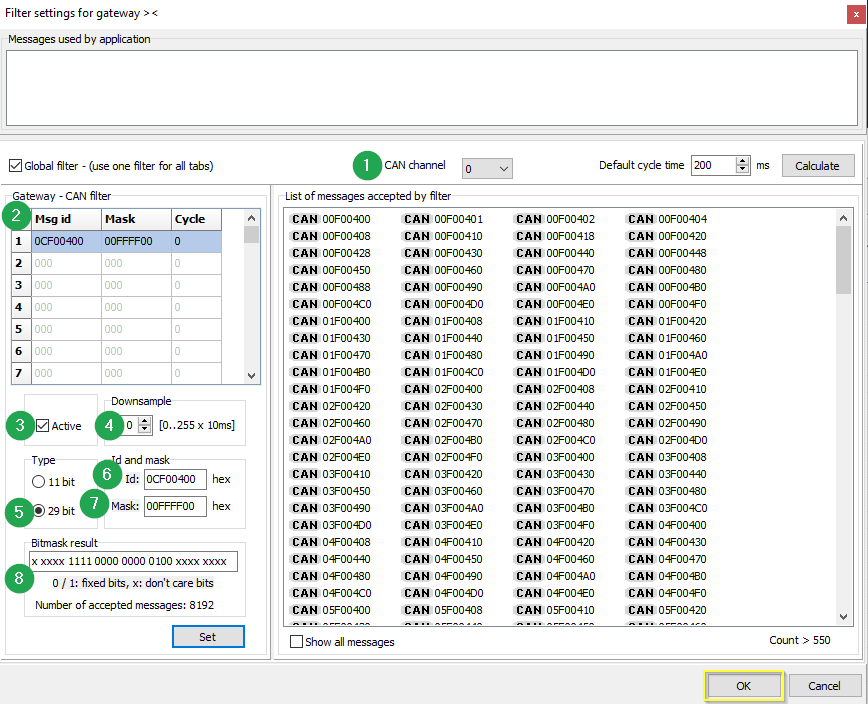
| # | Item | Setting |
|---|---|---|
| 1 | CAN channel | Select 0 for CAN1. |
| 2 | CAN filters list | Shows the configured filters. A maximum of 8 filters per CAN interface is available. |
| 3 | Active | Enable this checkbox to activate the configured filter. |
| 4 | Downsample | Leave this time set to 0 when the filter mask is open for more than one message. |
| 5 | Message type | Select 29 bit CAN message. |
| 6 | CAN identifier | Enter CAN identifier 0CF00400 for PGN 61444 with priority 0x3 and source address 0x0. |
| 7 | Mask | Enter filter mask 00FFFF00 to ignore the priority and source address for PGN 61444. If the complete CAN identifier is known, you can also enter 1FFFFFFF to receive only this single CAN identifier. |
| 8 | Bitmask result | Shows information about the configured filter mask and the number of accepted messages. |
- Click Set.
- Click OK.
- Save the configuration.
- Test the filter settings.
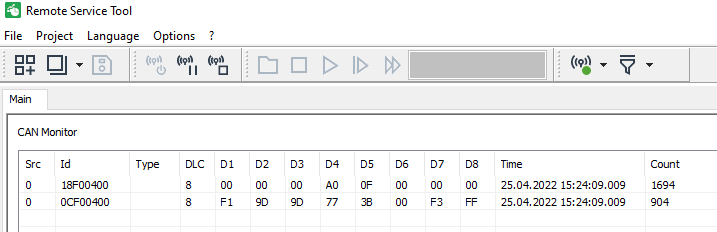
✓ Only messages allowed to pass the configured filter settings transmit to Remote Service Tool.
!!! note
In this example, the filter mask allows transmission of CAN identifiers 18F00400 and 0CF00400.
- Stop the session once Remote Service Tool displays the required messages.