Log In
Remote Service Tool supports logging in with both single sign-on (SSO) and a username and password.
Set a Default URL
Set a default URL to fetch the login information and use it as the default URL for logging into Remote Service Tool. Depending on the user settings, the SSO login, the native login with a username and password, or both are enabled.
- In Remote Service Tool, open Options > Preferences.
- Add the REST API URL, for example
https://dataportal.proemion.com/api/.
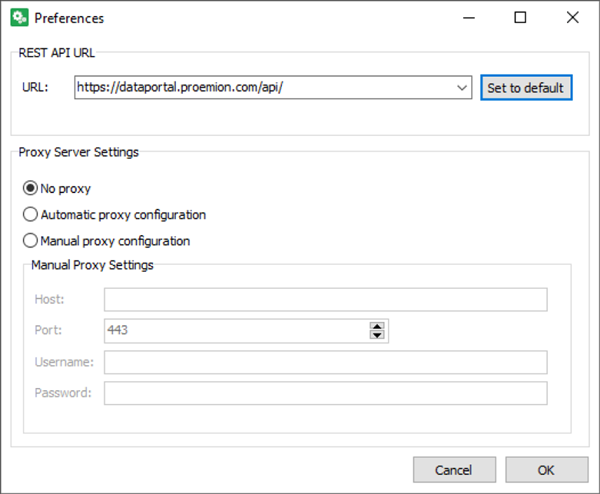
- Confirm with OK.
Log In Procedure
- Open Remote Service Tool.
- Click the connection settings icon
 in the toolbar.
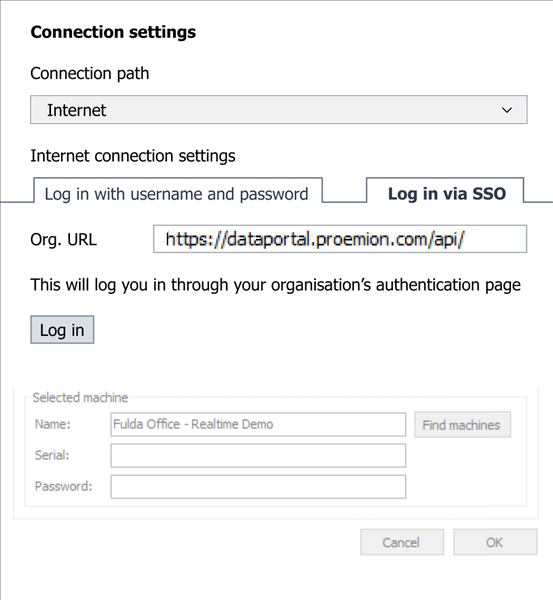
The Connections settings dialog window opens.
- Select Internet in the Communication path field.
The Internet connection settings section opens.
-
Depending on your settings, choose one of the following tabs to log in with a username and password or to use SSO login. In both cases, select Remember me to store the login information.
- Log in with username and password: enter your credentials and click Log In.
- Log in via SSO: change the REST API URL or add it here if not done yet, see Set a Default URL, then click Log In.
This opens the external login mask in the browser where you enter the SSO credentials. After a successful login, Remote Service Tool regains focus.
You can now use Find machines in this dialog, or any other feature within Remote Service Tool.
Log Out
To log out from both Remote Service Tool and SSO:
- Click the connection settings icon in the toolbar.
- Select Internet in the Communication path field.
- Choose the tab that you used for logging in.
- Click Log Out and confirm again in the dialog.