Label
The Label Dashboard element displays a text that you can edit and format. The Label element is part of every other Dashboard element.
Note
This chapter describes the configuration of the Label element as an example for all Dashboard elements.
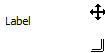
- Right-click the Label element to open the context menu.
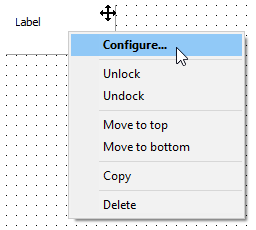
The context menu offers the following options, available for every Dashboard element:
| Context menu item | Description |
|---|---|
| Configure | Opens the configuration dialog for the Dashboard element. Alternatively, double-click directly on a Dashboard element, see General Tab. |
| Lock | Hides the Windows® frame of a Dashboard element and locks its position on the display interface. |
| Unlock | Shows the Windows® frame and unlocks the position on the display interface. |
| Undock | Undocks the Dashboard element from the display interface. The element then appears as an independent window on the desktop and can be freely positioned there. |
| Dock | Re-docks the freely positionable Dashboard element on the display interface. |
| Move to top | Places the Dashboard element in the foreground. |
| Move to bottom | Places the Dashboard element in the background. |
| Copy | Copies the selected Dashboard element. Alternatively, use the key combinations Ctrl+C and Ctrl+V. |
| Delete | Deletes the selected Dashboard element. |
For more on undocking, locking, and rearranging elements, see Display Types of a DBS File.
General Tab
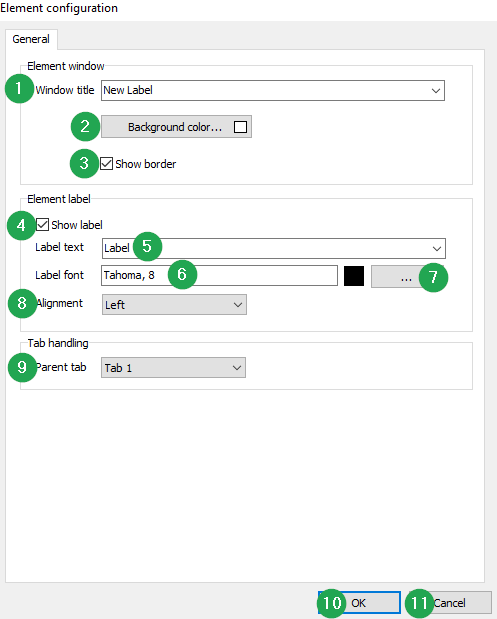
| # | Item | Description |
|---|---|---|
| 1 | Window title | Select the name of the window you want from a list, or enter a new name. |
| 2 | Background color… | Changes the background color of the element. |
| 3 | Show border | Tick this box to show the element border. Remove the tick to hide the element border. |
| 4 | Show label | Tick this box to show the label text. Remove the tick to hide the label text. |
| 5 | Label text | Select the label text you want for the Dashboard element from a list, or enter a new name. |
| 6 | Label font | Shows the current font and font size of the label text. |
| 7 | […] | Opens the Font dialog. |
| 8 | Alignment | Choose the alignment of the label text in the Dashboard element. |
| 9 | Parent tab | Select the name of the tab to assign the selected Dashboard element to. If appropriate, Remote Service Tool transfers the Dashboard element to the selected tab. This option is only available when more than 1 tab is configured. |
| 10 | OK | Adopts a change. |
| 11 | Cancel | Cancels a change. |