Value
The Value Dashboard element displays a numerical value received through a CAN message.
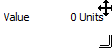
General Tab
The General tab is the same for every Dashboard element, see General Tab.
Source Tab
In the Source tab, configure the CAN receive message for the value to show.
Some Dashboard elements have more than one source configuration area. In this case, there are tab sub-elements Source 1, and so on.
The following example describes a general configuration, common to all Dashboard elements with a Source tab.
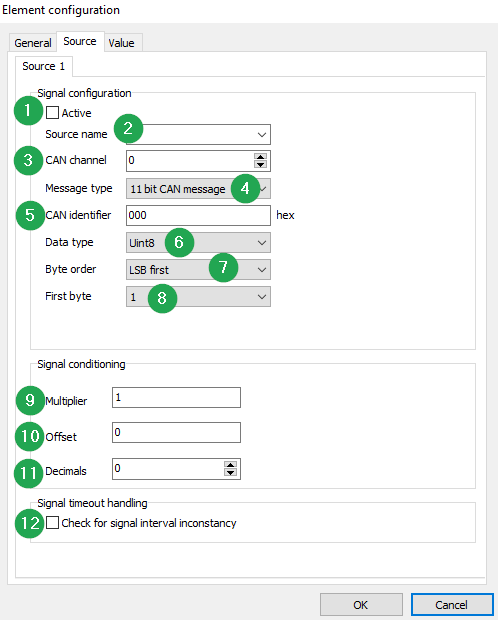
| # | Item | Description |
|---|---|---|
| 1 | Active | Enable this checkbox to activate monitoring of the CAN message configured in this tab. Activation is necessary so Remote Service Tool transfers the values to display to the Dashboard element. |
| 2 | Source name | The name displayed for the data source, shown for information purposes only; the Value element doesn't evaluate it. Define the display name by entering it or selecting it from a list of available texts. In other elements, for example bargraphs and strip charts, this name is used for the legend. |
| 3 | CAN channel | Define the CAN interface: 0=CAN1, 1=CAN2, 2=CAN3. |
| 4 | Message type | Define the CAN message type. Choose between an 11-bit CAN message and a 29-bit CAN message. |
| 5 | CAN identifier | Enter the hexadecimal value of the CAN identifier of the CAN message to display. |
| 6 | Data type | Select the data type of the value to display within the CAN data. Available data types are Bit, Uint8, Int8, Uint16, Int16, Uint32, Int32, and Real32. |
| 7 | Byte order | Define the byte order (MSB or LSB first) used to calculate the value to display from the CAN data. |
| 8 | First byte | Select the data byte (1-8) from which the value to display starts within the CAN data. The data type determines the number of data bytes. |
| 9 | Multiplier | Enter a factor to multiply the value to display from the CAN data by before showing it. This value can contain digits after the decimal point. |
| 10 | Offset | Enter a constant value to add to the value to display from the CAN data before showing it. The value can contain digits after the decimal point, and can be positive or negative. |
| 11 | Decimals | Select the number of digits after the decimal point to show for the value. |
| 12 | Check for signal interval inconsistency | Activates the monitoring period within which Remote Service Tool must receive a CAN message. Remote Service Tool calculates the monitoring period automatically. |
Value Tab
In the Value tab, configure the unit and depiction of the value to display.
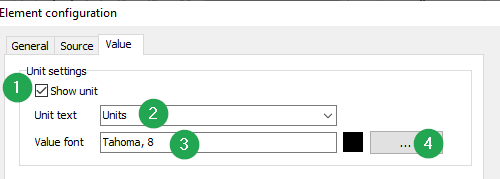
| # | Item | Description |
|---|---|---|
| 1 | Show unit | Enable this checkbox to show the specified unit for the signal value. |
| 2 | Unit text | Define the physical unit for the value to display by entering a unit or selecting it from a list of already available texts. |
| 3 | Value font | Shows the current font and font size for the value and the physical unit. |
| 4 | […] | Opens the Font dialog. |