Display Types of a DBS File
When you create a DBS file, you have two options for displaying the Dashboard elements. By default, newly created elements show on the surface of the Dashboard.
Right-click a Dashboard element to change its arrangement and depiction.
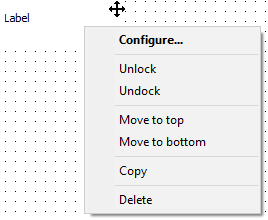
Undock/Dock
- Click Undock in the context menu.
✓ The element window undocks from the Dashboard surface and can be freely positioned on the desktop.
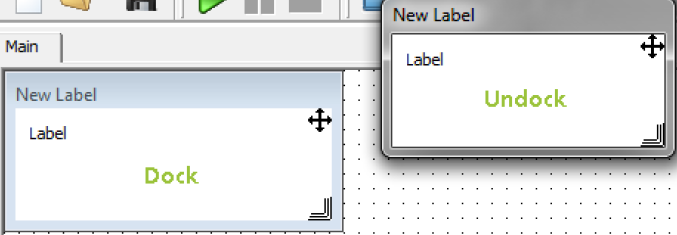
- Right-click the freely positionable Dashboard element.
- Click Dock in the context menu.
✓ The Dashboard element window docks on the Dashboard surface.
Lock/Unlock
- Click Lock in the context menu.
✓ Remote Service Tool locks the position and size of the element window (only when Edit mode is disabled), and hides the title bar and frame of the element window. The Lock function is especially useful for DBS files with many elements.
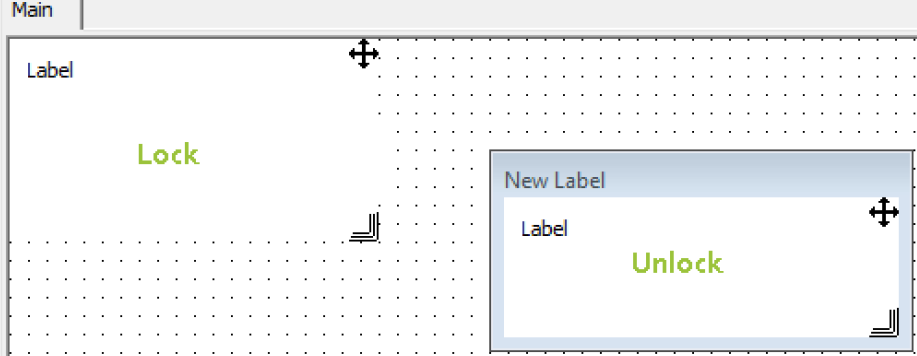
- Right-click the locked Dashboard element.
- Click Unlock in the context menu.
✓ Remote Service Tool displays the Dashboard element window with its own title bar and border.
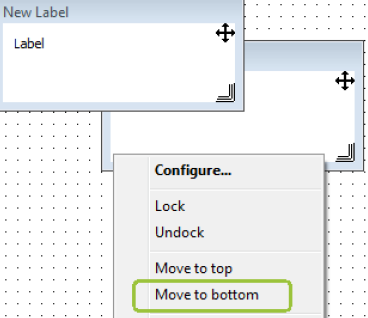
Move to Top/Move to Bottom
Move Dashboard elements into the foreground or the background.
- Right-click a Dashboard element.
- Click Move to top in the context menu.
✓ The Dashboard element moves into the foreground.
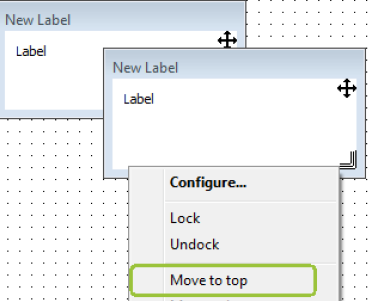
- Right-click a Dashboard element.
- Click Move to bottom in the context menu.
✓ The Dashboard element moves into the background.