Create and Edit Multi-Language Projects
Remote Service Tool saves the texts used in the application in a language table.
- Click Project > Edit mode enabled in the menu bar to enable edit mode.
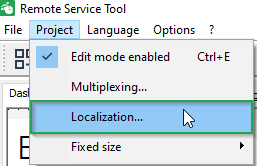
- Click Project > Localization in the menu bar.
✓ This opens the language table in the Localization window. ✓ The language table lists all the texts used, managed in separate columns per language.
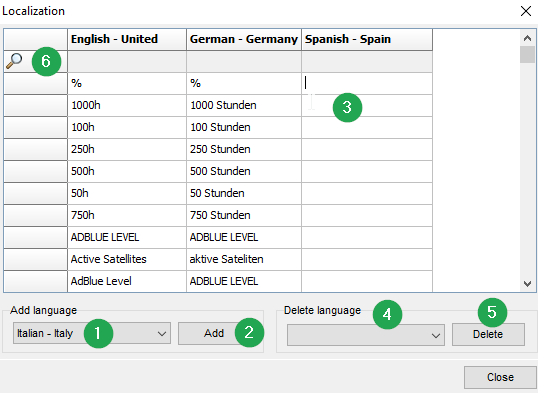
| # | Item | Description |
|---|---|---|
| 1 | Add language | Choose a new language. |
| 2 | Add | Click this button to create a new column for the selected language. |
| 3 | Editing language entries | Add or change the translated text for the individual entries. |
| 4 | Deleting language | Select the language to delete. |
| 5 | Delete | Click this button to delete the selected language. |
| 6 |  |
In the row with the magnifying glass, enter the search text in the relevant language column. Remote Service Tool then truncates the language table to show only the rows that meet the search criteria. |