Record a CAN Trace with CAN Monitor
- Make sure that the latest version of Remote Service Tool from the Download Center is installed on your PC.
- Start Remote Service Tool.
✓ The software starts with a blank project.
- Click File > Open (
Ctrl+O). - Open the Remote Service Tool configuration file (
.dbs) with the settings described in Create a Configuration with CAN Monitor. - Click the connection settings icon
 .
- Select communication path Internet.
!!! note This example shows a connection to a CANlink® mobile device. Adapt this procedure to other communication gateways in the same way. When connecting to a local CAN-PC gateway, the Find machines steps don't apply.
- Enter the login credentials of your DataPlatform user.
- Click Find machines.
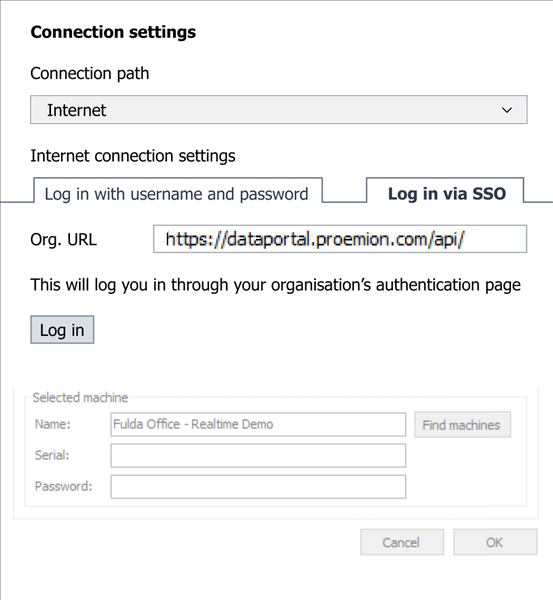
- Select the corresponding machine.
-
Click OK.
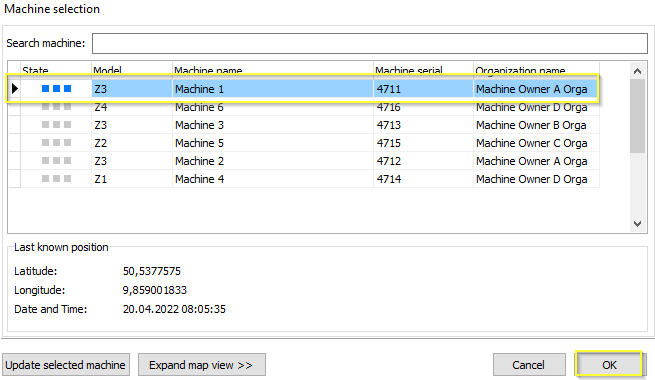
Figure 2: Machine selection ✓ The connection is established and the CAN receive filter is written to the device.
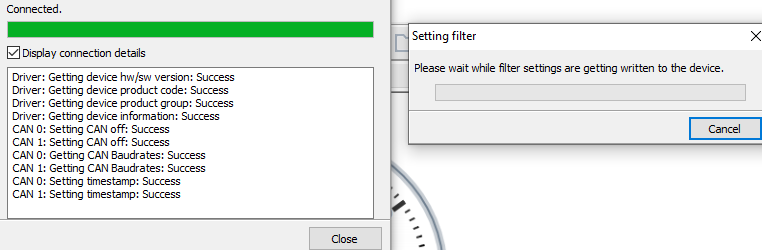
Figure 3: Connecting -
Observe the CAN Monitor element, and make sure it records the messages of interest.
✓ The CAN monitor displays the current CAN traffic of the connected vehicle.
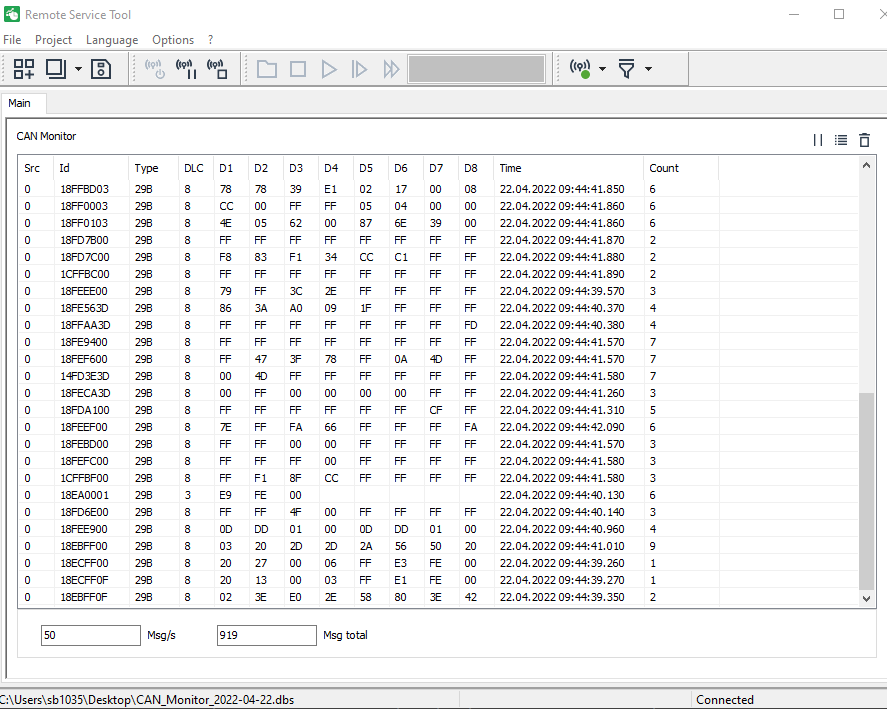
Figure 4: CAN trace -
Click the disconnect icon
 .