The Multiplex Solution
Remote Service Tool applications can also be developed as multiplex applications. This is useful when the transmission bandwidths for the CAN messages to display are limited, for example when using CANlink® mobile. In multiplex applications, CAN messages contain different information at different times. Various Dashboard elements in various tabs can display the transmitted information. During multiplexing, tabs switch automatically when Remote Service Tool receives the corresponding CAN messages.
- Click Project > Edit mode enabled in the menu bar to enable edit mode.
- Click Project > Multiplexing in the menu bar.
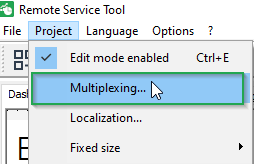
✓ This opens the Application settings window.
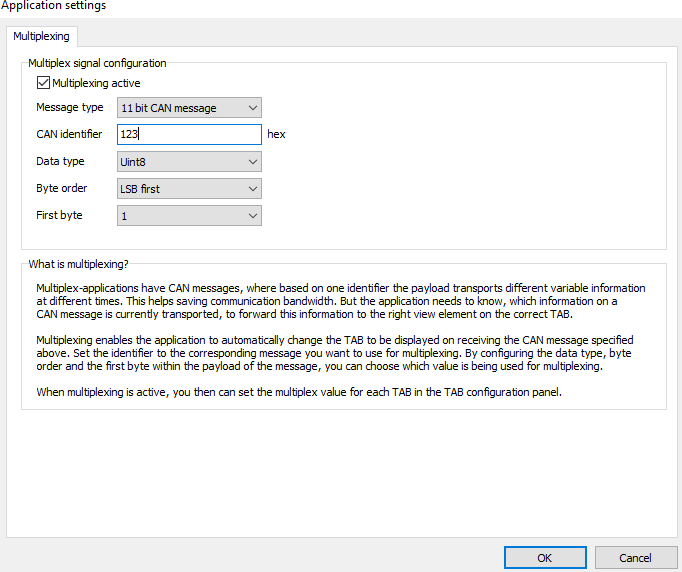
✓ Configure a Dashboard application as a multiplex application in the Application settings window, in the Multiplexing tab.
- Tick Multiplexing active to enable multiplexing.
- Configure the relevant CAN message as a multiplex message.
✓ When Remote Service Tool receives a multiplex message, it automatically switches to the tab whose value was received for the multiplex configuration. All CAN messages are depicted in the active tab.
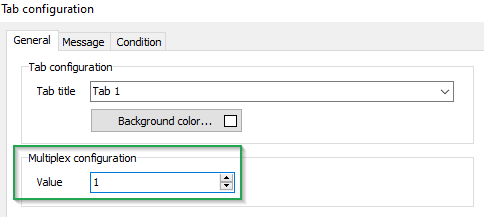
To determine which tab shows when Remote Service Tool receives the multiplex message, use the additional value Multiplex configuration to configure the tab.
Note
The Multiplex configuration value is only visible and configurable once you configure the application as a multiplex application.
Warning
Remote Service Tool can only display CAN messages in a tab once the dashboard application has received the defined multiplex message, and rejects CAN messages until it receives the first multiplex message.