Use DBS Files
Note
Download and install the latest version of Remote Service Tool from the Download Center before using the features described in this chapter.
Use Remote Service Tool to create and open the DBS file. The DBS file contains:
- The graphic description of the display of machine and vehicle data.
- The description of machine and vehicle data available on the CAN bus of the target device.
Remote Service Tool creates the DBS file in XML format, then you can save the file to a computer hard drive.
The storage formats are:
- XML, an open format with a larger file size.
- A vendor-defined, compressed binary format with a smaller file size.
Remote Service Tool can only open one DBS file at a time. To copy project parts from one DBS file to another, open two instances of Remote Service Tool and copy the data you want using the Windows® clipboard.
Define the File Storage Format
- Click Options > Save files compressed in the menu bar to save the DBS file in a compressed format.
✓ A tick appears next to the menu option.
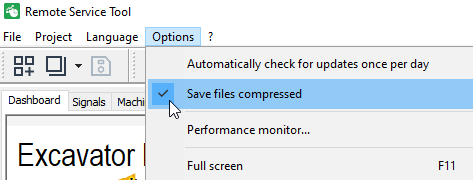
- Click Options > Save files compressed again to save the DBS file in an uncompressed format.
✓ The tick next to the menu option is removed.
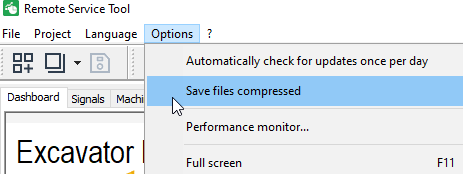
✓ Remote Service Tool saves this setting and reapplies it the next time you start the program.
Create or Edit a Configuration File
To display CAN data, Remote Service Tool requires a configuration file with the file extension .dbs, which contains a complete specification of the CAN messages and their signals.
Different widgets can display the signals and states, see Dashboard Elements.
You can edit existing DBS files and create new DBS files.
State Indicator
The Machine Selection dialog indicates the different states of a device with colors:
- Green: hybrid devices with Online mode (logging and realtime modes) enabled, for example CANlink® mobile 3600, see CANlink mobile 3600 Online feature, or devices in logging/file transfer mode.
- Blue: devices in realtime mode, for example devices of the CANlink® mobile 3000 and CANlink® mobile 5000 series, and CANlink® mobile 3600 devices with a firmware version older than 2.0.
- Gray: devices that are offline.
