Copy and Paste of Dashboard Elements
Copy and paste Dashboard elements with all their settings.
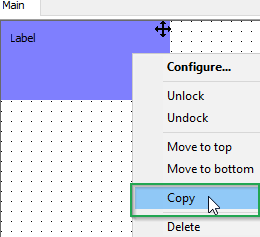
- Click a Dashboard element to select it.
✓ The Dashboard element shows with a blue background.
!!! tip
To select several elements, press and hold Ctrl and click all the Dashboard elements you want to copy.
Press Ctrl+A to select all the Dashboard elements in the currently active tab.
- Press
Ctrl+Cto copy the selection. Alternatively, right-click a highlighted Dashboard element and click Copy in the context menu. - Press
Ctrl+Vto paste the copied Dashboard elements into another tab. Alternatively, right-click the name of the tab you want to paste the Dashboard elements into and click Paste in the context menu.
!!! note If you have opened a second instance of Remote Service Tool, you can also insert the copied Dashboard elements into a tab element in that second instance. When copying Dashboard elements to a separate instance of Remote Service Tool, the Merge Text Entries window opens, where you can merge the texts used with already existing texts, or enter new texts.
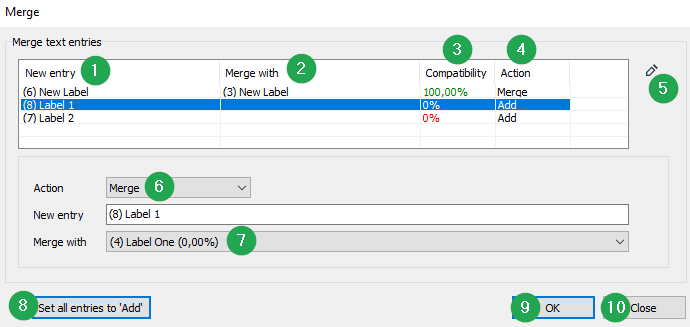
Merge Text Entries
The list contains all the texts transferred in a copying process. Remote Service Tool first searches for existing texts and tries to merge the new texts with existing texts.
Note
The Merge Text Entries window only appears when copying Dashboard elements to another instance of Remote Service Tool.
| # | Item | Description |
|---|---|---|
| 1 | New entry | Displays the ID and the text created by copying. |
| 2 | Merge with | Displays the ID and the text with which Remote Service Tool merges this text. |
| 3 | Compatibility | Displays the compatibility of the new text with the old text. If several languages are implemented and a text only exists in one of them, full compatibility isn't achieved. If Remote Service Tool doesn't find the text at all, it enters the text as completely new. Click an entry in the list to highlight it; in Merge with, select which text to merge the entry with. |
| 4 | Action | Shows whether Remote Service Tool merges the entry or enters it as new. |
| 5 |  |
Manually enters a merge into the list. |
| 6 | Action choice | Choose between Add or Merge. |
| 7 | Merge with choice | Select the second text entry for the merge. |
| 8 | Set all entries to add | Click this button to set all elements in the list to Add. |
| 9 | OK | Click this button to copy all elements according to the settings. |
| 10 | Close | Attention! Clicking this button sets all elements in the list to Add and copies them without taking account of previously made settings. |