Project Password (Dashboard Protection)
Remote Service Tool protects a dashboard against unauthorized or unintended modifications using a project password.
When a project password is set, editing the dashboard configuration is blocked unless you enter the correct password.
This feature separates configuration users (for example developers or service engineers) from standard users, who should only view data.
Enable a Password-Protected Dashboard
- Click Project > Edit mode enabled in the menu bar, see Enable the Edit Mode.
- Click Project > Project password in the menu bar.
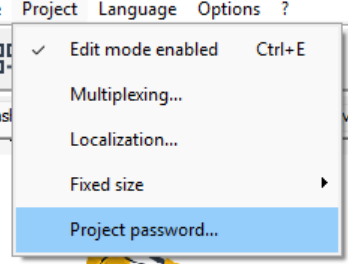
- Enter a password and confirm it.
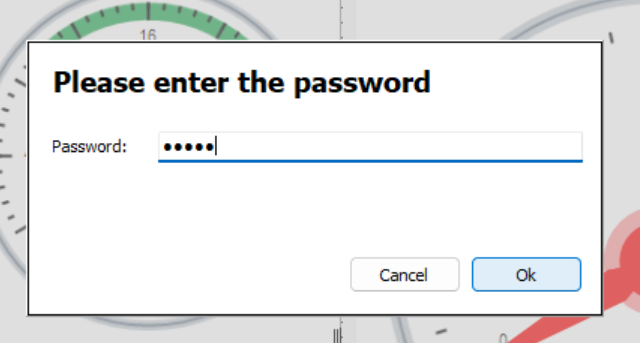
- Save the project using
Ctrl+S.
✓ Editing the dashboard is now protected by a project password. ✓ You can only modify the dashboard after entering the correct password.
Disable the Password Protection
- Click Project > Edit mode enabled in the menu bar.
- Click Project > Project password in the menu bar.
- Remove the password by setting it to blank.
- Confirm and save the project.
✓ You can now edit the dashboard without entering a password.
Behavior and Limitations
- The project password protects dashboard editing only.
- You can still view data and operate dashboard elements without a password.
- The password is project-based and stored in the DBS file.
- There is no user or role management. All users share the same project password.
- The protection applies to all tabs and dashboard elements within the project.
Additional Notes
- Remote Service Tool evaluates the project password when switching to Edit Mode. If a password is set, editing actions are blocked until you enter the correct password.
- Document and store the project password securely, since losing it prevents further modification of the dashboard configuration.
- When distributing DBS files, verify the password protection before delivery.
Typical Use Cases
- Delivery of validated dashboards to customers.
- Protection against accidental configuration changes.
- Use in remote diagnostics and after-sales environments.