Conditional Text
The Conditional text Dashboard element displays different texts using configurable conditions.
General Tab
The General tab is the same for every Dashboard element, see General Tab.
Source Tab
You can configure two data sources, see Source Tab.
Text Tab
Configure the display conditions for texts.
Note
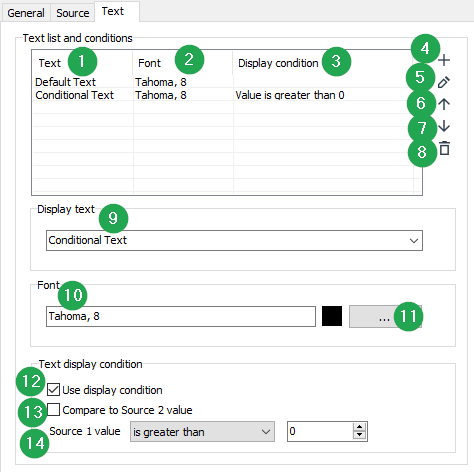
The top area lists all configured texts with a brief summary of the relevant parameters. The order in the list determines which text Remote Service Tool actually shows: if one or more conditions are met, Remote Service Tool always shows the text furthest up the list.
| # | Item | Description |
|---|---|---|
| 1 | Text | Shows the text to display. |
| 2 | Font | Shows the font and font size of the text to display. |
| 3 | Display condition | Shows the conditions necessary for Remote Service Tool to display the corresponding text. |
| 4 |  |
In the Display text field, define the text you want by entering it or selecting it from the list of already available texts, then click this icon to add the text to the list. |
| 5 |  |
Highlight a text in the list, alter the text in Display text, then click this icon to adopt the change. |
| 6 |  |
Click an entry in the list to highlight the text, then click this icon to move the text one place up in the list. |
| 7 |  |
Click an entry in the list to highlight the text, then click this icon to move the text one place down in the list. |
| 8 |  |
Click an entry in the list to highlight the text, then click this icon to delete the text. |
| 9 | Display text | Enter a new text and click the plus icon to save it to the list. Edit a text and click the edit icon to save the change. |
| 10 | Font | Shows the current font and font size for the text to display, defined in Display text. |
| 11 | […] | Opens the Font dialog. |
| 12 | Use display condition | Tick this box to enable a display condition. Untick the box to always display the text. Remote Service Tool overwrites the text when the display condition for another text is met; in this case, place the text at the bottom of the list. |
| 13 | Compare to Source 2 value | Tick this box to compare the Source 1 value with the Source 2 value. Untick the box to only evaluate the Source 1 value. |
| 14 | Source 1 value | Select the operator (equals, is greater than, is less than, unequal) and enter a comparison value. |