Introduction
The DataPortal offers both preconfigured reports and the creation of manual reports to get an instant overview of different events, signals and data of a machine in opposite to the Event Functionality that triggers notifications for preconfigured events.
Note
Irrespective from machine location all machine data displayed in the DataPortal is shown in the time zone configured in the personal user settings via the Account Settings in the DataPortal. To view data in a different time zone, adjust your personal user settings accordingly.
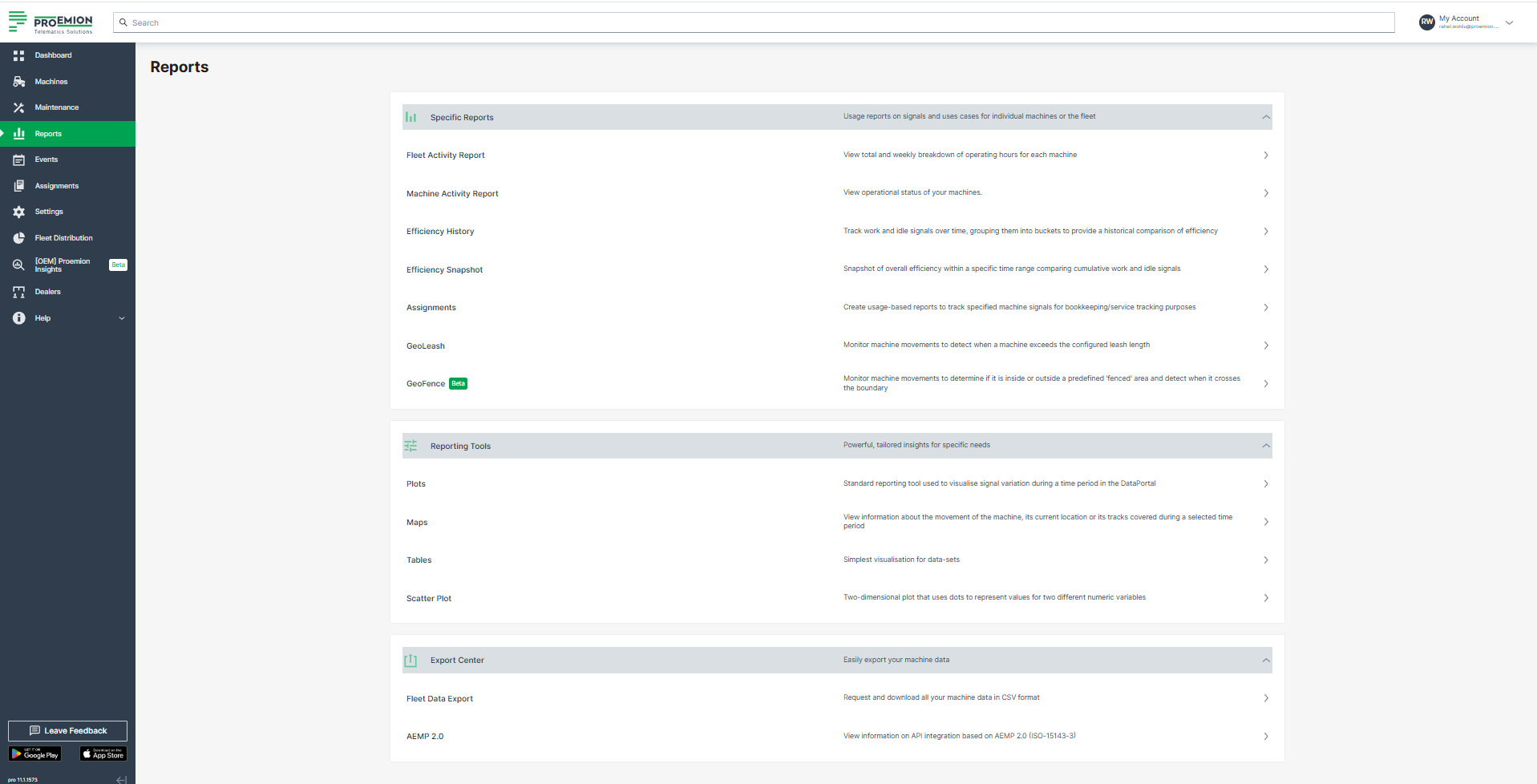
The DataPortal offers the following Specific Reports on the machines:
-
For machines' operating hours reports, use Fleet Activity Report and/or Machine Activtiy Report.
Warning
Both reports are only available if the following signals are provided:
value.common.engine.state,value.common.machine.hours.operation.totalandvalue.common.cu.sensors.ignition.state.
If the requirements are not fulfilled, the reports are hidden. For users with Model:Admin permissions they are visible, but disabled.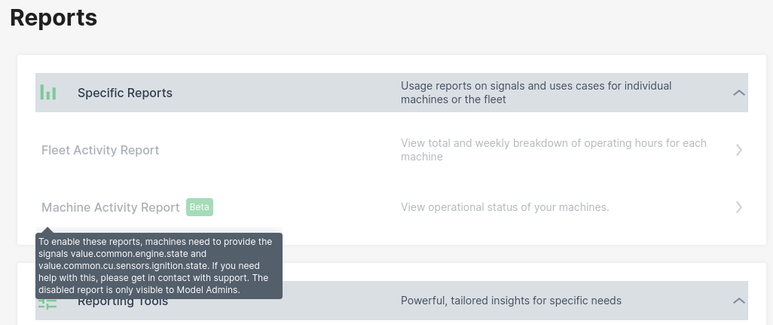
-
For tracking work- and idle signals over time, grouping them into buckets to provide a historical comparison of efficiency or to have a snapshot of overall efficiency within a specific time range comparing cumulative work and idle signals, use Machine Efficiency.
-
For usage-based reports to track specified machine signals for bookkeeping/service tracking purposes, use Assignments.
-
For tracking machine movements in predefined operational areas to detect breaches, use GeoLeash and GeoFence
For a manual configuration of reports, use the Reporting Tools like "Plots" that allow a CSV export of raw data, see Signal Plotting.
For a complete data export of all your machines, use Fleet Data Export provided in the Export Center.
Note
Note that due to rounding, the displayed values in tables and charts may differ slightly from the underlying data. Therefore, refer to the export of the raw data to CSV or Excel for exact figures of a report. For exporting data, read the chapters of the reports or refer to Table Options for general information.