GeoFence
The GeoFence report is used to view machine GeoFence breaches.
A GeoFence is based on GeoAreas created in the DataPortal to monitor machine movements. Thereby, you can determine if the machine is inside or outside a pre-defined GeoArea and detect when it crosses the boundary.
Users in child organizations can not see GeoFence events based on GeoAreas from parent business units, even if they can see the machine generating them. Also, the visibility of GeoFence events is restricted to users having Location:Location History Permission Set.
Users subscribed to GeoFence notifications will receive notifications for all machines and can see all GeoFences assigned to their business unit; but not from the parent and child business unit.
-
To view the GeoFences and the breaches, go to Reports > Specific Reports > GeoFence:
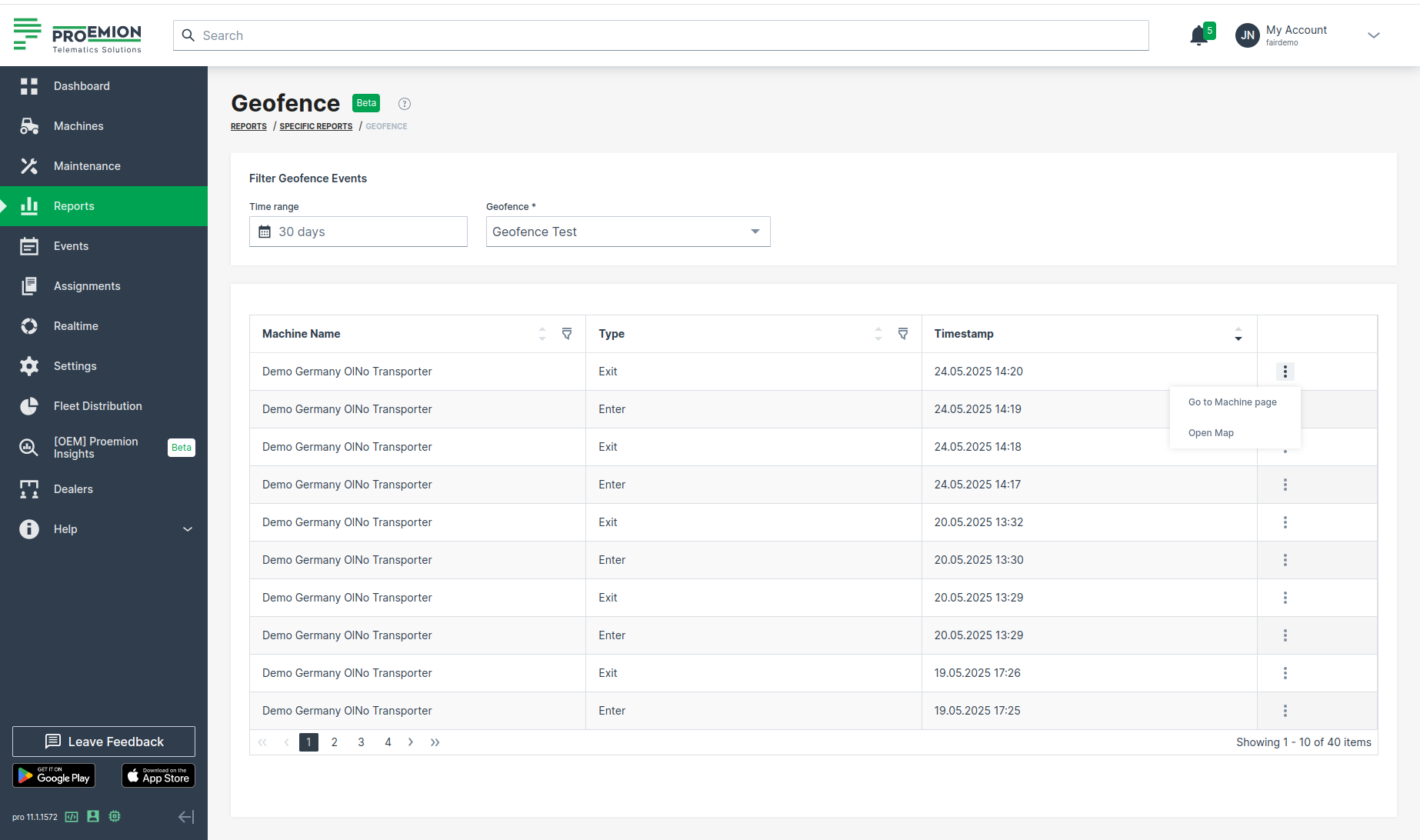
Figure 1: GeoFence report -
There, you can select the GeoFence and filter it by a time range.
The table lists all breach event types for the selected GeoFence. -
Select Open Map via the 3-dots.
There, you can view the different breach events that have different colors on the map.
Hovering over the circles will also show what is the type of the event, see the following example: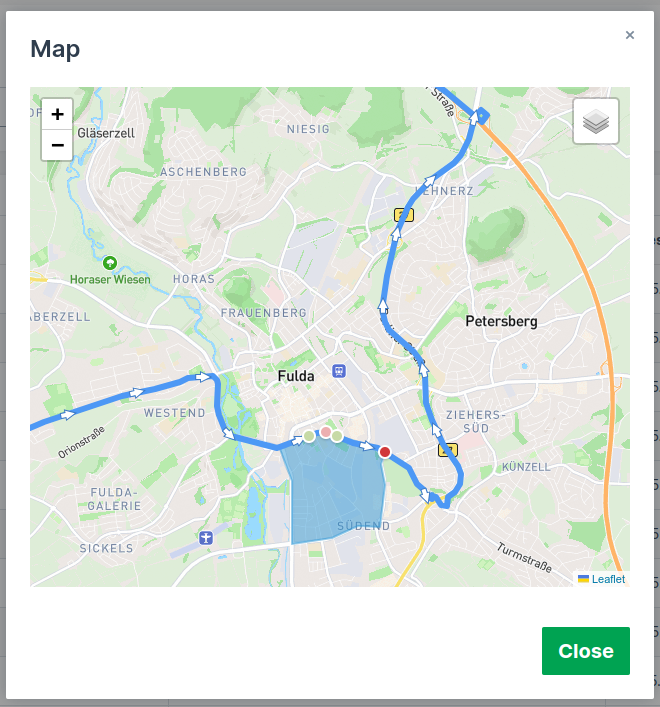
Figure 2: GeoFence in map - The selected breach event type is an "Exit" event.
- There have been 4 different breach events that are shown with different colors.
- The bright red one is the selected event, the pink one is another Exit event that happened 15 minutes before and 15 minutes after the selected event.
- The light green circles are "Enter" events that happened in the same time range. This gives you more context on the machine whereabouts during that short period of time.
- The track is a representation of the machine’s logged locations in the same 30-minute time period. Track directions are automatically enabled to show you where the machine was going.
One can view GeoFence breaches in other pages, too:
Requirements
- You must have Business Units activated, i.e. your organization must be in a business unit.
- You must create Geo Areas for the business unit and activate the option "Enable geofence" during creation.
- To read how to create and edit Geo Areas, go to Settings > Organization Structure > Geo Areas tab, see Geo Areas.
- You need Location:Location History Permission Set.
Subscription
Subscribe to GeoFence events of the business unit. Go to Subscribe to DataPortal Notifications.
Users subscribed to GeoFence events, get an email when a machine from the business unit enters or leaves a GeoFence.