GeoFence
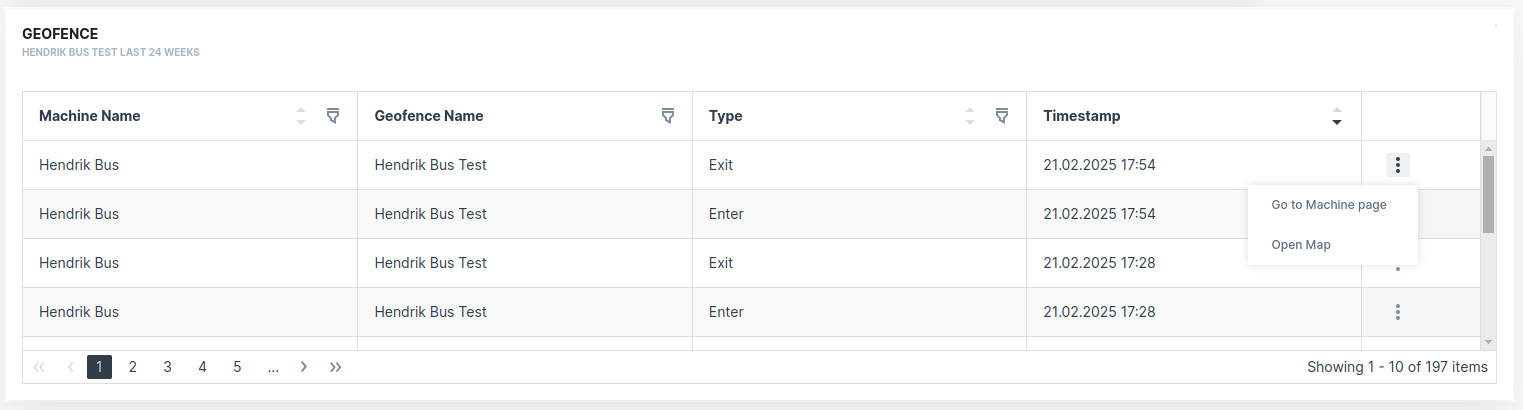
In the GeoFence widget, all GeoFences breaches for all or the selected machine are listed.
For every breach, the following is additionally displayed in the map:
-
the current location of the machine after the breach
-
the machine movement +-15 min from the event time
- direction of the track
GeoFence breaches can be also viewed at:
- GeoFence reports - lists all GeoFence breach events that can be viewed in a map.
- Events page - lists all GeoFence breach events.
Configuration
The widget is available both for the Organization Dashboard, listing all GeoFence breaches of all machines, and for the Model Dashboard, listing all GeoFence breaches of the selected machine.
It is highly recommended to adapt a Machine Page (Model Dashboard) centrally via the Machine Page Layout. If you need to configure the Machine Page for the selected machine only, proceed as follows:
-
In the selected Machine Page, select Manage Layout > Add widgets.
-
Select the desired widget. A preview will be shown.
-
Click Apply. This forwards you to the widget configuration dialog with the options described below.
If you need to adapt the Organization Dashboard, select the desired dashboard configuration and click Edit > Add  to open the widgets catalog, see also Add Widgets to the Organization Dashboard.
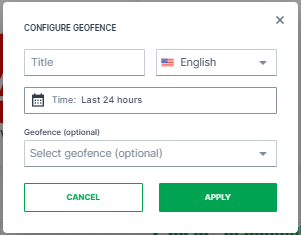
You can filter specific GeoFences (optional) within a specified time frame, e.g. last 24 hours.
To view all GeoFences, leave the field Geofence open and define only the time frame.
Note
Depending on the selected time frame, there might be no breaches at all for the machine or no breaches for the selected GeoFence. Consider selecting a broader time frame to view the breaches.
Sample
Once added, you will see the same table as in the GeoFence report with the additional GeoFence Name column: