Fleet Data Export
The Fleet Data Export provides a raw export of machine data as a ZIP file for a maximum of 20 machines for a selected time range.
The export can be used by Machine Owners to download the complete raw data logged within the selected time range of their machines.
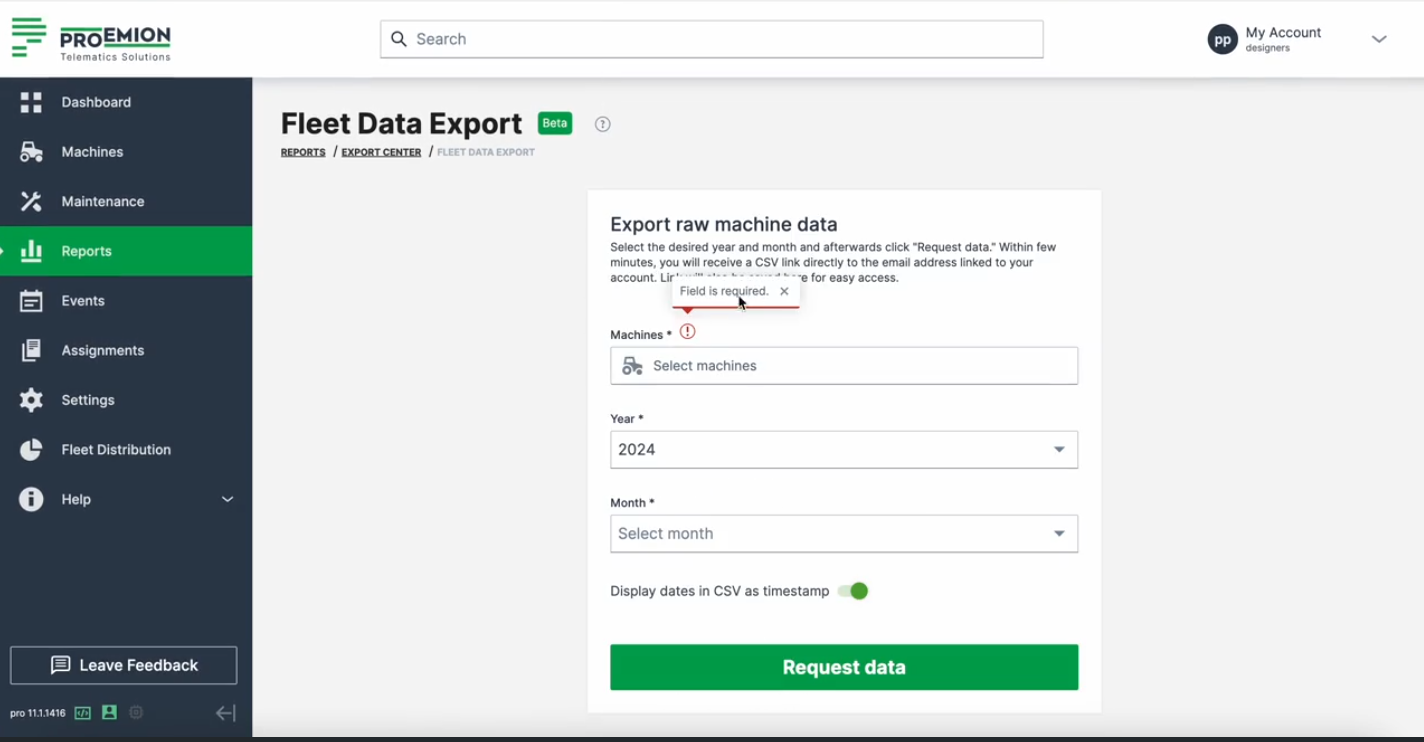
The menu is to be found at Reports > Export Center > Fleet Data Export.
Select Machines
You may select up to a maximum of 20 machines.
You can filter and search machines using the available selection options.
For details on machine selection, filtering, and selector behavior, see Machine Selector.
For the selected machines, you can then proceed to Request Data for their export.
Request Data
To request the export(s), select the desired year and month and select Request data. The start of the export will be indicated in a pop-up:
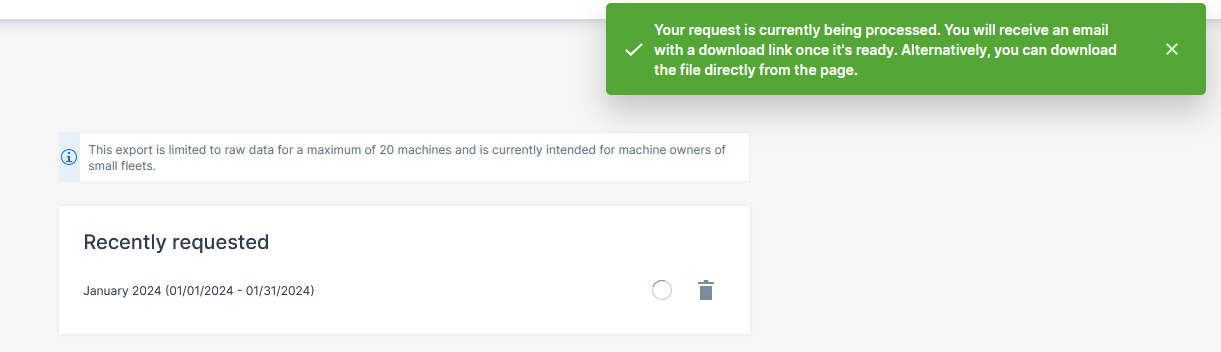
Each request/export is then added to the Recently requested section where you can directly download it as a ZIP file.
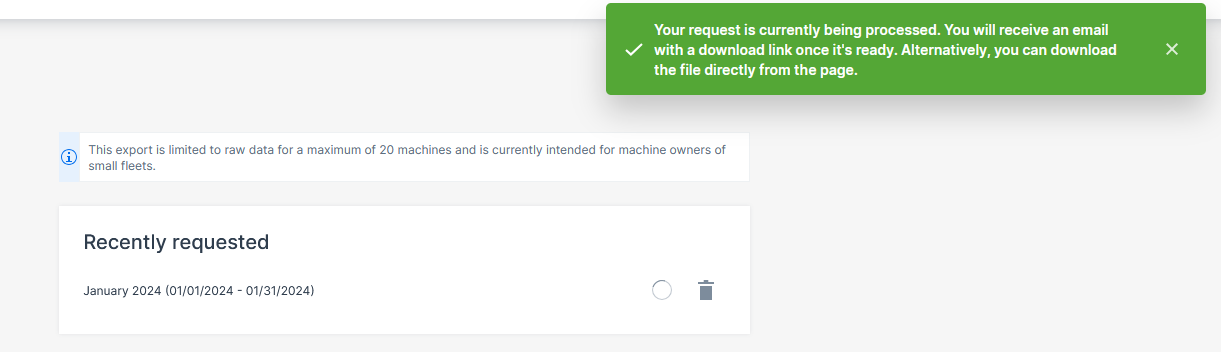
In the Recently Requested section, you can view the status of the export:
-
successful: ZIP file is downloadable.
-
pending: the pending icon shows the files are being generated.
-
failed: the X icon shows the export has failed.
The exports expire after 7 days.
Note
A maximum of 7 exports can be requested and maintained in the DataPortal. If additional reports are needed, it is always possible to delete the available ones in the Recently Requested section so the export possibility will be enabled again.
The links to the exports are also provided in an email sent to the user.
Exported Data
In the exported ZIP file, each machine is included in a dedicated .csv file. The Machines included in export section shows you which machines are considered for the export.
Each CSV file includes data in the following columns:
-
machine_id
-
machine_name
-
machine_serial
-
date_time Optional: To change the default timestamp to a Custom date formatting, remove the Display dates in CSV as timestamp option and select:
-
Excel dates (my timezone) - change to your time zone
-
Excel dates (select timezone) - change to another time zone by selecting the country/city
-
-
signal_key - standard and custom signals, for example "value.common.cu.sim.traffic.month" or "value.custom.machine.battery.stateofcharge"
-
value
Note
Note that the export is targeted to be machine-readable and might not be easily used in common programs like Excel as the files might become very big in size.