Fleet Activity Report
The Fleet Activity Report offers a report on the machine activity, specifically the machine's operating hours. The report shows a "heat map" per week for a maximum of 20 machines. The machine activity of the past 10 weeks can be checked.
You must have Reports permission to access the Fleet Activity Report.
The Fleet Activity Report is based on the value.common.machine.hours.operation.total signal. To view when a machine was ON/OFF, check Machine Activity Report.
Go to Reports > Specific Reports > Fleet Activity Report.
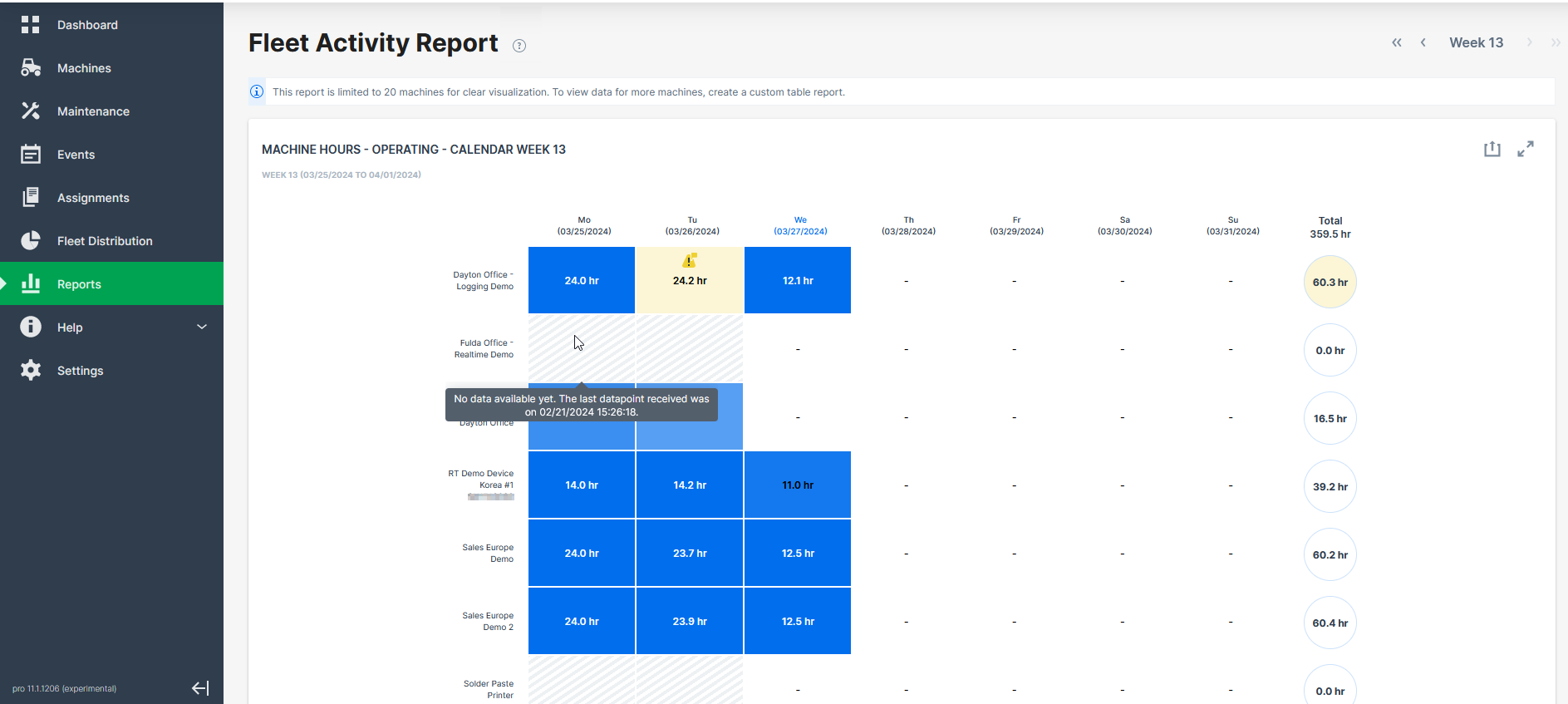
This layout gives a quick overview on what days of the week a machine was online or, when offline, to quickly analyze whether this happened by default or due to an error, for example:
-
The machine was online but sent invalid data on that day, i.e.
>24operating hours. A warning will be displayed. -
The machine was online but sent no data at all on that day. A warning will be displayed.
-
The machine was not online and sent no data on that day, i.e.
0operating hours. This is not an error and, therefore, no warning will be displayed, but the cell will be greyed out.
You can hover the single days/cells to view the last time online of the machine.
Export Fleet Activity Report
The report can be exported to an Excel file. The export can be used as a basis for invoicing.