Machine Activity Report
The Machine Activity Report offers a report on the operational status of a single machine.
This report provides Machine Owners information on the times in a day a machine was ON during a week.
You can switch between the weeks in the top-right corner.
Go to Reports > Specific Reports > Machine Activity Report and select the machine
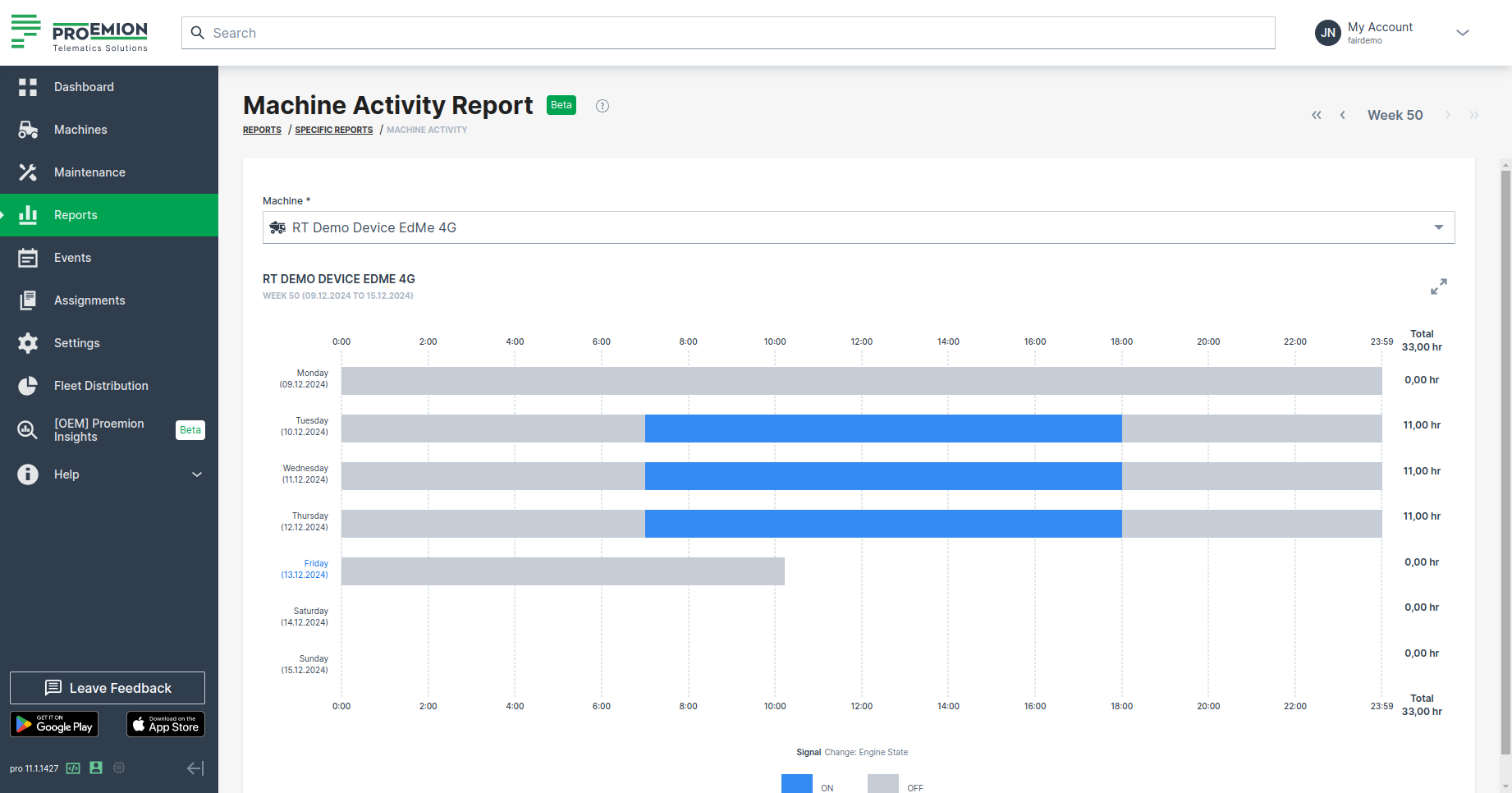
This layout gives a quick overview on what days of the week and for how long a machine was online or offline.
The Machine Activity Report is either based on the value.common.engine.state signal (0 is OFF) or value.common.cu.sensors.ignition.state - either one signal is used depending on the availability of the users.
To view the machines' operating hours, check Fleet Activity Report.
Showing Totals
The report shows daily and weekly total number of hours (hr).
The bars are color-coded:
-
Gray bars represent "OFF" time.
Hovering over a gray bar shows how long the machine was off. -
Blue bars represent "ON" time.
Hovering over a blue bar shows how long the machine was on.
When you hover over a bar, additional details like the start time, end time, and total duration, i.e. the exact duration the machine was either "ON" or "OFF", are displayed.
Daily Totals
For each day, the total daily "ON" time in hours is displayed to the right of the charts.
These daily totals are summed up at the end of the week to provide the total "on" time for that week, giving an overview of the machine's activity.
Weekly Totals
The weekly machine activity reports use bars to represent the machine's states and the duration spent in each state.
Weekly totals are displayed at the top- and bottom-right corners of the chart.