Personal User Settings
The Account Settings menu in the top right-hand corner of the DataPortal allows you to personalize your preferences:
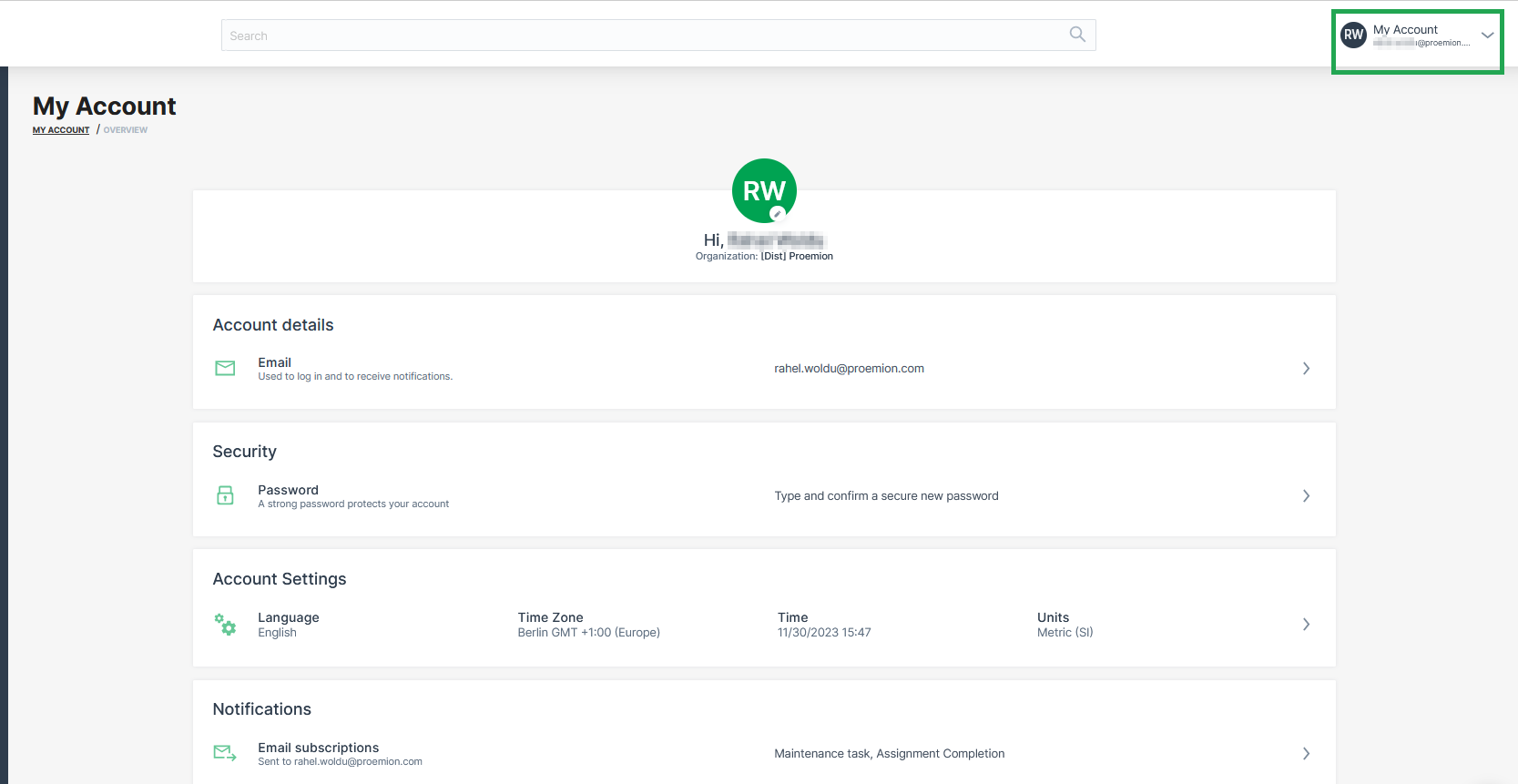
Selecting Account Overview you can view and change:
-
Name
-
Organization
-
Username
-
Email
-
Password
-
Language
-
Time Zone
-
Date & Time format
-
Notifications
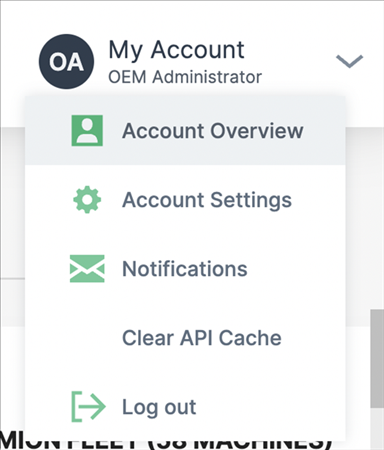
The permission sets panel displays your authorizations.
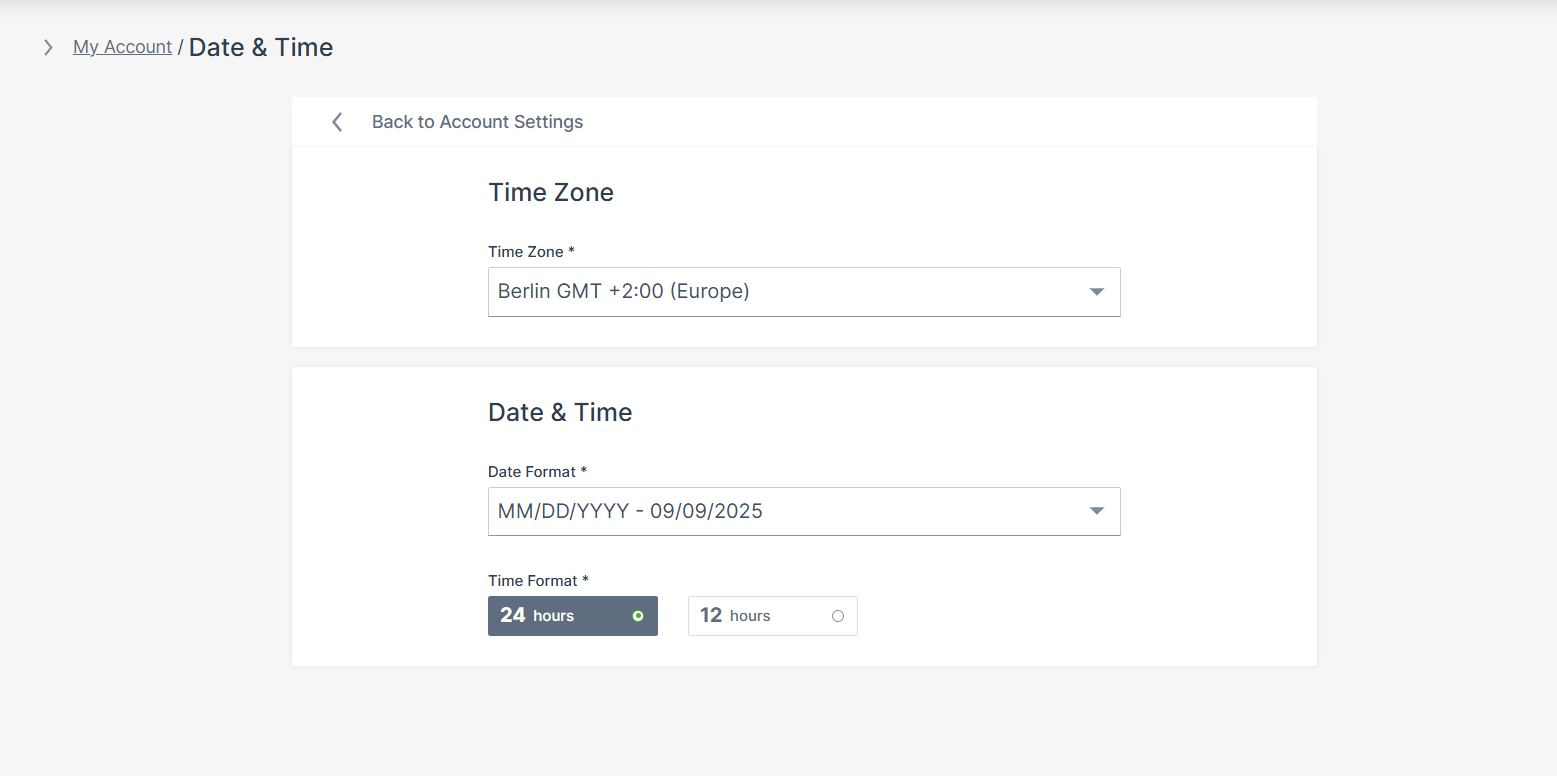
Date & Time
In the Account Settings menu, you can configure your time zone and date format preferences. All machine data displayed in the DataPortal uses the time zone set here. By default, this is your browser´s time zone.
Lab Mode
In the Account Settings menu, the Lab Mode enables functionalities in an experimental state activated via Feature Switch in the Organization Administration menu
The Feature Switches are available for features regarding Data Science, Sections and Languages.
You have the option to enable Lab Mode in your Personal User Settings.
Note
Note that the Lab Mode must be activated first for each feature, see Lab Mode Activation.
To change the status of Lab Mode for your user profile, proceed as follows:
-
Select the Account Settings in the top right-hand corner of the dashboard.
-
Select Lab mode.
-
Toggle the status ON or OFF.

Once Lab Mode is enabled for the profile, features activated are visible in the DataPortal interface.
Numbers Formatting
In the section numbers formatting, the unit system, the decimal separator and the thousand separator can be defined.
-
In My Account, click Account Settings.
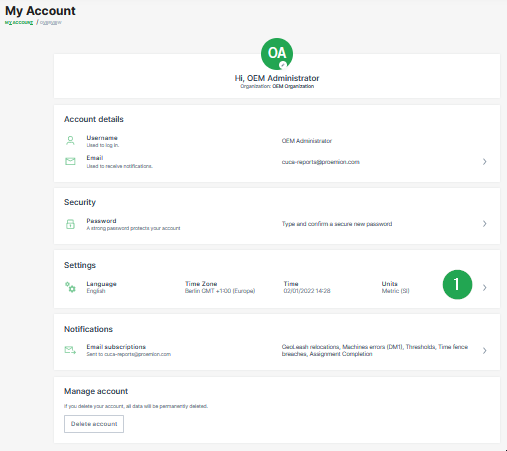
Figure 5: My Account Settings -
Click Numbers formatting.
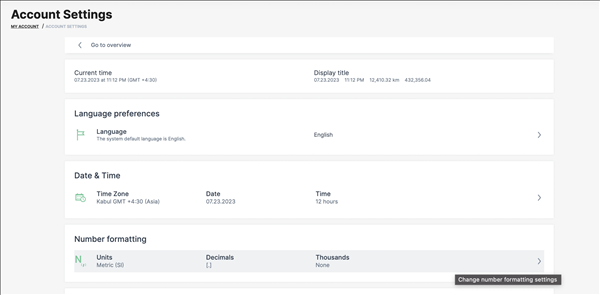
Figure 6: Select Numbers Formatting -
Select a unit system.
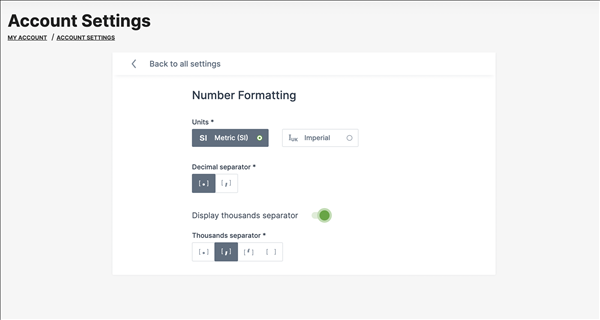
Figure 7: Definition Numbers Formatting -
Select the desired type of decimal separator.
-
Enable optional a thousand separator and select the desired type for it.